Archived Excel 2008 for Mac workaround: This example removes adjacent repeated weights from a date-ordered list. For current Excel, see how to remove duplicates and keep the right row and Microsoft's current duplicate-removal guidance.
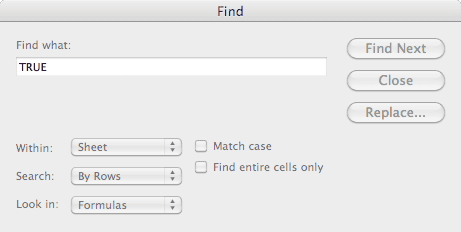
In my last post I used a formula and the Find box to remove duplicate values in Excel 2003. This follow-up uses a different way to select the rows: the Excel 2008 for Mac Find dialog shown below has no Find All button.

The Find All step from the Excel 2003 example isn't available in this historical Mac dialog. That limitation applies to the version shown here, not to current Excel for Mac.
How to Remove Duplicates in Excel 2008
I still need to remove repeated values in the Weight column on my spreadsheet. The following procedure keeps the first row in each consecutive run of equal weights in the original date order.
Sort the spreadsheet in ascending order by Date, keeping each date and its weight together.
In cell C2, enter =B2=B1. The result is TRUE when the Weight in B2 equals the cell immediately above it, and FALSE when they differ. Copying it down compares each row with the preceding row. In C2, B1 is the Weight header, so the first numeric weight returns FALSE.
This checks adjacent rows only. A Date sort preserves the chronological order but doesn't group all equal weights together. If a weight reappears after a different weight, this formula won't flag it. FALSE therefore does not mean the weight is unique in the whole list.
Copy the formula down by double clicking the fill handle.
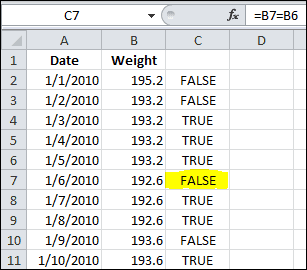
Select all formulas by making C2 the active cell, and using the keyboard shortcut Cmd+Shift+Down arrow.
Copy, and then choose Edit > Paste Special > Values. This fixes the TRUE/FALSE results before the next sort changes the row order.
Enter a label in cell C1. (I used ID)
Select cell C2 and click the Sort Ascending button on the toolbar. Keep the Date, Weight, and helper values together when sorting the records.

Scroll down column C and select the first TRUE value.
Use the keyboard combination Cmd+Shift+Down arrow to select the remaining TRUE values.
Right-click on one of the TRUE cells, and select Delete... from the popup menu.
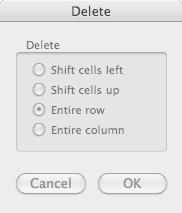
In the Delete dialog box, select Entire Row and then click OK.
Remove column C by right-clicking the header, and click Delete from the popup menu.
Check the remaining records and sort them by Date again if needed. You have kept the first row from each consecutive run of equal Weight values in the original chronological list. A weight that reappeared later after a different weight remains.