Back to articles
Features
2011-08-293 min read

How to Customize Default Workbook and Default Worksheet in Excel for Mac

I want to have my Excel for Mac open to a blank worksheet that is zoomed to 125% with grid lines hidden. It has taken me some time to figure this out, so I would like to share that. By setting up a template for all new sheets, you can save time and ensure consistency every time you work with Excel. In this article, you'll learn how to create a customized worksheet template in Excel for Mac and set it as the default for all new sheets. It's very simple, once you know the trick.

Why Customize the Default Workbook in Excel for Mac?

Customizing your default workbook template allows you to:

  1. Save Time: Avoid repetitive formatting tasks every time you create a new sheet.

  2. Maintain Consistency: Ensure your formatting preferences are applied consistently.

  3. Boost Productivity: Focus on data instead of format adjustments.

Step-by-Step Guide to Customizing Default Workbooks in Excel for Mac

Step 1: Create a Customized Workbook

  1. Open Excel for Mac and create a new workbook.

  2. Format the workbook according to your needs:

    • To hide gridlines: Go to the View tab, then uncheck the Gridlines option.

    • Set the zoom level to your desired value by going to the bottom-right corner and adjusting the zoom percentage.

    • Adjust the default font and font size by selecting cells and applying your preferred styles.

    • Add any headers, footers, or formatting you frequently use.

Step 2: Save the Workbook as a Template

  1. Go to File > Save As.

  2. In the Format dropdown menu, choose Excel Template (.xltx).

  3. Name the template Book.xltx.

Step 3: Save the Template in the Correct Folder

To ensure Excel uses your template for all new workbooks, save it in the Excel Startup folder:

  1. Navigate to the following path:
    ~/Library/Group Containers/UBF8T346G9.Office/User Content/Startup/Excel/

  2. If the Excel folder doesn’t exist, create it manually.

  3. Place your Book.xltx file in this folder.
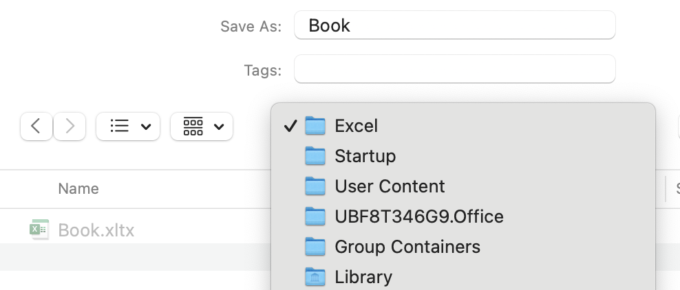
image 5 680x290

Tip: If you’re unfamiliar with accessing hidden folders on a Mac, check out this helpful guide on how to access the Library folder on Mac.

Now open Excel and you'll be looking at a worksheet that has your customized template in the default workbook.

Note: Keep in mind that I have set Excel preferences to have my workbooks open with just one worksheet. You may have to set the zoom for each sheet if you have several worksheets in the Workbook Template file.

Bonus Tip: Customize the Default Worksheet

You can also customize the default worksheet by creating a template named Sheet.xltx and saving it in the same Startupfolder. This ensures that every new sheet you add to a workbook will start with your preferred settings.

For more detailed instructions on customizing Excel templates, visit the official Microsoft Excel Support page.
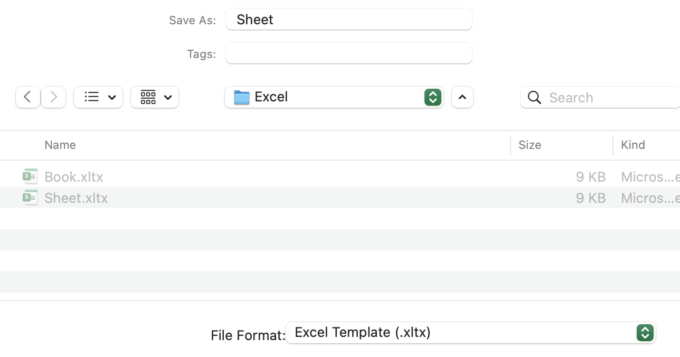
image 2 680x357

Final thoughts

Customizing your default workbook and worksheet templates in Excel for Mac is a simple yet effective way to streamline your work. By taking a few minutes to set up your preferences, you can enjoy a more efficient and personalized Excel experience.

Try these steps today and see how much time you save!

Enjoyed this guide?

Join our newsletter to get the latest Excel tips delivered to your inbox.

You can unsubscribe anytime. See our Privacy Policy.

Archived comments

Comments migrated from the previous version of the site. Adding new comments is disabled.

JosephOctober 20, 2011 at 02:30 PM
Thanks for the tip! It seems that this works for the first worksheet. But Excel (I am using Office 2011) opens subsequent sheets with the numbers Worksheet1, Worksheet2, etc and they go back to the default 100%. Any thoughts? Thanks in advance.
Gregoryexcelsemipro.comOctober 21, 2011 at 02:46 AM
I've changed my Excel Preferences > General to have only 1 sheet in a workbook. Then if I need another sheet, it will appear with at 125% zoom if I've added Sheet template file. Perhaps when you save your Template file you can try and make sure all of your sheets have 125% zoom. Otherwise, take my advice and go with a one sheet default.
JosephOctober 21, 2011 at 11:23 AM
Super, thanks! Any thoughts on what to do with Excel opening new books not just as Worksheet but as Worksheet1, Worksheet2, etc? It seems that the template only works for the first worksheet opened per session.
Gregoryexcelsemipro.comOctober 22, 2011 at 01:36 AM
Again, I've got my workbook default set to one worksheet. Adding a new worksheet will give me the 125% view if there is a Sheets template.
David Steinwww.djstein.comOctober 27, 2011 at 08:15 PM
Hmm - didn't work. I followed the instructions to a T, and am now looking at a /{my username}/Library/Application Support/Microsoft/Office/User Templates/My Templates folder containing two items: "Workbook" and "Sheet" (with .xltx extensions removed). In fact, if I open either of these files, I'm presented with a new Excel sheet with a 125% zoom level. However, when I start Excel or ask to create a new worksheet, I'm presented with a sheet having the default 100% zoom level.
Gregoryexcelsemipro.comOctober 28, 2011 at 03:19 AM
If you've set the General Preferences to open all files at startup in the same directory, then I'm at a loss as to why it doesn't work.
Sigve Berge HoflandNovember 28, 2011 at 02:31 PM
The names for workbooks and sheets are localized, and so are the filenames you have to use for templates that set the defaults, so “Workbook” and “Sheet” only work if your Office is in English. You have to use whichever name is the default for new workbooks or sheets in your language.
Gregoryexcelsemipro.comNovember 28, 2011 at 02:39 PM
Good to know, Sigve. I didn't think about localization when I wrote the post. Thanks for the tip.
Darryl KuhnNovember 23, 2011 at 03:38 PM
This tutorial was very clear and helpful - worked like a charm. Thanks!!
Gregoryexcelsemipro.comNovember 23, 2011 at 06:57 PM
Good to know!
Sigve Berge HoflandNovember 28, 2011 at 03:24 PM
Choosing the folder /Users/{user}/Library/Application Support/Microsoft/Office/{User Templates}/{My Templates} as the folder where files are opened at startup might not be ideal, since this is also the default folder for Normal template in Word, which cannot be opened by Excel. There exists a specific Startup-folder which might be a more suitable choice. The Startup folder is the following on my setup (where {Startup} is a language dependent variable): /Applications/Microsoft Office 2011/Office/{Startup}/Excel/
Gregoryexcelsemipro.comNovember 28, 2011 at 06:18 PM
The Startup folder will only work when you open Excel. Not good when you create a new workbook or you create a new worksheet. These template files won't affect the Normal Word template.
Sigve Berge HoflandNovember 28, 2011 at 06:31 PM
On my computer placing the Workbook and Sheet template files in the Startup folder works fine for new workbooks and sheets also when Excel already is open, when this folder is chosen in “Preferences > General > At startup, open all files in”. If I choose the My Templates folder there, Excel issues an error message that says that Normal.dotm cannot be opened because it has the wrong format. It doesn't affect the file, but it is an error message that can be avoided if the “At startup, open all files in” folder only contains Excel files.
Gregoryexcelsemipro.comNovember 28, 2011 at 08:20 PM
Again, good to know. My setup works for me, but, as you've stated, not for everyone. Thanks for the tip.
BarryDecember 15, 2011 at 10:23 PM
Thanks for this! Any ideas if this will work for changing the defaults in Charts? I tried doing the same thing as you suggested for Sheet and saving it as Chart and it doesn't work. I want to make new Charts appear as a new tab rather than an object in the sheet. Also getting rid of the default shading would be good. Thanks
Gregoryexcelsemipro.comDecember 20, 2011 at 03:56 AM
Thanks for bringing this up, it completely slipped my mind. I haven't investigated the default Chart and how to change it in Excel. If I get some time during the Christmas break I'll take a look.
Barry FormanDecember 29, 2011 at 06:54 PM
this worked great to reset my preferred default workbook. How do I limit the number of options in the Style window. It list about three dozen and I only use about 6!
Gregoryexcelsemipro.comDecember 31, 2011 at 12:08 AM
@Barry, I'm not sure how you would go about limiting the number of Styles available in Excel. Sorry!
Pat MurphyJanuary 30, 2012 at 11:52 AM
Very Useful post. I wanted to change page setup to automatically include header & footer with Sheet name, date, time, page no etc. Worked a treat using the Startup folder. Many thanks.
ArthurMarch 2, 2012 at 08:10 PM
I had trouble with this for a while, but realized, you have to get rid of the extension by right clicking on the file, clicking "get info", opening the dropdown "Name & Extension", then editing "Workbook.xltx" to "Workbook". (for some reason, the extension is not shown in just the finder window, so it is tempting to skip the deleting step until you realize it's still secretly hidden in there). Also quitting excel completely every now and then between steps felt like a good safety move for me. P.S. THANK YOU! I have been looking for this for the past 6 months!! I also added the comma with no decimals to all cells. I have no idea why anyone would want to see a really long # with no commas when $, decimals, %, etc formatting can always be added later.
Gregoryexcelsemipro.comMarch 3, 2012 at 02:26 AM
You can see the file extension in Finder if you do the following: Open Finder, chooser Finder > Preferences and select the Advanced tab (gear icon) and check the box to Show All Filename Extensions. I should probably add the comma with no decimals too, as this is something I use all the time and Excel does this so poorly.
ArthurMarch 3, 2012 at 11:42 PM
Thank you! Glad my comma thing helps, I really think it should be the standard. P.S. not sure where to submit this but could you also help with another annoying issue? https://answers.yahoo.com/question/index?qid=20120303151034AAqvlqt
Gregoryexcelsemipro.comMarch 4, 2012 at 01:47 AM
The Quick Search Bar above the Ribbon is there to stay in Excel 2011. It can't be removed by customizing the menu or toolbars. Best to embrace it. You can submit questions to me on the Contact page. Gregory
Mike MinhApril 10, 2012 at 05:32 PM
Thanks, this works nicely, but it is absolutely critical that the file name extension is really removed, not just hidden as in "Hide extension". For best results do therefore check with CMD-I what the filename really is !!
Gregoryexcelsemipro.comApril 10, 2012 at 11:03 PM
@Mike, Excel can tell if the file has an extension, regardless if it's shown or not. I got this trick some time ago sometime ago, and I don't remember all the details, but I'm pretty sure the file extension has to be delete before Excel will use it as the default workbook/sheet. You can always try it without removing the file extension and prove me wrong. If so, let me know and I'll update my post.
Mike MinhApril 11, 2012 at 09:58 AM
This is why I wrote this, to emphasise the 'hidden extension' problem. Removing the extension just in the Finder did only hide it (on my Mac, SnowLeo). Only when I went via CMD-I the truth became visible and I could really remove it.
Gregoryexcelsemipro.comApril 11, 2012 at 08:56 PM
@Mike, I'm not having the same problem with removing the file extension that you are experiencing. When I wrote the post I was using Snow Leopard and now I'm using Lion. Regardless, when I remove an Excel file extension in Finder I get a warning that asks me, "Are you sure you want to remove the extension ".xlsx"? If I select Remove the extension is removed and that is confirmed by using CMD+I and looking in the file inspector window. I just verified this in Lion and am pretty sure the same thing happened in Snow Leopard when I created the original files. But you bring up a great way to remove a file extension, and that is to do so in the file inspector - using the keyboard shortcut CMD+I to launch it when having a file select in Finder. This is and easier way to remove the file extension. I tried this out and it still gives me the warning about removing the file extension, did you get a similar warning?
drsApril 22, 2012 at 03:04 PM
Thanks so much for this. I did get an error message every time I opened Excel that said the normal.dot file is not valid and when I clicked OK, it opened correctly with the Workbook I had saved without the extension, as you recommended. So I went to the Finder and created an Excel Template folder in My Templates, put the Workbook template I had created in there, and then re-opened Excel and directed it to the new folder. Worked like a charm!
BradSeptember 28, 2012 at 07:15 PM
Similar to David Stein's post - this does not work for me. I also followed the directions to a "T". One thing - when I remove the .xltx extension, it gives no warning of impending doom. If I double-click on the "workbook" file - it opens a new workbook with the desired new defaults. But if I just open Excel into a new workbook, it's the same old 100% original default. What am I missing???
BradSeptember 28, 2012 at 07:34 PM
One more thought and a question. So I did same the workbook into the Startup folder. That seems to work. However - when I open an existing excel file (like if somebody emails me their xls file) - it still opens in ridiculously small 100% view (and the window is also tiny). What a pain to maximize or expand the window AND change the view to 150%. Any remedy? I'm loving the Mac - but I recall being able to set a default view for new AND exiting spreadsheets with Office 2010 on Windows. Bummer.
Gregoryexcelsemipro.comOctober 1, 2012 at 04:00 PM
Existing file will open at 100% until you change it to 125% or 150% and save the file. Then they open to the magnified screen. This seems to be Excel's default. The column width is based upon the default font size. So maybe choosing a default font, in the default workbook, that is larger may fix this problem. I haven't tried doing this as I'm not sure about dealing with another font.
MegNovember 2, 2012 at 07:17 PM
Thank you so much - I have been searching for the solution. The default alignment of "bottom" makes me insane and now it's finally fixed! Why the heck does MS make it this crazily difficult to set defaults? How about a nice little checkbox on the Style format "save as default". Geesh.
Gregoryexcelsemipro.comNovember 2, 2012 at 08:53 PM
I don't know why they make it so hard. I just wish Windows and Mac teams a t Microsoft would compare notes before they published software.
DanMay 7, 2013 at 05:37 PM
Oh thank you, this has been bugging me forever. Worked perfectly.
Steve Williamswww.swilliamsgroup.comJune 9, 2013 at 07:14 PM
Hello Greg, Thanks for your solution, it works perfectly in my case. -steve w.