If your arrow keys scroll the Excel worksheet while the selected cell stays put, check Scroll Lock first. If the arrows move through text, a menu, or a chart instead, finish the edit or return focus to a worksheet cell. The fix depends on what the keys are doing.
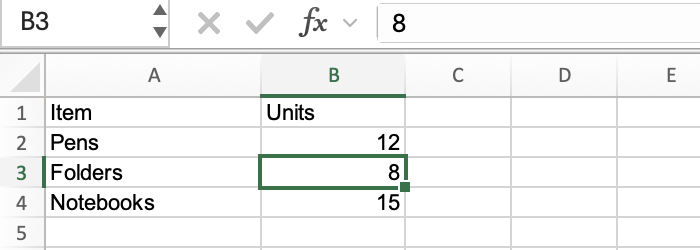
Start by clicking one ordinary cell near the top of the sheet, such as B2, then pressing Down once without holding another key. Look at the cell border and the Name Box, the address field to the left of the formula bar. Normal cell navigation moves the selection to B3.
Match the symptom to the next check
| What happens when you press an arrow | Likely cause | What to check |
|---|---|---|
| The sheet scrolls, but the active-cell address stays the same | Scroll Lock | Check its status and turn it off if enabled. |
| A text cursor moves inside a cell or the formula bar | Cell editing | Keep the edit with Enter or cancel it with Esc. |
| A menu, chart, or task pane responds | Keyboard focus is outside the grid | Close the menu or dialog, then click one worksheet cell. |
| The browser page responds | Focus may be outside the worksheet | Click a cell in Excel for the web and repeat the test. |
| Nothing responds, including in another application | Keyboard or connection problem | Test another key and, if available, another keyboard. |
The worksheet can also scroll normally when you move beyond the visible cells. That's why the active-cell address is useful: a changing address means the selection is moving, even if the screen moves too.
Turn off Scroll Lock in Excel for Windows
Look for Scroll Lock on Excel's status bar at the bottom of the window. If you can't see it, right-click the status bar and check whether the Scroll Lock indicator is enabled. An absent label alone doesn't establish that the feature is off.
If Scroll Lock is on, press the keyboard's Scroll Lock or ScrLk key once. Then click B2 and try Down again.
No Scroll Lock key? Use the On-Screen Keyboard
On Windows 11:
- Open Start > Settings > Accessibility > Keyboard.
- Turn on On-Screen Keyboard.
- Click ScrLk to switch Scroll Lock off if it's on.
- Return to Excel and repeat the B2-to-B3 test.
On Windows 10, the settings path is Start > Settings > Ease of Access > Keyboard. These are Microsoft's documented Windows instructions for turning off Scroll Lock.
Finish the cell edit before trying to navigate
Suppose A2 contains Pens. Double-clicking A2 puts you inside that text. A left or right arrow can then move the text cursor instead of selecting another cell.
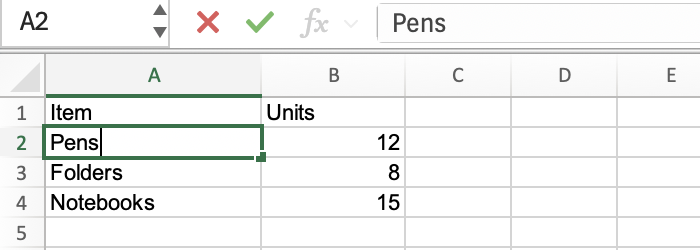
Choose what you want to do with the current edit:
- Press Enter (Return on a Mac) to keep it.
- Press Esc to cancel the uncommitted edit. Any changes you just typed in that edit will be discarded.
Now click B2 once and press Down. Clicking once selects a cell; double-clicking can put you straight back into editing it. Microsoft's Excel keyboard shortcut reference documents the separate commands for editing and moving between cells.
Return keyboard focus to the worksheet
A selected chart, an open menu, or a dialog can receive your keystrokes while the worksheet remains visible behind it. Before changing Excel settings, look for an open dialog, a highlighted ribbon command, or selection handles around an object.
Close a menu with Esc, or finish or cancel a dialog using its visible buttons. If you have changed a setting in the dialog, decide whether to keep that change before closing it. Then click an ordinary worksheet cell and retry the arrow.
Once cell movement works, use the worksheet navigation guide for moving between sheets. Changing sheets and moving the active cell are separate tasks.
Check the platform and keyboard
On a Mac, start with the same cell-edit and focus checks. Don't assume the Windows On-Screen Keyboard instructions apply. Microsoft's shortcut reference has a macOS section and notes that Scroll Lock key combinations depend on the keyboard; use guidance for your actual keyboard rather than trying a universal Fn shortcut. For the separate task of returning to the start of a sheet, see Control+Home equivalents in Excel for Mac.
In Excel for the web, close any browser menu and click a worksheet cell before testing. If the problem continues, try the same B2-to-B3 check in a new blank workbook. That comparison helps establish whether the behavior follows the workbook or the browser session.
With any keyboard, test a bare arrow key first. Release Shift, Ctrl, Option, Command, and Fn rather than adding key combinations to the test. If an arrow also fails to move the cursor in a text editor, check the keyboard's connection and layout. A second keyboard, when available, gives you a useful comparison.
Retest with a small sheet
For a controlled check, enter these values on a blank sheet named Navigation:
| Cell | Value |
|---|---|
| A1 | Item |
| B1 | Units |
| A2 | Pens |
| B2 | 12 |
| A3 | Folders |
| B3 | 8 |
| A4 | Notebooks |
| B4 | 15 |
Click B2, press Down, and check for B3 in the Name Box. Press Up and check for B2. If this works on the blank sheet but fails in your original workbook, return to that workbook and compare its edit state and selected objects. If it fails in both, continue with the keyboard and platform checks above.