To check a product code's format in Excel, use REGEXTEST with a pattern that covers the whole cell. For a code made of two uppercase letters, a hyphen, and four digits, enter =REGEXTEST(A5,"\A[A-Z]{2}-[0-9]{4}\z"). It returns TRUE for AB-0012 and FALSE for extra text, missing digits, or a trailing space.
The beginning and ending markers matter. Without them, Excel can find a perfectly good-looking code inside a value that doesn't meet your rule.
Download the product-code practice workbook to compare both checks and filter the sample rows by their Valid or Check status.
Microsoft lists REGEXTEST for Excel for Microsoft 365 and Excel for Microsoft 365 for Mac. The Microsoft REGEXTEST reference documents its TRUE/FALSE result, case sensitivity, and PCRE2 pattern syntax.
Write down the rule before checking the list
For this example, each code must contain exactly:
- Two uppercase ASCII letters, A through Z.
- One ordinary hyphen,
-. - Four ASCII digits, 0 through 9.
No spaces, line breaks, or other characters are allowed. Leading zeros in the digit part are fine: AB-0012 is a code, not an amount to convert.
Put Product code in A4 and start your sample list in A5:
| Cell | Value | Expected result under this rule |
|---|---|---|
| A5 | AB-0012 | Valid |
| A6 | X AB-0012 old | Check: extra text |
| A7 | ab-0012 | Check: lowercase letters |
| A8 | AB-012 | Check: only three digits |
| A9 | AB-00012 | Check: five digits |
| A10 | AB_0012 | Check: underscore instead of hyphen |
| A11 | AB-0012 followed by a space | Check: trailing space |
For A11, enter the space after the final digit; don't type the words “followed by a space.” It's an ordinary data-entry mistake, and it's easy to miss when you're scanning a column.
If you only need to find a word or phrase anywhere in a description, use the IF cell contains text examples. A format check asks a different question: does the entire value follow the rule?
Compare finding a fragment with checking the whole cell
Put Contains pattern in B4. In B6, enter:
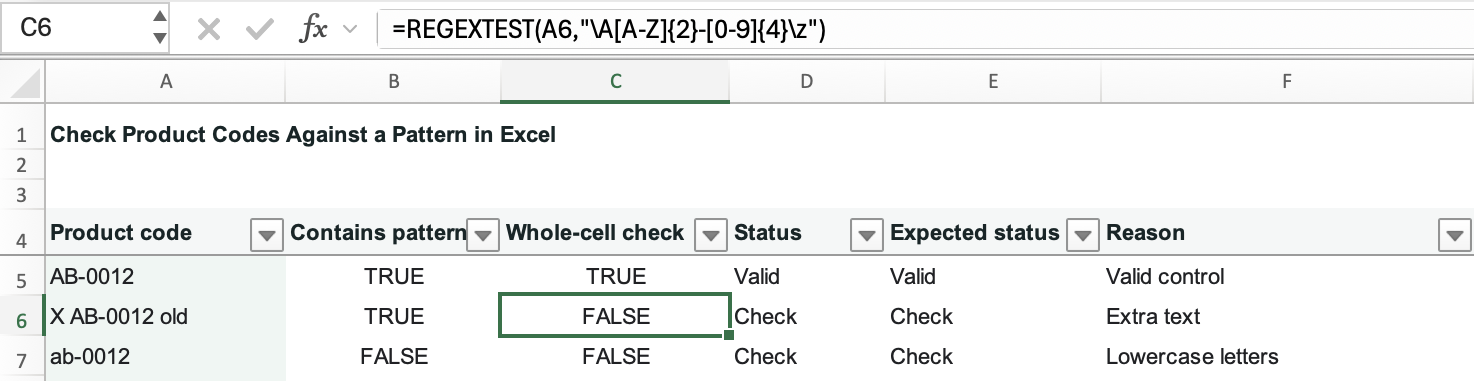
=REGEXTEST(A6,"[A-Z]{2}-[0-9]{4}")The result is TRUE, even though A6 contains X AB-0012 old. The pattern finds AB-0012 and doesn't require the surrounding text to disappear.
Put Whole-cell check in C4. In C6, enter:
=REGEXTEST(A6,"\A[A-Z]{2}-[0-9]{4}\z")This returns FALSE, giving you TRUE in B6 and FALSE in C6 for the same noisy value. Copy B6:C6 up to B5:C5, then fill B6:C6 down through B11:C11. Excel adjusts each row's reference as you copy. Both checks in row 5 return TRUE for the clean code AB-0012.
Read the whole-cell pattern from left to right:
| Part | Requirement |
|---|---|
\A | Start at the absolute beginning of the cell text |
[A-Z]{2} | Match exactly two uppercase ASCII letters |
- | Match the literal hyphen |
[0-9]{4} | Match exactly four ASCII digits |
\z | Finish at the absolute end of the cell text |
The PCRE2 documentation distinguishes absolute end marker \z from end markers that may also match before a final newline. Here we want a cell ending in a line break to fail too. Use a lowercase z and keep the backslashes in the Excel formula.
This rule deliberately accepts only A–Z and 0–9. Accented letters, other writing systems, a longer dash, and full-width digits don't satisfy it. Change the rule only if those characters are valid in your product system.
Decide whether lowercase is allowed
The default match is case-sensitive. If your actual product rules allow lowercase as well, test A7 with:
=REGEXTEST(A7,"\A[A-Z]{2}-[0-9]{4}\z",1)The final 1 switches to a case-insensitive match, so ab-0012 passes this version. It doesn't change the source code to uppercase. Keep the default formula for the stricter rule used in our main list.
Give each row a Valid or Check label
TRUE and FALSE are useful while you build the formula. For a list you need to review, a text label can make the next action clearer.
Put Status in D4, enter this in D5, and fill it down your list:
=IF(A5="","Check",IF(REGEXTEST(A5,"\A[A-Z]{2}-[0-9]{4}\z"),"Valid","Check"))The outer IF sends an empty cell to Check. Otherwise, the inner IF returns Valid only when the whole-cell pattern matches. This means a missing code doesn't disappear from the review list.
Add a few more checks before using the formula on an import: a blank cell, a leading space, an extra letter after the code, and a final line break should all receive Check. A clean CD-0042 should receive Valid. Keep these examples when you change the pattern later; they're a quick way to catch an accidentally relaxed rule.
To review the flagged records:
- Select the list, including its headers and status column.
- Choose Data > Filter.
- Open the Status filter and select only Check.
- Compare each visible code with its source before correcting it.
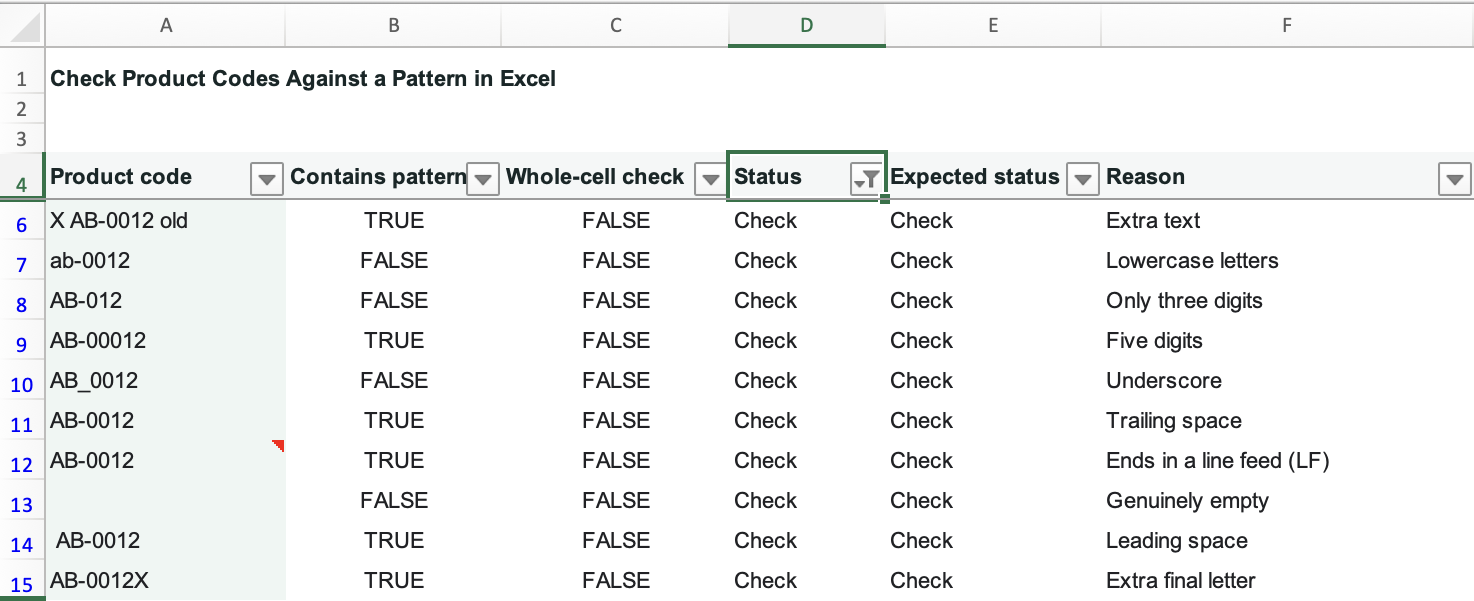
The formula leaves the original code intact. That helps you distinguish an accidental space from a genuinely incomplete identifier. After a correction, reapply the filter to review the remaining Check rows.
A valid format doesn't prove the product exists
ZZ-9999 passes this pattern whether or not your catalog contains that product. The formula checks the shape of the code; a catalog lookup is a separate check.
For a case-sensitive comparison with one known text value, use EXACT. If the code is embedded in a longer record and you need to pull it out first, follow extract numbers and codes from text. Keep the resulting code and its review status together as you continue your data cleanup.