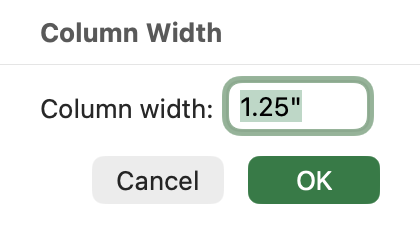
Excel's column width unit depends on the view and platform. In Windows Normal view, width uses a character-based unit. For inches or centimeters, switch to Page Layout and choose your ruler units. The Mac example below shows how the same column's width is displayed in Normal and Page Layout views.
If you just want a long description to fit, AutoFit is usually the quickest answer: double-click the right edge of its column heading. You don't need to convert characters into inches first.
The original version of this article grew out of a surprise: Excel 2008 for Mac showed measurements differently from the Windows versions I was used to. The useful lesson remains—check what Excel is measuring before comparing two width numbers. The steps below cover current desktop Excel rather than those older menus.
What unit does Excel use for column width?
Choose the method by what you're trying to do:
| What you need | View or method | Measurement to check |
|---|---|---|
| Make a description fit | AutoFit on Windows or Mac | Excel chooses the width from the contents |
| Enter a character-based width on Windows | Normal view, Column Width | Character-based units |
| Size a column in inches or centimeters on Windows | Page Layout, Column Width | The selected ruler unit |
| Use physical measurements on Mac | Page Layout and Excel's ruler-unit preference | The ruler and the unit shown in the width control |
A character-based width describes how much of the workbook's standard font fits across the cell. It isn't a count of characters per inch. Different letters also take up different amounts of space, so a column set to 12 doesn't promise to show every possible 12-letter word.
Keep the two questions separate: How much room does this text need? and How wide should this column be on the page? AutoFit answers the first. Page Layout helps with the second.
Check the width of a column
Suppose you have this small list in A1:C4:
| Product | Description | Amount |
|---|---|---|
| Notebook | A5 ruled notebook | 12 |
| Pen | Blue ink | 48 |
| Folder | Expanding archive folder with tabs | 24 |
Column B needs more room than column C. Select its B heading and open the width control:
- Windows: Home > Cells > Format > Column Width.
- Mac: Format > Column > Width from the menu bar.
Read the existing number and any unit shown beside it. Choose Cancel if you're only inspecting the width. When you drag the boundary between B and C, Excel can also show a ScreenTip with the width; keep the unit label with the number when you record it.
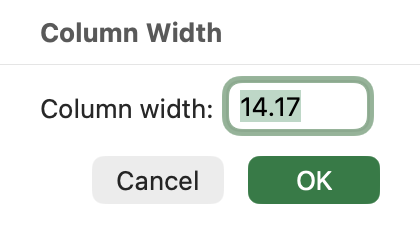
A pixel reading is another way of describing the displayed width. It doesn't make the character-based number an inch measurement, and it isn't a reason to apply a fixed conversion factor to every workbook.
Set a column width in inches or centimeters
Windows
Use these steps when you need a physical measurement:
- Choose View > Page Layout.
- Open File > Options > Advanced.
- Under Display, choose Inches or Centimeters from Ruler Units, then select OK.
- Select column B and open Home > Cells > Format > Column Width.
- Enter your required width in the selected unit and confirm.
Microsoft documents the distinction between Page Layout measurements and Normal-view column widths. Changing the ruler preference selects the unit; it doesn't multiply the values in your cells.
Mac
The Mac ruler setting lives in Excel's own preferences:
- Open Excel > Preferences > View.
- Choose the unit you want under Ruler units.
- Use View > Page Layout. If the rulers aren't visible, turn on Ruler from the View menu.
- Select column B, then open Format > Column > Width. Check the displayed unit before entering the measurement.
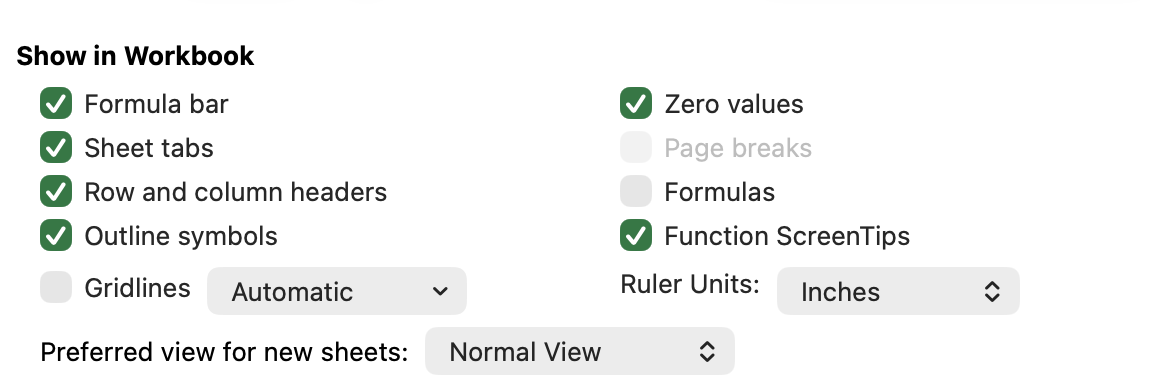
With that setting, the same column B shows 1.25 inches in the Page Layout width dialog. These are two readings of this particular column, not a conversion factor to apply to every workbook.
You can also adjust the column boundary while watching the ruler and width ScreenTip. Microsoft's Mac measurement-unit guide describes the ruler preference, and its Mac column-width instructions cover the Width command and dragging the separator.
These are desktop instructions. A browser window doesn't have the Windows Options dialog or Mac Preferences menu.
Set a width in characters or use AutoFit
On Windows, return to View > Normal, select B, and open Column Width. Enter a character-based width when you want a consistent layout across several columns. Check the description afterward; a tidy width isn't much help if the useful part of the label is hidden.
For the example above, try AutoFit instead:
- Find the boundary between the B and C column headings.
- Double-click that boundary.
- Check that the long Folder description is visible.
The same separator method is documented for Windows and Mac. It changes the width of column B; it doesn't rewrite the description or the amounts beside it.
If the text fits but sits too close to the neighboring numbers, you may want an indent inside the cell instead. Widening a column moves its outer edge. An indent creates space between the content and that edge.
What is Excel's default column width?
Microsoft lists 8.43 as the default character-based column width in its Windows documentation. Treat that as a starting setting, not a universal physical dimension. A workbook or template can have a different default, and the standard font matters.
On Windows, use Home > Cells > Format > Default Width to inspect or change the worksheet's default. To give particular columns an explicit width, select those columns and use Column Width instead.
Apply the same width to several columns
Select the column headings together, then change the width once. For example, dragging across A through C selects all three columns; opening the Width dialog applies your entry to the selection.
That is useful when the columns have similar contents. In our example, though, giving Product, Description, and Amount the same width leaves unnecessary space around the amounts or too little room for the descriptions. A consistent layout doesn't have to mean identical dimensions.
Avoid copying and pasting whole columns just to copy their appearance—you may replace entries in the destination. Select the columns and set their width directly when that is the only change you need.
Column dimensions are also separate from table styling. If you're cleaning up an existing Excel Table, removing its table formatting is a different operation from resizing its columns.
Why the same number can look different
Before comparing two workbooks, check their view, ruler units, and standard font. A width number without its unit is an incomplete measurement.
This matters particularly with old Mac screenshots and older workbooks. The original article compared Excel 2008 for Mac with Windows releases of that period. Those observations don't provide a universal conversion from 8.43 characters to inches in today's files.
If the goal is to reproduce a printed layout, work with the required physical measurement in Page Layout. If the goal is readable labels on screen, use the actual labels to judge the result. A conversion table is a poor substitute for either check.
Check the printed result
Open File > Print and inspect the preview before printing a form or report with carefully sized columns. Check the paper size, orientation, margins, and scaling.
A setting that fits the entire sheet onto one page can shrink the output. The width you entered for a column therefore isn't a guarantee of the same physical width on paper after print scaling. If the measurement matters, check the scaling and print a sample before filling a stack of forms.