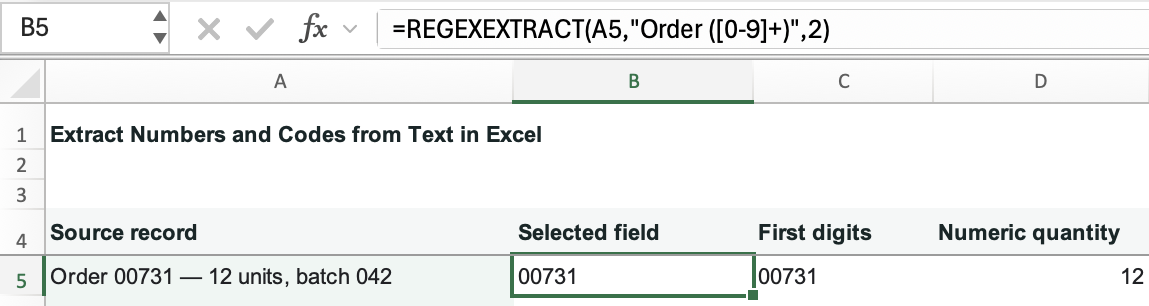
To extract numbers from text in Excel, use REGEXEXTRACT with a pattern describing the part you need. For example, =REGEXEXTRACT(A5,"Order ([0-9]+)",2) returns 00731 from Order 00731 — 12 units, batch 042, keeping the leading zeros.
That row contains three sets of digits. Before writing the formula, decide whether you want the order number, the quantity, or every number in the record. Collecting all the digits won't tell you which field each one belongs to.
Download the extraction practice workbook to compare the selected field, first match, all matches, and numeric quantity from the same record.
Microsoft lists REGEXEXTRACT for Excel for Microsoft 365 and Excel for Microsoft 365 for Mac. Check that your Excel installation recognizes it before building the worksheet. The Microsoft REGEXEXTRACT documentation describes its return modes and PCRE2 pattern syntax.
Extract the order number, including its leading zeros
Enter this sample record in A5:
Order 00731 — 12 units, batch 042In B5, enter:
=REGEXEXTRACT(A5,"Order ([0-9]+)",2)The result is the text 00731. Here's how the formula finds it:
| Pattern part | What it does in A5 |
|---|---|
Order | Finds the label followed by a space |
[0-9] | Matches an ASCII digit from 0 to 9 |
+ | Keeps matching one or more digits |
([0-9]+) | Captures the digits so they can be returned separately |
Final argument 2 | Returns the captured group from the first matching occurrence |
The label is part of the search, but it isn't inside the parentheses, so it isn't part of the returned code. Matching is case-sensitive by default: Order and order aren't interchangeable in this formula.
REGEXEXTRACT returns text, including when the result contains only digits. That's useful for order numbers: 00731 should stay 00731, not turn into 731.
Return the first number or all matching numbers
If the first run of digits is what you need, enter this in C5:
=REGEXEXTRACT(A5,"[0-9]+")It returns 00731. Leaving out the return-mode argument uses the first match. This happens to be the order number in our sample, but it would pick a different field if the source put a date or quantity first.
To return every run of digits, enter this in a clear area, such as G5:
=REGEXEXTRACT(A5,"[0-9]+",1)The result spills horizontally across G5:I5: G5 contains the text 00731, H5 contains 12, and I5 contains 042, in source order. Leave H5:I5 empty before entering the formula, and keep the formula outside an Excel Table. If you get #SPILL!, inspect the outlined result area for cells that already contain data, including formulas that display empty text.

Return mode 1 finds all matches. Return mode 2, used in B5, returns the parenthesized groups from the first match. It doesn't mean “return the second number.”
Keep letters and a hyphen when they're part of the code
Suppose A6 contains SKU AB-0012, quantity 8. Enter this in B6:
=REGEXEXTRACT(A6,"[A-Z]{2}-[0-9]{4}")The result is AB-0012. [A-Z]{2} asks for two uppercase ASCII letters, the hyphen matches itself, and [0-9]{4} asks for four digits. This extracts a matching fragment; it doesn't establish that the entire source cell is a valid product code. To check the format of a whole product code, use an anchored test instead.
Extract a signed decimal from a known source format
Put Change: -12.50 kg in A7. In B7, enter:
=REGEXEXTRACT(A7,"-?[0-9]+(?:\.[0-9]+)?")The result is the text -12.50. The first ? makes the minus sign optional. The \. matches an actual decimal dot; an unescaped dot has a different meaning in a regular expression. The final group allows a decimal part without making it mandatory.
This example assumes ordinary numbers with a dot decimal separator, no thousands separator, and an optional minus sign. It isn't a universal number parser: 1,234.56, comma decimals, scientific notation, and accounting parentheses need rules appropriate to their source.
For a quantity you intend to calculate with, extract the relevant field and convert it with VALUE. Enter this in D5:
=VALUE(REGEXEXTRACT(A5,"([0-9]+) units",2))This returns the number 12, ready for arithmetic. Keep B5's order number as text. If an extracted amount uses unfamiliar decimal or grouping separators, follow convert imported text to numbers before treating it as a numeric amount.
Make missing fields visible
Suppose A8 contains No product code supplied. To flag the missing code in B8, use:
=IFERROR(REGEXEXTRACT(A8,"[A-Z]{2}-[0-9]{4}"),"Check source")The result is Check source. Without IFERROR, this no-match example returns #N/A. IFERROR also catches other errors from the extraction, so the label can indicate a bad pattern or an unsupported function. If a row you expected to work gets flagged, try its REGEXEXTRACT formula without IFERROR in a spare cell and inspect the original error.
Keep the raw record beside your results. For a row containing two valid-looking codes, the default formula returns only the first; use return mode 1 when the task really requires both.
If the text is divided by a consistent delimiter, you may not need a pattern at all. TEXTBEFORE and TEXTAFTER return text on either side of a chosen separator. The name-splitting walkthrough shows how that approach works when the structure of the source is known.