To find a circular reference in Excel, go to Formulas > Error Checking > Circular References, then select the cell listed in the submenu. Review that formula, fix the self-reference or loop, and repeat the check until Excel no longer shows a circular reference warning.
The quick fix is usually simple: the formula is either sitting in a cell it also refers to, or two formulas refer back to each other. The harder part is finding the exact cell when the workbook has multiple sheets, hidden formulas, or several files open at once.
What a Circular Reference Means in Excel
A circular reference happens when a formula depends on its own result, either directly or indirectly.
A direct circular reference looks like this:
=A1+B1If that formula is entered in A1, the formula needs A1 to calculate A1. Excel cannot resolve that cleanly.
An indirect circular reference is less obvious. For example:
B2refers toC2C2refers toD2D2refers back toB2
That creates a loop even though no formula visibly refers to its own cell.
Microsoft's circular reference guidance explains the same basic issue: the formula is trying to calculate itself. In most workbooks, that is a mistake.
How to Find a Circular Reference in Excel
Use Excel's built-in Error Checking menu first.
- Open the workbook.
- Go to the Formulas tab.
- Select the arrow next to Error Checking.
- Point to Circular References.
- Select the first cell listed.
- Review the formula in that cell.
- Fix the formula, then check the menu again.
You can download the circular reference example workbook to practice spotting the bad range and replacing it with a safe formula. The workbook shows circular-reference formulas as text so it remains safe to open and recalculate.
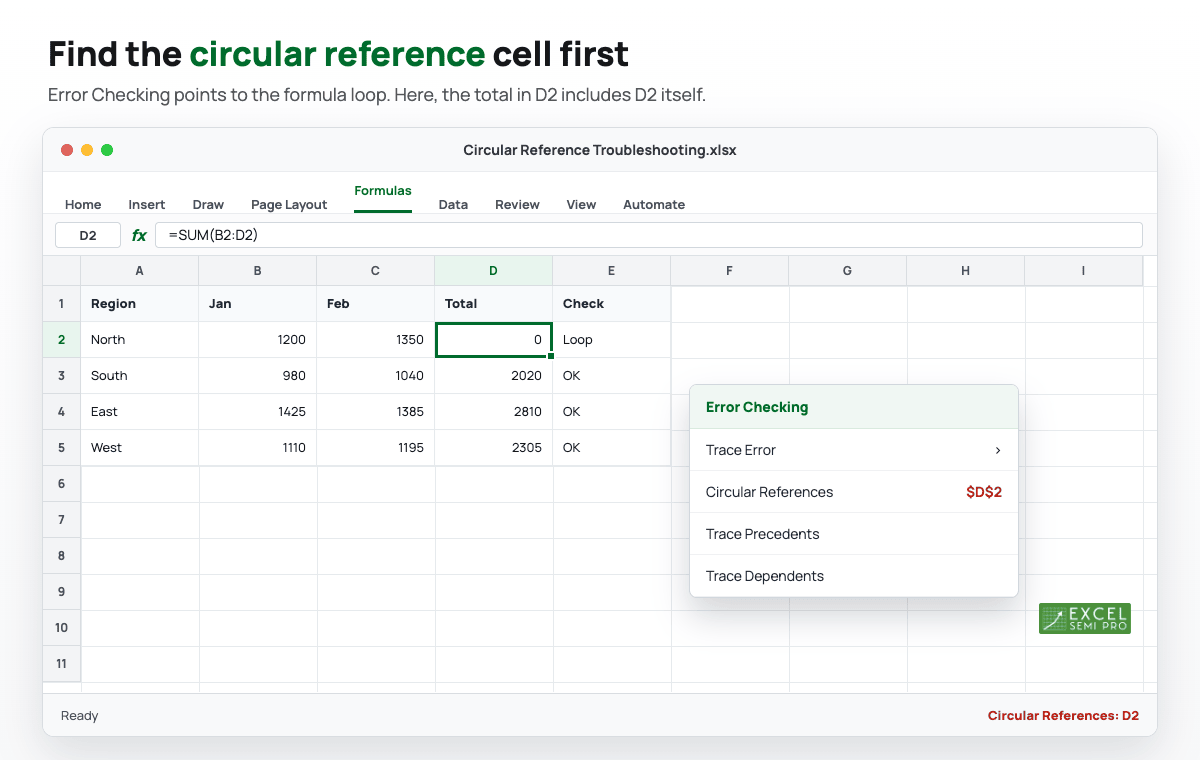
If the circular reference is still there, Excel will keep listing a cell in the circular reference chain. Work through the listed cells one by one until the warning disappears.
If you are working on a formula-heavy workbook, the older guide on Formula Auditing in Excel is a useful companion because it shows how to visualize formula relationships instead of reading every reference manually.
Check the Status Bar
Excel can also show circular reference information in the status bar at the bottom-left of the window.
You may see something like:
Circular References: C12Select that cell and inspect the formula. If the status bar only says Circular References with no cell address, the circular reference may be on another worksheet or in another open workbook.
That detail matters. If you have several Excel files open, do not assume the problem is in the sheet currently on screen. Check each open workbook, then return to Formulas > Error Checking > Circular References.
Use Trace Precedents and Trace Dependents
If the listed cell is not obviously wrong, use the Formula Auditing tools.
Select the problem cell, then use:
- Formulas > Trace Precedents to show which cells feed the formula.
- Formulas > Trace Dependents to show which formulas depend on the selected cell.
- Remove Arrows when you are done tracing.
This is especially helpful for indirect circular references. You are looking for a path where the formula chain eventually points back to the starting cell.
For example, if D2 depends on C2, and C2 depends on D2, neither formula may look strange on its own. The loop only becomes clear when you trace the dependency path.
Fix the Most Common Circular Reference Mistakes
Most circular references come from a small number of formula mistakes.
The total formula includes itself
Suppose cells A2:B2 contain numbers and C2 should calculate the total.
This formula is wrong if it is entered in C2:
=SUM(A2:C2)It includes C2, which is the cell holding the formula. Fix it by excluding the result cell:
=SUM(A2:B2)If you need a refresher on the function itself, see the SUM function reference.
The formula was placed in the wrong cell
Sometimes the formula is correct, but it is in the wrong location.
For example, this formula may be fine as a total in D2:
=A2+B2+C2But if you place it in C2, it becomes circular because the formula now refers to the cell it occupies.
The fix is to move the formula to the intended output cell or adjust the referenced range.
Two formulas refer back to each other
A circular reference can also happen when two formulas create a loop:
B2: =C2*10%
C2: =B2+100In this case, neither cell can calculate first. Decide which value should be an input and which should be the result. Replace one formula with a fixed input or restructure the model so the dependency flows in one direction.
Why Excel May Not Show the Obvious Cell
If Excel warns you about a circular reference but the menu does not seem to identify the problem, check these situations.
Another workbook is open
Excel can warn about circular references in any open workbook. Close unrelated workbooks or check them one by one.
The circular reference is on another worksheet
If the circular reference is not on the active sheet, the status bar may show the warning without a cell address. Use the Error Checking menu and inspect other sheets.
Iterative calculation is enabled
If iterative calculation is turned on, Excel may allow circular formulas to calculate instead of treating every loop as a blocking error. That setting can hide accidental circular references, so check it before you assume the workbook is fine.
On Windows, go to File > Options > Formulas and look for Enable iterative calculation. On Mac, go to Excel > Preferences > Calculation and look for the iterative calculation setting.
The formula is complex enough to need tracing
Nested formulas, named ranges, and linked formulas can make the loop hard to see. If the workbook is important, slow down and trace the formula chain. AI can also help explain a dense formula, but you still need to verify the references. The guide on using AI to explain Excel formulas shows a safer review workflow.
When a Circular Reference Is Intentional
Most circular references should be fixed. One exception is an intentional iterative calculation.
For example, some timestamp workflows use a circular reference so a timestamp is entered once and then preserved:
=IF(A2<>"",IF(B2="",NOW(),B2),"")If this formula is in B2, it refers back to B2. That is normally circular. With iterative calculation enabled, it can hold the first timestamp after A2 is filled.
This approach can be useful, but it should be documented clearly. If another person opens the workbook later, they may see the circular reference and assume the file is broken. The safer overview is in How to Insert a Timestamp in Excel: Static, Dynamic, and Automatic Methods, and the supporting function references are IF and NOW.
Use intentional circular references only when:
- you understand why the loop is needed,
- iterative calculation is enabled deliberately,
- the workbook has clear notes for future users,
- the circular formula is limited to a small, controlled area.
Do not enable iterative calculation just to silence a warning you have not investigated.
A Simple Circular Reference Troubleshooting Checklist
Use this sequence when a workbook shows the circular reference warning:
- Save a copy of the workbook.
- Check Formulas > Error Checking > Circular References.
- Select the listed cell.
- Review whether the formula includes its own cell or output range.
- Use Trace Precedents and Trace Dependents if the loop is indirect.
- Check other sheets and other open workbooks if no cell address appears.
- Check whether iterative calculation is enabled.
- Fix the formula or document the circular reference if it is intentional.
- Recalculate and confirm the warning is gone.
If the formula returns a wrong value after you remove the circular reference, treat that as a separate formula troubleshooting problem. The guide on whether AI can fix broken Excel formulas can help you test the logic without blindly accepting a rewritten formula.
FAQ
How do I find a circular reference in Excel?
Go to Formulas > Error Checking > Circular References and select the listed cell. If Excel lists more than one cell, inspect each one until the warning disappears.
Why does Excel say there is a circular reference but does not show a cell?
The circular reference may be on another worksheet or in another open workbook. It can also be harder to identify when iterative calculation is enabled or when the formula loop is indirect.
Is a circular reference always bad?
No, but it is usually a mistake. Intentional circular references are mainly used for iterative models or special workflows such as static timestamp formulas. They should be documented and kept limited.
How do I remove a circular reference warning?
Find the listed formula, remove the self-reference or dependency loop, and recalculate the workbook. If the warning remains, repeat the Error Checking process because another circular reference may still exist.
Should I turn on iterative calculation?
Only turn it on when you intentionally need circular formulas to iterate. If you do not understand why a circular reference is needed, fix the formula instead of enabling iterative calculation.