To generate a list of dates in Excel, enter the starting date, select the cells you want to fill, and use Fill > Series with a Date type. Choose days, weekdays, months, or years for the interval.
Perhaps you need a date for every row in a daily log, or one Friday each week for a review. Fill Series creates those entries as fixed values. When you need a monthly schedule that changes with its starting date, use the formula example below.
Fill a daily list of dates
These dialog instructions describe desktop Excel. In Excel for Windows, open Home > Fill > Series. The ribbon or menu location can differ on Mac, but the command is Fill > Series. Microsoft's guide to sequential dates covers the desktop feature and the fill-handle alternative.
For a seven-day log, start with Monday, January 6, 2025.
- Enter January 6, 2025, as an Excel date in A2.
- Select A2:A8, including the starting date and the empty cells below it.
- Open Fill > Series.
- Set Series in to Columns to fill downward.
- Set Type to Date, Date unit to Day, and Step value to 1.
- Select OK.
A3 should show January 7, and A8 should show January 12. If the cells display date serial numbers, apply a Date number format to the range.
For a list that runs to a particular date, you can instead select the starting cell and enter an ending date in Stop value. Use a date format Excel recognizes in your regional settings, and check that the destination cells are empty before filling.
You can also drag the starting cell's fill handle, the small square at its lower-right corner, down through the destination cells. Check the resulting dates and use the Auto Fill options if Excel copies the same value instead of extending the series.
Choose days, weeks, or weekdays
Change the series settings to fit the interval you need.
| List you need | Date unit | Step value | Starting-date choice |
|---|---|---|---|
| Every calendar day | Day | 1 | The first date of the log |
| Every Friday | Day | 7 | A Friday |
| Monday through Friday | Weekday | 1 | The first weekday required |
| One date each month | Month | 1 | The intended starting date |
For example, start a weekly series on Friday, January 10, 2025, and use Day with a step of 7. The next two entries are January 17 and January 24.
The Weekday option skips Saturdays and Sundays. A weekday series starting on Friday, January 10, continues on Monday, January 13. It doesn't know about public holidays or your organization's days off, so don't treat it as a holiday-aware work calendar.
For monthly dates near the end of a month, use the formula method below when you need to make the rule explicit. A schedule tied to the original 31st needs different handling from one that always uses the last calendar day.
Check whether you're filling across or down
Columns fills down the worksheet. Rows fills across it. That setting is easy to overlook when you're concentrating on the dates.
In the original version of this example, I kept forgetting to change Rows to Columns about every fourth time. Undo got plenty of use. The useful habit is to check the direction before selecting OK, regardless of which setting your Excel version initially selects.
If the dates go in the wrong direction, undo immediately with Ctrl+Z in Windows or Command+Z on Mac, then repeat the fill with the correct selection and direction.
Build a monthly schedule from one starting date
The date-schedule example workbook includes this monthly schedule on Example. Its Fill Series sheet provides starting cells for practicing the earlier fill steps.
For monthly equipment reviews, you may want the entire schedule to move when the first review changes. Use the EDATE function to calculate each date from a fixed base date in a separate cell.
Use F1 for the label Starting date and enter January 31, 2025, as a real Excel date in F2. In A1 enter Month offset, and in B1 enter Review date. Put 0, 1, 2, and 3 in A2:A5.
Enter this formula in B2 and copy it down through B5.
=EDATE($F$2,A2)Apply a Date format to B2:B5. You should see this schedule.
| Month offset in A | Review date in B |
|---|---|
| 0 | January 31, 2025 |
| 1 | February 28, 2025 |
| 2 | March 31, 2025 |
| 3 | April 30, 2025 |
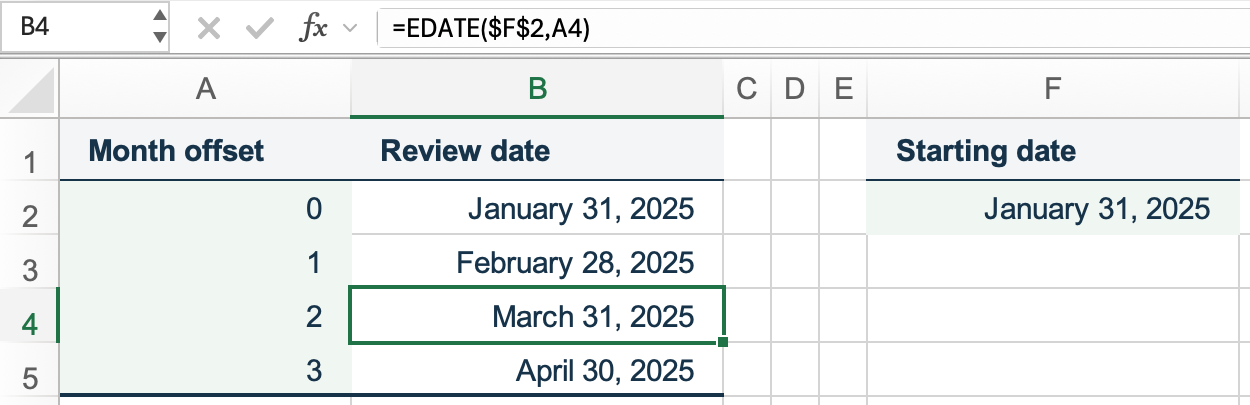
The $F$2 reference keeps the original date fixed as you copy down. A2 changes to A3, A4, and A5, so each row uses its own month offset. The absolute and relative references guide explains how the dollar signs control this behavior.
Every row is calculated from January 31. If you instead added one month to February 28, the next result would be March 28. Keeping the base fixed lets March return to the 31st. See adding and subtracting months with EDATE for leap years, negative offsets, and the separate rule for dates that must always fall at month-end.
Change F2 to January 15, 2025, and the four formula results become January 15, February 15, March 15, and April 15. A filled series contains fixed date values, so editing its first date doesn't rebuild the rest of the list. Use the formula schedule when the start is an input you expect to change.