If you use named ranges heavily, the Name Box can become cluttered fast. Excel lets you hide or reveal names through the Visible property in VBA, which is useful when you want cleaner navigation without deleting the names themselves.
Quick Answer: Hide or Show Named Ranges with VBA
Use the Visible property of each workbook name:
Sub HideAllNames()
    Dim n As Name
    For Each n In ThisWorkbook.Names
        If n.Visible Then n.Visible = False
    Next n
End SubTo show them again:
Sub ShowAllNames()
    Dim n As Name
    For Each n In ThisWorkbook.Names
        If n.Visible = False Then n.Visible = True
    Next n
End SubEach Name has a Visible property that's set to TRUE by default. You can hide a Name by changing the Visible property to FALSE, but only in the VBA Editor.
Hide Names in Excel
If you have a great many names to hide, it's best to loop through the Names collection and change the Visible property value to TRUE for all Names.
Sub HideAllNames()
    Dim n As Name
    For Each n In ThisWorkbook.Names
        If n.Visible Then n.Visible = False
    Next n
End SubAfter running this code, you now have a blank Name Box. 
If you just want to hide a few Names, the code below, executed in the Immediate Window of the VBA Editor, will do the trick. Just change out "MachName" for each Name you want to hide.

Go To Hidden Names
You can still Go To a Name that is hidden, just type a Name in the Name Box and hit enter.

Or use the keyboard shortcut Ctrl+G or F5 to bring up the Go To dialog box, type a Name in the Reference text box, and click OK.
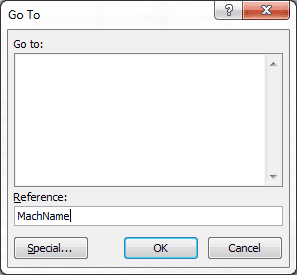
If the Name's corresponding range address is on a hidden worksheet, this won't work.
Show Names in Excel
While working on a file, it can sometimes be advantageous to actually SEE ALL the Names. The following VBA code will do just that.
Sub ShowAllNames()
    Dim n As Name
    For Each n In ThisWorkbook.Names
        If n.Visible = False Then n.Visible = True
    Next n
End SubKeep Some Names Visible with Code
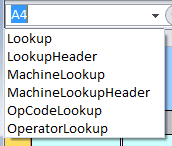
Sometimes you may want to leave a few of the Names visible for users. In the code below I'm looping through the Names collection, setting the Visible property to False, then checking to see if any have "Lookup" in the Name property string and making those Visible.
Sub ShowSomeNames()
    Dim n As Name
    For Each n In ThisWorkbook.Names
        n.Visible = False
        If InStr(1, n.Name, "Lookup", vbTextCompare) > 0 Then
            n.Visible = True
        End If
    Next n
End SubI use the VBA Function InStr, which stands for In String, to check whether the Name property contains "Lookup" starting at character 1. If InStr finds "Lookup" in the text, it returns the character position where the match begins. If it does not find the text, it returns 0.
In the code above, if the InStr function finds "Lookup" within the Name Property string, the code sets the Visible property to TRUE. Here's what shows in the Name Box after running this code.
You can open the Excel VBA Editor, create a new module, and paste any of the first two procedures directly into that module. The third snippet is more specialized and assumes your visible names contain a shared keyword.