To remove duplicates in Excel, copy your original data to another worksheet, select the full table, and choose Data > Remove Duplicates. Check the columns Excel should compare, confirm that your data has headers, and apply the command. Then check the remaining records against your copy.
The important decision comes before you click the button: what counts as a duplicate? A repeated email address might be an unwanted copy in a mailing list, but it could also belong to a customer who placed two different orders. Excel follows the columns you choose; it doesn't make that decision for you.
Decide which columns define a duplicate
Suppose your order list occupies A1:D7, with headers in row 1:
| Date | Customer | Amount | |
|---|---|---|---|
| 2026-10-01 | Ada Lee | ada@example.com | 120 |
| 2026-10-04 | Ada Lee | ada@example.com | 180 |
| 2026-10-02 | Ben Chen | ben@example.com | 75 |
| 2026-10-03 | Cy Diaz | cy@example.com | 90 |
| 2026-10-06 | Ben Chen | ben@example.com | 95 |
| 2026-10-03 | Cy Diaz | cy@example.com | 90 |
Download the example workbook to follow along. Source retains all six original records; All columns shows the five-record result, and Email key shows the three earliest orders. Formula and cleanup contains the UNIQUE and TRIM examples, with guidance in Notes. Make another copy of Source when you want to try the steps yourself.
There are six records. Cy's order appears twice with the same date, name, email, and amount. Ada and Ben each have two orders with different dates and amounts.
The checkboxes in Remove Duplicates determine which of these records Excel treats as repeats:
| Columns checked | What Excel compares | Result for this example |
|---|---|---|
| Date, Customer, Email, Amount | The combination of all four values | 1 duplicate removed; 5 records remain |
| Email only | The email address, regardless of the other values | 3 duplicates removed; 3 records remain |
Use all four columns if you want to remove the copied order while keeping the other orders. Use Email alone only if your goal is one record per email address.
Here's the catch: unchecking Date, Customer, and Amount doesn't protect those cells from deletion. It excludes them from the comparison. When a duplicate email is found, Excel removes that record across the selected A:D range, including its date and amount. Select the full table so the remaining fields stay together.
Sort first to keep the right record
Remove Duplicates keeps the first occurrence in the selected range, as Microsoft's removal instructions explain. If you want each customer's earliest order, put the oldest dates first before removing duplicates by Email. For the latest order, put the newest dates first.
On a working copy of the six-record list:
- Select A1:D7, including all four columns.
- Choose Data > Sort.
- Confirm that the range has headers, choose Date as the sort column, and set the order to Oldest to Newest.
- Apply the sort. Each customer's name, email, and amount should move with its date.
Don't sort just the Date column. That could pair a date with the wrong order. The whole record needs to move together.
After sorting oldest first and removing duplicates using Email alone, these three records should remain:
| Date | Customer | Amount | |
|---|---|---|---|
| 2026-10-01 | Ada Lee | ada@example.com | 120 |
| 2026-10-02 | Ben Chen | ben@example.com | 75 |
| 2026-10-03 | Cy Diaz | cy@example.com | 90 |
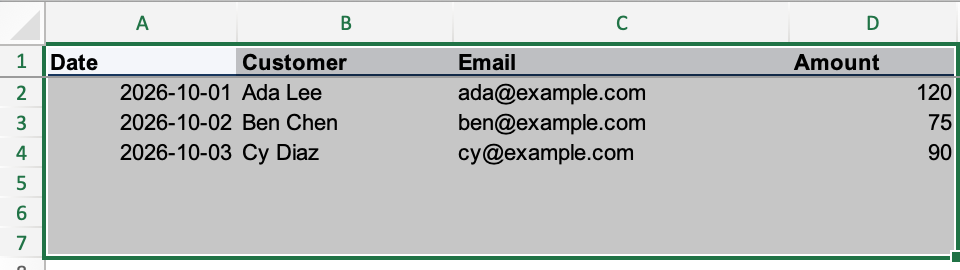
Sorting newest first would instead keep Ada's October 4 order and Ben's October 6 order. Cy's two records are identical, so either copy gives the same result. The number of remaining emails is still three; the dates and amounts are what change.
Highlight duplicates before deleting anything
Conditional formatting lets you see repeated values while keeping every record. To preview the email matches in the original six-record list:
- Select C2:C7, leaving out the Email header.
- Choose Home > Conditional Formatting > Highlight Cells Rules > Duplicate Values.
- Keep Duplicate selected, choose a visible format, and click OK.
All six email cells should be highlighted because each address appears twice. The rule highlights the first occurrence as well as its repeats. It doesn't tell you which order to keep, and it doesn't compare whole rows when you've selected only the Email column.
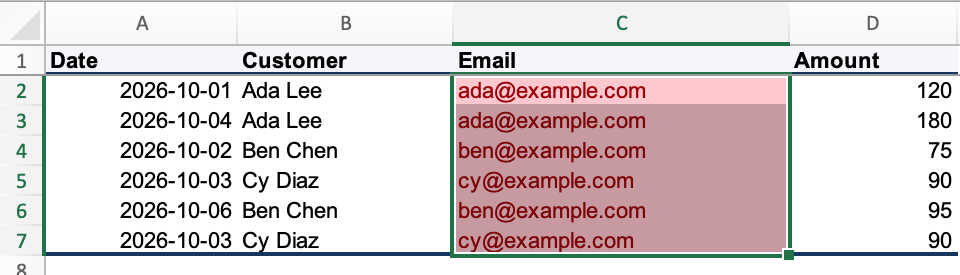
This is a useful pause before deletion: do those repeated addresses represent copied records or separate orders you still need? Microsoft's duplicate-removal guidance also recommends reviewing duplicates and copying the original data before removing them.
Remove duplicate rows from the table
Use a fresh copy of the original list for each comparison. Otherwise, your second attempt will start with records already removed by the first.
- Select A1:D7 on your working copy. For the Email-only example, sort the whole range oldest first as described above.
- Choose Data > Remove Duplicates.
- Check My data has headers (called My list has headers in the screenshot) so Excel treats Date, Customer, Email, and Amount as column labels.
- Choose the comparison columns. Leave all four checked to remove the copied order, or clear the other checkboxes and leave only Email checked for one record per address.
- Confirm the command with OK or Remove Duplicates, depending on your version of Excel.
- Read the result message, then inspect the remaining rows.
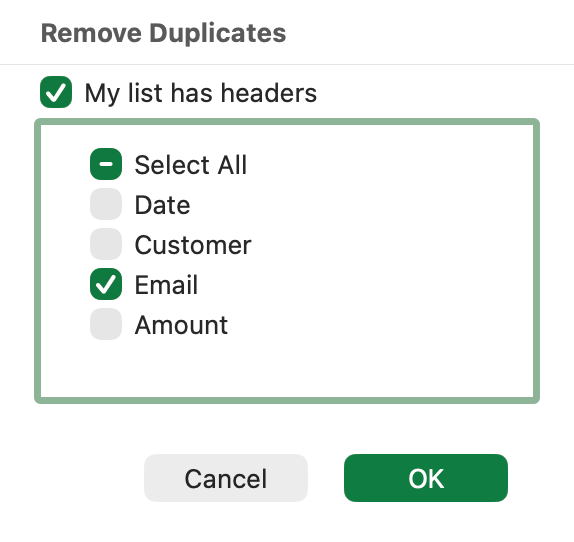
For this list, comparing all four columns should report 1 duplicate removed and 5 unique records remaining. Comparing Email alone should report 3 duplicates removed and 3 unique records remaining.
Those counts describe the selected range and the comparison you chose. “Unique” here doesn't mean that every remaining email appears only once unless Email was your comparison column.
Remove Duplicates changes the data in place. If the result is wrong, use Undo immediately: Ctrl+Z on Windows or Command+Z on Mac. Keep the original copy until you've checked the result; Undo isn't a substitute for that copy.
Extract a unique list without deleting the source
If you only need a list of email addresses for another task, you can leave all six orders intact. Advanced Filter copies a result to another location, while UNIQUE returns a formula result that updates when the referenced values change.
Copy unique values with Advanced Filter
In desktop Excel, start with the original data and an empty destination on the same worksheet:
- Select C1:C7, including the Email header.
- Choose Data > Advanced in the Sort & Filter group.
- Select Copy to another location.
- Check that List range is
$C$1:$C$7, leave Criteria range empty, and set Copy to to an unused cell such as$J$1. - Check Unique records only and click OK.
You should get an Email header and three addresses at the destination, while the source orders stay in place. Selecting A1:D7 as the list range instead would compare complete records and return five orders.
Choose Copy to another location deliberately. Filtering the list in place hides records rather than creating a separate copy. Microsoft's Advanced Filter instructions explain this distinction. To put the extracted list on a different sheet, follow the additional steps in copying data to another worksheet with Advanced Filter.
Create a separate list with UNIQUE
The UNIQUE function returns one copy of each distinct value. Microsoft lists it for Excel for Microsoft 365, Excel 2024, and Excel 2021, including Mac.
With the original six records still in A2:D7, enter this formula in an empty F2:
=UNIQUE(C2:C7)Leave F3:F4 empty so the result can spill into those cells. You should see:
ada@example.com
ben@example.com
cy@example.comThe formula leaves the orders in A:D untouched. Changes to addresses within C2:C7 update the result; if you add records below row 7, expand the formula's source range too.
When two values look the same but don't match
If an apparent duplicate remains, start by checking the comparison columns. An order with a different amount is correctly retained when Amount is checked. Then inspect the actual text for stray spaces or other invisible characters.
For ordinary spaces, the TRIM function removes leading and trailing spaces and reduces repeated spaces between words to one. For example:
=TRIM(" Ada Lee ")The result is Ada Lee.
For a column of imported customer names, work on a copy of the original list. Add a Cleaned customer header in E1, enter the following in E2, and fill it down through E7:
=TRIM(B2)Review the cleaned names, copy E2:E7, and use Paste Special > Values over B2:B7 on that working copy. Now the Customer column contains the cleaned text rather than formulas pointing at the original names. Remove the helper column when you're finished, then apply Remove Duplicates to A1:D7 using the intended comparison columns.
TRIM handles ordinary spaces, but it doesn't remove every invisible character. In particular, Microsoft documents that TRIM alone does not remove nonbreaking spaces, which can arrive with text copied from a web page.
Also check date and number formats. Microsoft's filtering and duplicate-removal documentation notes that displayed formatting can affect which values are considered duplicates. Use consistent formats before comparing records, and inspect a copy if the result is unexpected.
Check the records you kept
Compare the result with your original copy before replacing the working data. For the all-columns example, confirm that Ada and Ben still have both orders and Cy has one. For the Email-only example, confirm both the three addresses and the dates and amounts attached to them.
If you're checking whether entries appear in a second list, use the methods for comparing two columns in Excel. If your problem is empty rows between records, use the separate guide to deleting blank rows.