Excel 2010 and 2007 for Windows have the option to import data from the web. Excel for Mac users don't.
An integral part of working with Excel is using keyboard shortcuts. They make your life so much easier (in the Windows versions at least, in the Mac version I think they tend to shorten your life span).
In my last post I dealt with getting a Help Topic URL, here I'm going to use the web page Keyboard shortcuts in Excel 2010 and import to a spreadsheet.
Get a Help Topic Web Page Address
As you will see, it helps to have the web address or URL on the clipboard before importing data from the web. In this example I'll use the following steps to get the URL for Keyboard Shortcuts for Excel 2010:
- Press the F1 key
- Type Excel keyboard shortcuts in the search box
- Click the link for Keyboard Shortcuts for Excel 2010
- Right click on the topic heading then select Properties
- Triple click the Address (URL) link then copy (Ctrl+C) to the clipboard
- Click Cancel and close the Help window
Now we have the URL on the clipboard.
Get Data From a Web Page
Choose Data > Get External Data > From Web to bring up the New Web Query dialog box. This dialog box functions as a Web browser and can be re-sized. Clear the Address bar and paste the URL from the clipboard, then press Enter or click Go.

The web page above will appear in the New Web Query window. Scroll down and you'll see a right-arrow in a yellow box at the top of each table. Click an arrow to queue any table for import into Excel.
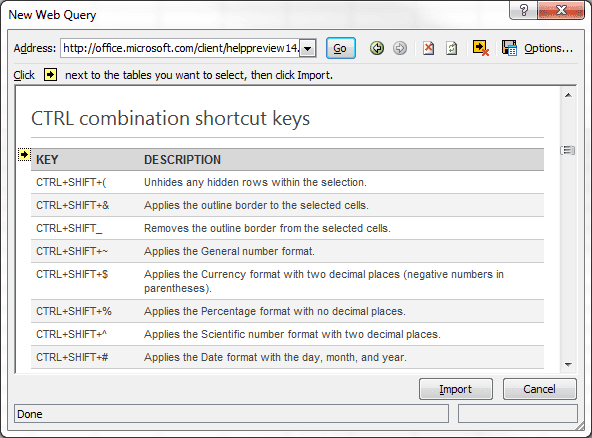
We want the entire page so I'll click the right-arrow in a yellow box at the top-left corner of the web page. This will give us the entire page. Once you click the right arrow it turns to a green check in a box.
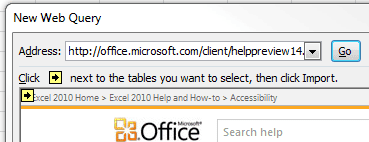
Now click the Options... button then select Full HTML formatting.
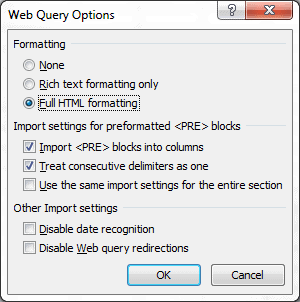
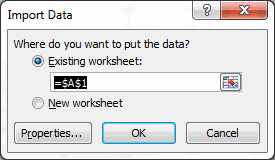
Since we're importing the entire page this option will give the best formatting. Now click the Import button and Excel will ask where you want to put the data. I'm leaving the default location cell A1. Click OK.
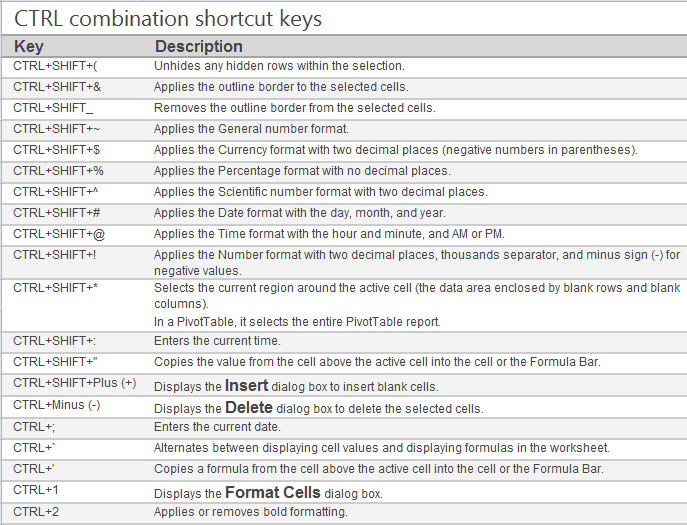
The data on the web page is imported into the worksheet. This is now an active external query.
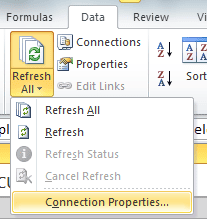
To Edit the Query choose Data > Get External Data > Refresh All > Connection Properties then select the Definition tab and click Edit Query. You're now back to the Edit Web Query dialog box where you can make modifications.
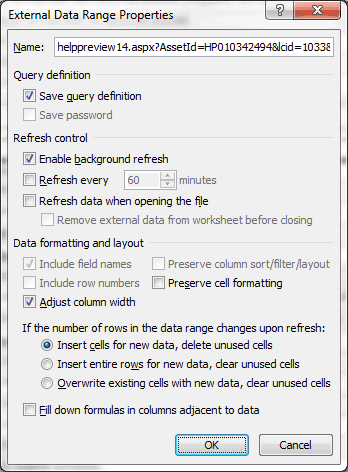
To modify the data range properties, right-click any cell in the imported data range and select Data Range Properties from the pop-up box.
The great thing about a web query is that if the web page data is updated all you have to do is Refresh the query to update the worksheet.