To indent cells in Excel, select them and choose Home > Increase Indent in the alignment controls. Each click adds another level. Use Decrease Indent to move back, or set Indent to 0 in Format Cells > Alignment to remove the indent.
This is useful when numbers and text crowd the shared edge of two columns. A small gap makes the entries easier to read without adding spaces to the data. That was the problem behind the original version of this article, and it is still a good reason to use cell indents.
Add an indent to selected cells
Here's a small example to enter in A1:C4:
| Item | Units | Description |
|---|---|---|
| Notebook | 12 | Office supplies |
| Pen | 48 | Blue ink |
| Folder | 24 | Archive |

With General alignment, Excel normally displays numbers against the right edge and text against the left. The Units values and Description entries therefore sit near the boundary between columns B and C. Giving Description a little space on its left makes that boundary easier to read.
- Select C2:C4, leaving the heading out of the selection.
- On the Home tab, choose Align Left.
- Choose Increase Indent once.
The descriptions move away from the left edge of their cells. Click again if you need more space. Start with one level, though; several levels can use up room the text needs.
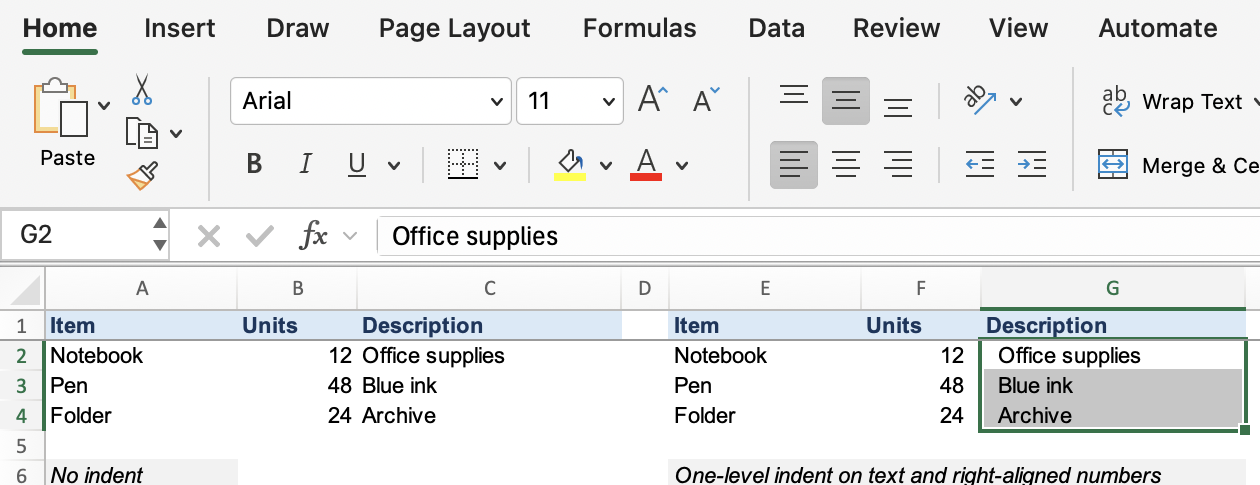
Select C3 and look in the formula bar. It still contains Blue ink. The indent changes where the text appears in the cell, without inserting leading spaces. Microsoft's alignment guide describes the alignment and indent controls.
Reduce or remove an indent
Select the affected cells and choose Decrease Indent. Each click removes one level, so two increases can be undone with two decreases.
For a definite reset, open Format Cells, select Alignment, and set the Indent box to 0. Confirm with OK. This is particularly useful when a selection contains cells with different indent levels: you can give them all the same starting value.
Removing the indent doesn't necessarily reset horizontal alignment. If you explicitly chose Align Left, that alignment can remain after the indent is zero. Choose the horizontal alignment you want separately.
Avoid Clear All for this job; it removes cell contents too. Clear Formats is broader than necessary because it can remove number formats, borders, and other formatting you want to keep. Our guide to removing table and cell formatting explains those differences. To remove only the indent, change only the indent setting.
Indent text and right-aligned numbers
The useful edge depends on the content. A left indent moves the Description text away from its left border. A right indent gives the Units numbers space on their right, while keeping the digits aligned with one another.
In desktop Excel for Windows or Mac:
- Select B2:B4.
- Press Ctrl+1 on Windows or Command+1 on Mac to open Format Cells, then choose Alignment.
- Set Horizontal to Right (Indent).
- Set Indent to 1, then choose OK.
The numbers move leftward from the right edge of their cells. Combined with the left indent in C2:C4, that opens a gap on both sides of the shared column boundary.
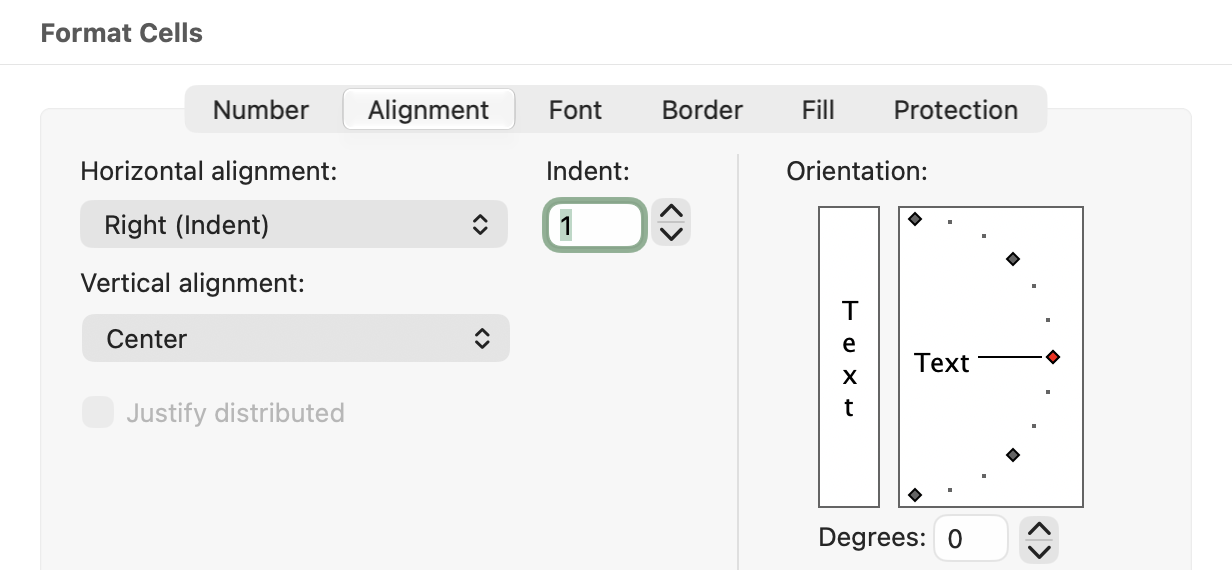
Despite the name Increase Indent, the important idea is distance from the aligned edge. With left alignment, increasing that distance moves the content right. With right alignment, it moves the content left.
Keep 12, 48, and 24 as numeric entries. Don't add an apostrophe or a string of spaces to push them into position. Select B3 afterward and check that the formula bar still shows 48; the number format should also remain as it was before you adjusted the indent.
Choose an exact indent level
The Ribbon buttons are convenient for a quick adjustment. The dialog is easier when you want to inspect a level or give several ranges the same setting.
| Indent value | Result |
|---|---|
| 0 | No added indent |
| 1 | One level of space from the aligned edge |
| 2 | Two levels of space from the aligned edge |
Use Left (Indent) for the Description cells and Right (Indent) for the Units cells. The value is an indent level, not an instruction to insert that many spaces into the cell's text.
You can compare levels 1 and 2 without changing the column widths. If level 2 makes a description harder to fit, return to 1. The point is to separate the entries enough to read them, not to create the widest possible gap.
Find the controls on Mac and Windows
The Home tab is the starting point for alignment controls in desktop Excel. On Windows, look in the Alignment group. On Mac, look beside the horizontal alignment buttons on Home.
To open the full Format Cells dialog, use Ctrl+1 on Windows or Command+1 on Mac, then choose Alignment. You can also right-click the selected cells and choose Format Cells. Check the horizontal alignment as well as the indent value when comparing two cells.
If you can't see an indent button, expand the Ribbon or make the Excel window wider. Hover over the nearby icons to read their names; the increase and decrease icons look similar at a glance. The dialog is useful when the Ribbon layout makes the buttons difficult to find.
The current Mac dialog shown above includes Right (Indent) and the numeric Indent field. The original article's restriction of right indent to Windows reflected older Mac versions and no longer applies to this Mac example.
Fix an indent that doesn't look right
The text moves in the wrong direction
Check Horizontal alignment in Format Cells. The indent is measured from the aligned edge, so right-aligned numbers and left-aligned text move in opposite directions when you increase it. Set the alignment deliberately before judging the result.
Part of the description disappears
An indent uses some of the space inside a cell. If the column was already narrow, the text now has less room. Reduce the indent or increase the column width.
If the description should occupy more than one line, consider Wrap Text and check that the row is tall enough to show the full entry. Judge the result using your longest description, rather than a short label that fits at any width.
Tab doesn't add an indent
Tab normally moves the selection to the next cell, or completes an entry and moves on. It isn't the cell-indentation command. Finish editing the cell, select it, and use Increase Indent or the Indent box instead.
Indent versus line spacing
Cell indentation changes the horizontal space at the edge of a cell. It doesn't provide a separate first-line indent for each paragraph, and it doesn't set the vertical distance between wrapped lines.
If lines appear spread too far apart, check the cell's Vertical alignment. Microsoft explains that Excel has no direct line-spacing control inside a cell and describes alignment options for changing the space around text. A text box provides more paragraph formatting controls when you need a short block of prose, but it is a separate object from the worksheet cell.
For our three-column list, keep the fix small: one indent level beside the shared border, enough column width for the descriptions, and the original values still in the formula bar.