To discourage users from making any changes to a macro file you can have the file recommend Read-Only when it's opened.

To show this pop-up box when the file opens:
- Choose File > Save As
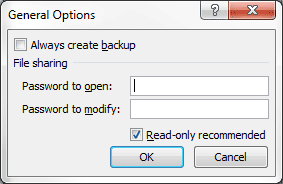
- Select Tools > General Options (on the Save As dialog box)
- Check the box for Read-only recommended
- Click OK
- Name the file and click Save
If you select Yes to "Open as Read-only?" and try to save the file you get a pop-up screen asking you to give the workbook a new name in the Save As dialog box.

Of course, selecting No to "Open as Read-only?" will give any user the the ability to make changes to the file.
This is one Excel option to use to avoid unnecessary changes to any file.