To refresh a PivotTable, right-click a cell inside it and choose Refresh. If you've added rows and they still don't appear, check the source range. Refresh reads the current source again; it doesn't automatically extend a fixed range to include records below it.
That distinction explains a familiar problem: you can see the new sale on the worksheet, but your report still shows yesterday's total. We'll follow one missing region through the source range and into the PivotTable.
Download the PivotTable refresh example workbook. Start with Source and Fixed Range: the West record is already in row 7, while the report still totals 1,750. Follow the source-change steps to bring it to 2,750. Excel Table and Table Pivot contain the table-based alternative, already including West; Notes explains the cases.
The screenshots show Excel for Mac. The numbered ribbon instructions below are for Excel for Windows.
Refresh one PivotTable or the whole workbook
For one report, select a PivotTable cell and choose Refresh from its right-click menu. In Excel for Windows, the ribbon route is PivotTable Analyze > Refresh. To update all PivotTables in the workbook, open the arrow beside Refresh and choose Refresh All.
Suppose your workbook has separate reports for sales by region and sales by product. Refresh All lets you update both. It won't, however, repair a source range that stops before the latest sale.
The example below assumes you already have a PivotTable. If you need to make one first, see our introduction to creating PivotTables.
Why new rows are missing after a refresh
Suppose the Source sheet has these headers and five sales records in A1:E6:
| Date | Region | Product | Units | Revenue |
|---|---|---|---|---|
| Oct 1 | North | Notebook | 4 | 800 |
| Oct 2 | South | Pen | 10 | 200 |
| Oct 3 | North | Pen | 5 | 100 |
| Oct 4 | South | Notebook | 3 | 600 |
| Oct 5 | North | Folder | 2 | 50 |
The PivotTable uses Region in Rows and Revenue in Values, summarized as Sum of Revenue. North contributes 950 and South contributes 800, for a grand total of 1,750.
Now add this sale in A7:E7:
| Date | Region | Product | Units | Revenue |
|---|---|---|---|---|
| Oct 6 | West | Notebook | 5 | 1,000 |
Refresh the PivotTable. If its source is still Source!$A$1:$E$6, the total remains 1,750, and West is missing. Row 7 is on the worksheet, but it isn't part of the PivotTable's source.
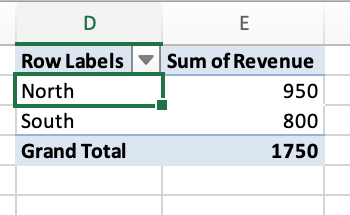
This is the catch: refreshing the same five records produces the same total. Before refreshing again, include the sixth record in the source.
Expand the range with Change Data Source
For a PivotTable built directly from a worksheet range, use these steps in Excel for Windows:
- Select a cell inside the PivotTable.
- On PivotTable Analyze, open Change Data Source in the Data group. If a menu opens, choose Change Data Source again.
- Check the Table/Range box. In this example, it ends at
Source!$A$1:$E$6. - Change the reference to
Source!$A$1:$E$7, including the header row and all six sales records. - Select OK, then refresh the PivotTable.
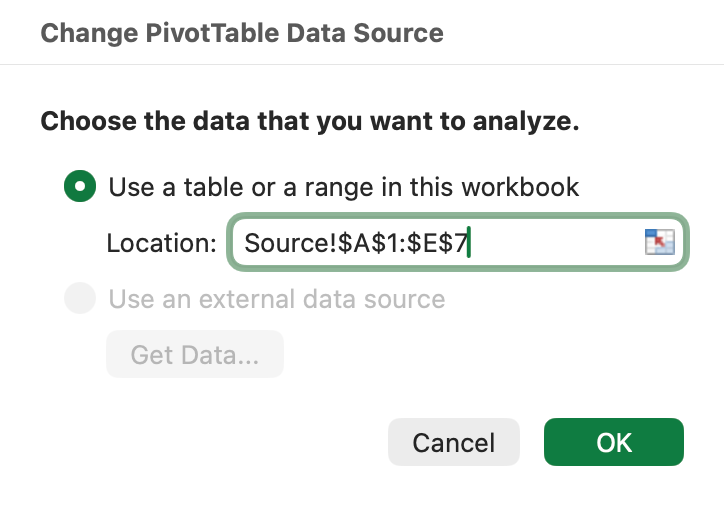
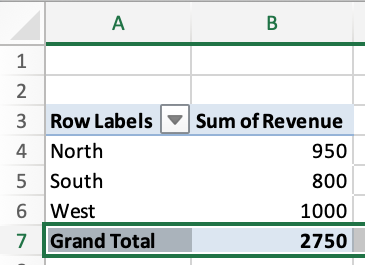
Check the result against these totals:
| Region | Sum of Revenue |
|---|---|
| North | 950 |
| South | 800 |
| West | 1,000 |
| Grand Total | 2,750 |
West now contributes the missing 1,000. If your source sheet has a different name, keep that sheet name in the reference; the important change here is the final row, from 6 to 7.
This fixes the current report. The next record in row 8 would be outside the range again. If you regularly add sales, an Excel Table makes the source easier to maintain.
These steps apply to a worksheet range, not every type of PivotTable connection. Microsoft's guide to changing a PivotTable's source also describes external connections and Data Model restrictions.
Use an Excel Table for future rows
An Excel Table has a name and a defined set of rows. When you add a record as a new table row, it becomes part of that named source. Updating the PivotTable is a separate step: it may happen automatically if Auto Refresh is available and enabled. If the report hasn't updated, choose Refresh.
The download already has SalesData on the Excel Table sheet and its report on Table Pivot. To set up the same six sales records as a table source in your own workbook, use these steps in Excel for Windows:
- Select A1:E7 on the Source sheet and choose Insert > Table.
- Check My table has headers and select OK.
- Select a cell in the new table. On Table Design, change Table Name to
SalesData. - Select your PivotTable and open Change Data Source.
- Set Table/Range to
SalesDataand select OK. If the report hasn't updated, choose Refresh.
The report should show the same 2,750 total. The source now follows the table name, so you don't need to edit a final row number each time the table grows. Converting the cells to a table is only part of the change: check that the PivotTable source actually says SalesData.
For a before-and-after check, start a separate copy of the example with only A1:E6 in SalesData. Build the PivotTable from that table. To follow the manual refresh demonstration, turn off Auto Refresh for this example's PivotTable if your version offers it. That setting affects every PivotTable using the same source, so keep this check in your separate example copy.
Add the West record as the next table row and confirm row 7 belongs to SalesData. With Auto Refresh off, choose Refresh to move the total from 1,750 to 2,750. With Auto Refresh enabled, the total may update as soon as the record is added.
Don't leave an empty row between the table and a new record. If a pasted record hasn't joined the table, extend the table to include it before refreshing. A row sitting nearby is still outside the source.
Microsoft's PivotTable guidance explains that new table rows are included after a refresh. Our earlier article on migrating to Excel Tables introduces their table-specific controls and formatting.
Refresh on open and Auto Refresh do different jobs
In Excel for Windows, select the PivotTable and open PivotTable Analyze > Options. On the Data tab, select Refresh data when opening the file, then save the workbook. This requests a refresh when you next open it.
Auto Refresh responds to changes in local workbook source data. Microsoft's current refresh documentation identifies it as a Microsoft 365 Insider feature, so availability depends on your version and update channel. Where available, new PivotTables from local workbook data have it on by default, unless they share a source with an existing PivotTable that has it off. The setting applies per data source, so changing it affects all PivotTables using that source.
Neither setting fixes our original A1:E6 reference. West is still outside it. Include row 7 or switch to SalesData before choosing how the report will refresh.
Excel for the web and Mac
In Excel for the web, right-click inside the PivotTable and choose Refresh. Microsoft documents this in its external data refresh guidance. The browser's ribbon and settings differ from the Windows dialogs above; don't assume every connection or automatic refresh option is available in your workbook.
On Mac, check the Mac instructions in Microsoft's refresh and source-change guides for your Excel version. The same source check matters: the range must include row 7, or the named table must contain the new record. Use the controls offered by your version to inspect that source.
If the result is still wrong
Once the source includes the new row, check these details:
| What you see | What to check next |
|---|---|
| West is still missing | Open the Region filter and check whether West is excluded. Check any slicers connected to the report too. |
| The total hasn't changed | Confirm the source points to the sheet or table you edited. Check that the changed amount is present in the actual source cell. |
| You see Count of Revenue | Check that Revenue contains numbers, then use the value field settings to summarize by Sum. Changing a cell's display format alone doesn't convert stored text into a number. |
| A new column isn't in the field list | Check that the source includes that column and its header, then refresh. Adding a field to the source doesn't automatically place it in the report layout. |
| Imported data is old | Check the query or connection that supplies the source. Confirm its refresh has finished and the source contains the new records before checking the PivotTable. |
| The numbers are correct, but the layout changes | Review the PivotTable's formatting options. On Windows, Preserve cell formatting on update and Autofit column widths on update control different aspects of the result. |
If a PivotChart also lacks West, check the underlying PivotTable first. Our PivotChart guide covers working with the chart once its report contains the expected data.
Common questions
Does Refresh add new rows to a PivotTable?
It includes new records that belong to the source. In this example, A1:E6 excludes the new record in row 7. Expand the range or add the record to the Excel Table used as the source, then refresh.
How do I add data to an existing PivotTable?
Add the record to the source data, rather than typing it into the PivotTable result. Check that the source range or table includes the record. If the report doesn't update automatically, choose Refresh. Adding West to this example increases the grand total by 1,000.
Do I need Refresh All for one report?
Use Refresh for the selected report. Refresh All is useful when you want to update the workbook's other PivotTables too; it isn't a stronger fix for an incorrect source range.
Will refresh on open extend my source range?
No. It changes when the refresh happens. A fixed range ending at row 6 still excludes row 7 after you reopen the workbook.