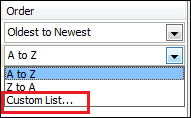
 Every once in a while I come across a sorting problem where a column of data needs to be sorted in a manner not consistent with ascending or descending order. Thankfully, Excel allows the sort order to come from a Custom List.
As an example I have some data with Date, Name, and Type as column headings, where the Type data can be one of five values: Breakfast, Lunch, Dinner, Snacks, Exercise. I want the data sorted by Date, in ascending order, then by Type, in the order listed above, not in ascending order: Breakfast, Dinner, Exercise, Lunch, Snacks, which is how I get the data.
In years past I would have solved this problem by creating another column (TypeCode) with a VLOOKUP formula keying off the Type data and referencing a new table created (on Sheet 1) with the sort order I wanted, as depicted below.
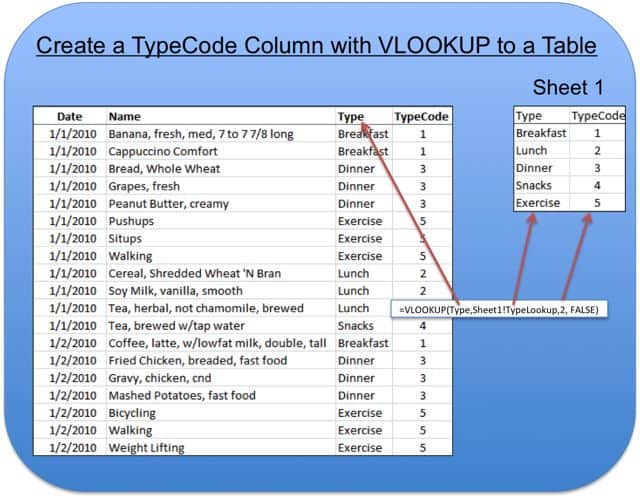
TypeCode is a VLOOKUP formula value that gives me the sort order I want, but with an extra column in my data and another worksheet with the lookup table. Too much extra stuff for this little problem.
Create a Custom List
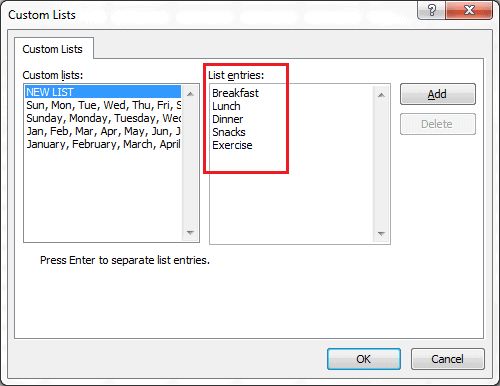
A Custom List can be created in Excel 2010 by choosing File > Options > Advanced > Edit Custom Lists. In Excel 2011 choose Excel > Preferences > Custom Lists. Click Add then type the list entries — press enter or return to separate entries — then click OK.
Create a Custom List in the Sort Dialog Box
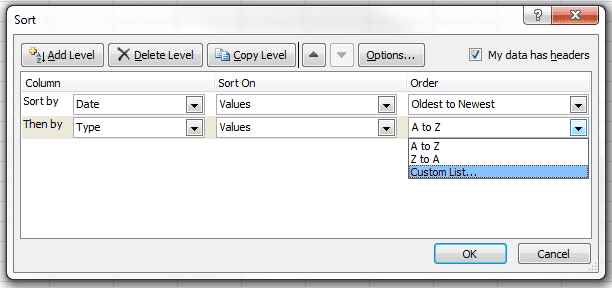
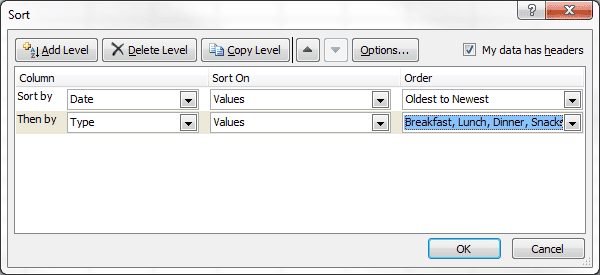
In our example we're going to add a Custom List from the Sort dialog box. I select a cell inside my data then choose Data > Sort to bring up the Sort dialog box. As you can see below, the first level is sorted by Date from Oldest to Newest. The second level column is Type where I select Custom List... from the Order drop-down box, which will bring up the Custom Lists dialog box.
Here I click Add, and type in my list: Breakfast, Lunch, Dinner, Snacks, Exercise then click OK.
You now see the new Custom List in the second level Order column of the Sort dialog box where you can now click OK to have Excel complete the sort.
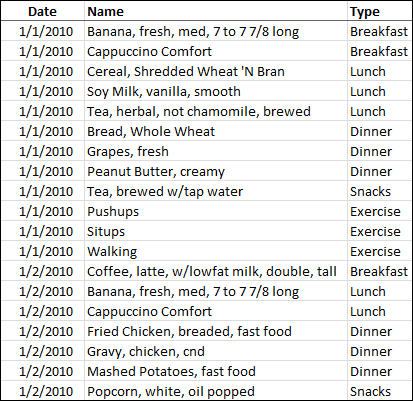
The data is now sorted by Date (oldest to newest) and by Type using the Custom List.
Sorting with a Custom List makes things simpler when Excel doesn't have a default sort order to fit your needs.