To check spelling in Excel, open the Review tab and choose Spelling, or press F7. Select several cells first to check just that range. With only one cell selected, Excel checks the whole worksheet.
That selection rule is easy to miss. Clicking one label doesn't limit the check to that label, and text displayed by a formula needs separate attention. Here's how to proofread a small set of instructions without confusing those two cases.
Check spelling with F7 or the Review tab
These steps cover desktop Excel for Microsoft 365, Excel 2024, and Excel 2021 on Windows and Mac. In the Windows ribbon, Spelling is in the Proofing group on the Review tab.
- Open the worksheet you want to proofread.
- Select a range containing the labels you want to check, or select one cell for a worksheet check.
- Choose Review > Spelling or press F7.
- Review each flagged word before accepting a correction.
F7 is one of the useful Excel shortcuts you can keep handy for a final pass through a report. If the key triggers a computer control instead, use the ribbon command; the troubleshooting notes below can help you narrow down why.
Choose what Excel checks
You can download the spell check example workbook to follow along on the Proofing sheet.
Suppose a sheet named Proofing contains these two instructions:
| Cell | Enter this text |
|---|---|
| A2 | Recieve the invioce |
| A3 | Ship to North warehouse |
Select A2:A3, then start spelling check. With an English proofing dictionary, the deliberate errors in A2 give you something to correct: Recieve should be Receive, and invioce should be invoice. The intended final instruction is Receive the invoice. A3 needs no spelling change.
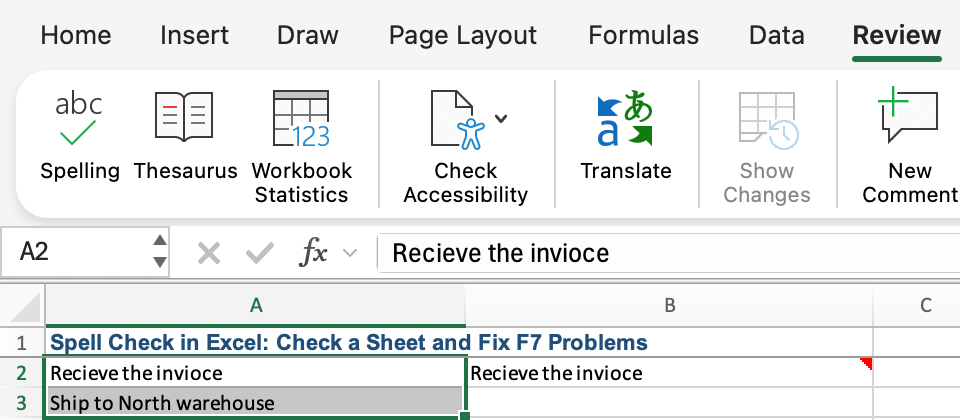
The selection determines the scope:
| Selection before starting | Scope of the check |
|---|---|
| A2:A3 | Those selected cells |
| A2 alone | The whole worksheet |
Microsoft documents this distinction in its worksheet spelling guide. Selecting cells in the grid is different from selecting words while editing text in the formula bar.
Correct a word and continue
When Excel flags an error, read the proposed replacement. Choose the intended word and select Change. For this example, correct the two typos in A2 and check that the finished label reads Receive the invoice.
Use Ignore Once when the flagged word is correct in its context, such as a name you want to retain. Be more deliberate with Change All: it applies the replacement to repeated occurrences, so a correct suggestion for one label may be inappropriate elsewhere. The available suggestions depend on the dictionary; don't rely on their order.
Spelling and capitalization are separate cleanup jobs. If your labels also mix uppercase and lowercase styles, the guide to changing case in Excel explains how to make their capitalization consistent.
Why Excel skips text in a formula
Now enter this formula in B2:
="Recieve the invioce"B2 displays the same misspelled instruction as the original A2. But its contents begin with an equals sign: it's a formula returning text, rather than a plain-text entry.
Worksheet spell check skips cells containing formulas. Including B2 in a larger selection doesn't remove that limitation. Correcting A2 also won't update B2, because this formula contains its own text and doesn't refer to A2.
Microsoft's documented approach is to select the words in the formula bar for a separate spelling check. For this short example, you can also edit B2 directly to:
="Receive the invoice"Keep the equals sign and quotation marks. Only the wording between the quotation marks needs to change; the resulting cell text should read Receive the invoice.
F7 or spell check not working?
Start with the symptom you can see:
| What happens | What to check next |
|---|---|
| F7 controls a device feature or doesn't start spelling check | Try Review > Spelling. If that works, check your keyboard's function-key settings. |
| Excel checks labels outside the one you clicked | A single selected cell starts a worksheet check. Select multiple cells to limit the range. |
| A visible typo is skipped | Inspect the formula bar. If the cell contains a formula, use the approach above. |
| Suggestions don't suit the language of your text | Check the proofing language and dictionary in your Excel installation. |
Before retrying a worksheet check, finish or cancel any cell edit and return to the grid. If you're using Excel in a browser, confirm the controls available in that version before following a desktop shortcut.
Function keys can behave differently across keyboards and system settings. Microsoft's Excel keyboard shortcut reference covers those differences; there isn't one Fn-key instruction that fits every keyboard.
Spell check, AutoCorrect, and AutoComplete
These features help with different parts of text entry:
- Spell check reviews the text you ask Excel to check.
- AutoCorrect applies configured corrections while you type.
- AutoComplete matches entries already in other cells; it doesn't assess every word's spelling.
An entry offered by AutoComplete can still need proofreading. Run the spelling check on your labels, then inspect any text formulas separately before treating the worksheet as finished.