Back to articles
Beginner
2010-10-122 min read
#tips

Switch Between Workbooks Faster in Excel 2007 and 2010

In the Excel 2003 menu system, two clicks of the mouse will switch between workbooks. In the menu conflagration for Excel 2007 and 2010 it's three clicks: View, Switch Windows, then pick the workbook. (As shown below)

Switch Windows on View Menu in 2010

This doesn't seem like a big deal, but it bugs the heck out of me. So I added the Switch Windows command to the Quick Access Toolbar in Excel 2010 and now have my customary two clicks back. It works in Excel 2007, too.

Add the Switch Windows Command to the Quick Access Toolbar

In Excel 2010 right-click the menu, then select Customize Quick Access Toolbar from the pop-up menu.
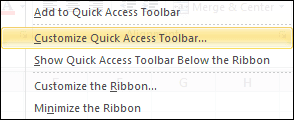
Customize Quick Access Toolbar

In the Excel Options dialog box (shown below) the Quick Access Toolbar should be selected in the left pane.

Under Choose commands from, select All Commands from the drop-down list, scroll down and select Switch Windows, then click the Add>> button to move that command to the right-hand window.

You can move it up or down according to where you would like it placed on the QAT toolbar. Click OK to finish.
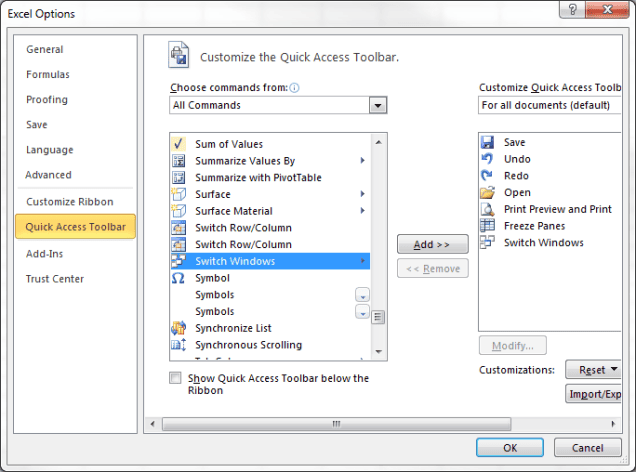
Add Switch Windows to QAT

Now you've saved yourself one click and any associated aggravation every time you want to switch workbooks in Excel 2010.
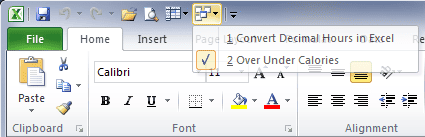
Switch Windows on Quick Access Toolbar

This also works for Excel 2007. Did I mention that?

Use a Keyboard Shortcut to Switch Windows

The keyboard shortcut Ctrl+Tab will move to the next window. With only two workbooks open it will toggle between them quickly and is faster than using Switch Windows from the QAT.

However, with more than two workbooks open this method doesn't work very well because cycling through each open workbook is slower, and sometimes confusing.

Enjoyed this guide?

Join our newsletter to get the latest Excel tips delivered to your inbox.

You can unsubscribe anytime. See our Privacy Policy.

Archived comments

Comments migrated from the previous version of the site. Adding new comments is disabled.

RogerAugust 31, 2011 at 08:19 AM
Many thanks
Mo R.September 29, 2011 at 11:20 PM
Yes, saving that extra click is really useful to switch between worksheets. And, I am 100% serious. So, thank you.
Joe MamaNovember 29, 2011 at 07:35 PM
Thanks for your help. :) I can't believe that we can't just toggle through the workbooks by clicking on the titles on the bottom of the screen like we could in the 2003 version. This is SO ANNOYING!!
slowWalkerDecember 20, 2011 at 03:33 PM
Thanks, man! You saved my day
Gregoryexcelsemipro.comDecember 20, 2011 at 03:50 PM
Always glad to help.
L.A.March 19, 2012 at 01:53 PM
I have to say I agree with Joe Mama: while it is wonderful to know that you can switch back and forth between two workbooks by using ctrl + tab, it is really frustrating that I cannot switch back and forth between more than one file/workbook with ONE click, as I used to, by clicking on the tabs on the taskbar at the bottom of the screen. In this previous--and extraordinarily useful!--feature, not only could I switch back and forth between two files/workbooks, but I could switch back and forth between MULTIPLE files/workbooks, with ONE click! I sure do wish Microsoft would bring this feature back, or if it is still available, make it clear how to access it. The only information I've been able to come up with requires downloading a zip file full of text files, changing the dot extensions to .reg, and then running them. And, those files only work for the 32-bit version of Windows 2007. Thanks for allowing us a space to comment.
Gregoryexcelsemipro.comMarch 19, 2012 at 10:40 PM
This is actually a Windows issue, which is still frustrating nonetheless. On XP you have individual Excel tabs in the task bar for each file (at least until you get too many and then they automatically combine.) With Windows 7 there is only one Excel tab on the task bar, no matter how many files or instances of Excel you have open. But what I've found is that if I hover my mouse over the Excel tab for a second, an iconic, mini-spreadsheet display appears for each of the Excel files you have open. Then you can click the one you want, which technically is only one click. (Albeit you have to wait a beat for the display to show.) I think this is what Microsoft considers as progress. I'm going to learn to live with it. Life is too short, otherwise.
TeresaMarch 28, 2012 at 06:12 PM
This was annoying -- thanks for the ctrl - tab tip!!
Gregoryexcelsemipro.comMarch 29, 2012 at 02:58 AM
I live to serve. :)
blzepwnsMarch 30, 2012 at 02:47 PM
Shortcut for a shortcut: right-click the Switch Windows button in the Ribbon and click add to Quick Access Toolbar. done. :)
Gregoryexcelsemipro.comMarch 31, 2012 at 12:42 AM
Thanks for the tip. However, for those who use a Mac this little technique doesn't work. On a Windows machine, with Excel 2007 or 2010, this right click techinque only allows you to create a Freeze Panes shortcut. If you do it manually there is a Freeze Sheet Panes shortcut that is one less click.
BradJune 19, 2012 at 03:35 PM
You are a Genius, thanks for sharing!
wasim khanJune 27, 2012 at 01:23 PM
i want to make a store data entry format in excel how can i store my data in excel and i want link between 1 sheet with another sheet
Gregoryexcelsemipro.comJune 27, 2012 at 11:05 PM
You can put the Store data on one worksheet, give it a defined name, then on another worksheet use Data Validation to reference the list. What version of Excel are you using?
Steve AllansonAugust 21, 2012 at 07:21 AM
Application.showwindowsintaskbar=true There is no excel setting for this but this command switches it back on so I'm sure you could put it into a personal macro workbook or whatever. I just type it into the immediate window in vba S
Gregoryexcelsemipro.comAugust 22, 2012 at 03:45 AM
Interesting. One problem is that this property isn't recognized in Excel 2011, the MAC version of Excel. Which is not uncommon.
Paul MitchellJune 11, 2013 at 11:32 AM
I was right there with Joe Mama in that I hate any additional kestrokes/clicks. I avoid using the mouse wherever possible and find the keyboard so much faster and if you are already typing you lose time putting your hand on a mouse. Here's how I switch workbooks now using only keystokes Alt+W, W then choose the number shown in the box or use the down key.
Gregoryexcelsemipro.comJune 27, 2013 at 03:41 AM
Thanks for the tip.
JesseJuly 11, 2013 at 12:23 PM
Thank you so much! This was bugging the hell out of me!