By looking at my exported data you can see the Dates in column A are really just a bunch of Text. The database export format spacing is standard: Day of the Week, space, Month, space, Day, space, Time, space, Year.
I want to extract the Month and Day by using the MID Function. In cell B2 you can see the formula:
=MID(A2,5,6)
The MID function extracts characters from the middle of a text string. There are three required arguments: Text, Start_num, Num_char.
The Function Arguments Dialog Box
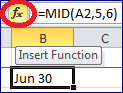 Click the Insert Function (ƒx) button, next to the formula bar, to bring up the Function Argument dialog box.
As you can see in the dialog box below, the Text argument is selected and the definition is shown below. Selecting Start_num or Num_chars will also show their respective definitions.
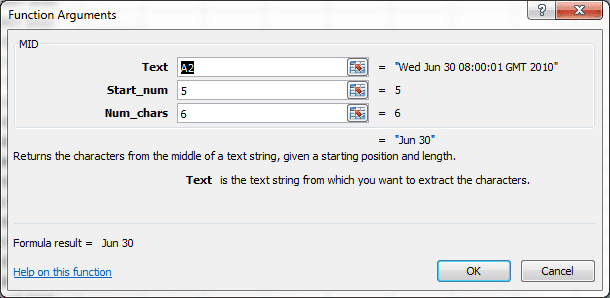
Another key feature of the Function Arguments dialog box is that the result of the formula (= "Jun 30") is displayed below the argument boxes.
The MID Function Arguments
The Text argument is simply the reference to the text string from which you want to extract the characters. In this case, cell A2.
The Start_num argument represents the position of the first character you want to extract. I want to start at the 5th character, which is the first letter for the month abbreviation.
The Num_chars argument represents how many characters to return. I want to include the month and day, which is three letters, a space character, and two digits.
In this case, Excel recognizes "Jun 30" as a text string that represents a Date. However, since this formula does not supply a Year value, Excel assumes the current year and takes it from the computer's System Date.
Obviously the MID Function did what was expected, but the formula needs to be expanded to include the Year in column A. The next post will review the RIGHT Function.