The data in an Excel Table is nicely addressed. Meaning when you ask Excel for the address of the Table you get the data only and not the Header row or, if toggled, the Total Row.
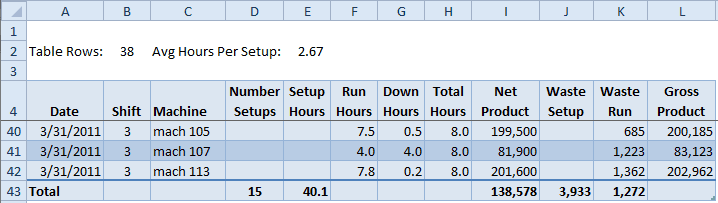
The Table above starts in row 4 of the worksheet with a Header and ends in row 43 because the Total Row is toggled on. If I execute the following code inside the Immediate window of the VBA Editor, only the data range is returned.
? range("table1").address $A$5:$L$42
The first line is the VBA code asking for the address of the Table1 range. The second line gives the requested range address.
When I select a cell inside the Table and ask for the range address of the current region, I get the data range, Header, and Total Row.
? selection.currentregion.address $A$4:$L$43
If I toggle off the Total Row and run the same code the data and header is included in the current region.
? selection.currentregion.address $A$4:$L$42
If you want to grab data only with VBA code and aren't using a Table the following code will work. (In the Immediate window the code has to be on one line, so these two lines below are supposed to be one solid line of VBA code.) ? selection.currentregion.offset(1,0).resize(selection.currentregion.rows.count - 1,selection.currentregion.columns.count).address $A$5:$L$42
This code selects the current region, offsets the entire range one row down, then resizes to one less row at the bottom.
Which is why an Excel Table is nicely addressed.
Excel Table Structured Data
Besides showing the column references in a Table, formula autocomplete shows us other structured data references.
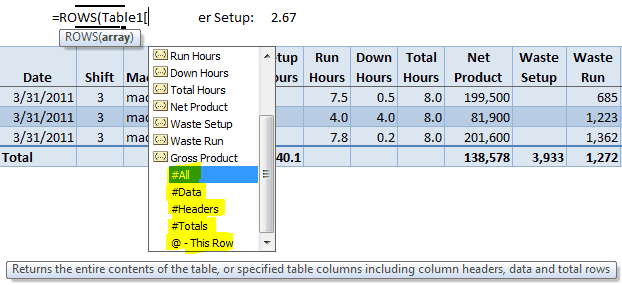
In the formula above, when I type an open square brace [ after the Table1 name, the formula autocomplete list appears and reveals that #All, #Data, #Headers, #Totals, and @ are available to be used as a reference to different parts of the Table.
The formula using the ROWS function =ROWS(Table1) is the same as =ROWS(Table1[#Data]). And the Table1[#All] is equivalent to CurrentRegion.