To translate text in an Excel column into English, enter =TRANSLATE(A5,,"en") beside the first source cell and fill down. The empty second argument lets the service detect the source language; "en" sets English as the output language. Use =DETECTLANGUAGE(A5) in a separate column if you also want to review the detected language code.
Keep the original text beside the translation. A translated product description is easier to review when you can still see its source, especially if a short label could belong to more than one language.
Download the translation practice workbook to follow the formulas. Its Snapshot sheet preserves the service results observed on November 11, 2026, at 03:17 CET as plain values, alongside the original descriptions and detected language codes.
Microsoft lists both functions for Excel for Microsoft 365, Excel for Microsoft 365 for Mac, and Excel Mobile. They use Microsoft Translation Services, so availability and service responses matter as well as the formula. Start with a few made-up descriptions before filling a large list. Microsoft's TRANSLATE documentation explains the service and supported arguments.
Set up a source column and a place to review the results
Put these headers in row 4:
| A4 | B4 | C4 | D4 |
|---|---|---|---|
| Original description | Detected language | English translation | Review notes |
Enter the following synthetic descriptions in A5:A8. The meaning column below is a reading aid, not a promise of the service's exact wording.
| Cell | Original description | Meaning for review |
|---|---|---|
| A5 | Caja de cartón reciclado. | Recycled cardboard box |
| A6 | Sac en coton biologique. | Organic cotton bag |
| A7 | Wiederverwendbare Trinkflasche. | Reusable drinking bottle |
| A8 | Solo | Too little context to choose a meaning confidently |
These examples give you a clear Spanish phrase, a French phrase, a German phrase, and a deliberately ambiguous short label. Leave column D for notes such as “Check material description” or “Confirm source language.”
Translate the first description and fill down
In C5, enter:
=TRANSLATE(A5,,"en")The two commas are intentional. They leave the source-language argument empty while still supplying the target language. The result belongs in C5; A5 remains unchanged.
Check that the English result preserves the meaning of the Spanish phrase: the box is made from recycled cardboard. Then copy C5 down through C8. Each copied formula refers to the source cell on its own row.
Specifying "en" makes the intended output language clear. If you leave out the target argument, TRANSLATE uses the system language, which may be different on another person's computer.
Supply the source language when you know it
For the French description in A6, replace C6's automatic-source formula with:
=TRANSLATE(A6,"fr","en")This asks for French-to-English translation explicitly. Review the result for the meaning “organic cotton bag.” The source code "fr" is useful when the language is known, particularly with short text.
The label Solo in A8 needs more attention. A service can return a plausible language or translation without knowing what the label means in your catalog. Check the source record and provide the correct language when you have it. Don't choose a language merely because it produces an English word that looks reasonable.
Use Microsoft's supported languages and language codes when changing either argument. Language names such as "French" aren't substitutes for the required codes.
Add a detected-language column for review
In B5, enter:
=DETECTLANGUAGE(A5)Copy it down through B8. The output is a language code, such as es for Spanish, fr for French, or de for German. For our clear phrases, those are the codes to check against the source languages. Microsoft's DETECTLANGUAGE reference describes its single text argument and service behavior.
In the Excel for Mac check on November 11, 2026, rows 5–7 returned es, fr, and de, matching the three source languages. Their translations were Recycled cardboard box., Organic cotton bag., and Reusable water bottle. Each preserves the intended meaning of its sample description.
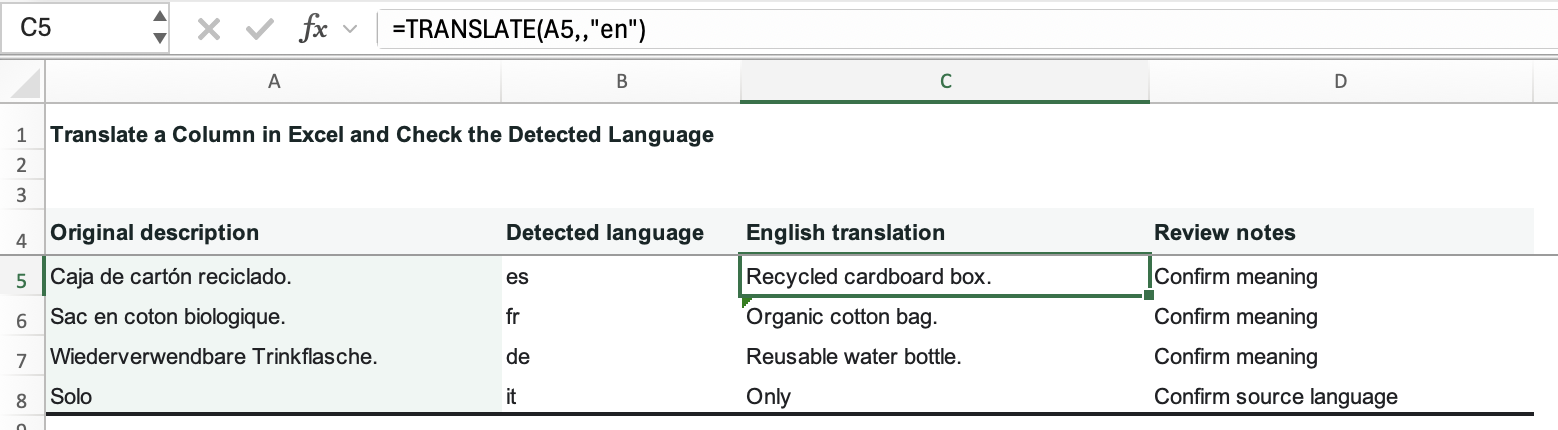
For Solo, the service returned it and Only. Those are observed results, not confirmation that Italian is the intended source language. Keep Confirm source language in D8 until you've checked the source record.
Column B is an audit aid. The translation formulas in C still refer directly to A; they don't depend on B. That lets you compare a detected code with the source information without automatically treating the detection as correct.
Filter column B if you need to group rows by detected language, and use column D to record anything that needs a person to review it. Keep short labels and mixed-language descriptions on that review list even when the formula returns a code without an error. This is part of cleaning imported data, not a replacement for checking its meaning.
Troubleshoot the formula before filling thousands of rows
If Excel doesn't recognize TRANSLATE or DETECTLANGUAGE, check your product and installed version against Microsoft's supported products above, and check for available updates. If the function is recognized but won't return a result, try one clear sample phrase and check that Excel can connect to the service.
Read the underlying error before replacing it with a label. Microsoft documents these problems:
| Problem | What to check |
|---|---|
| Text too long | Reduce the text in the source cell and retry a small sample. |
| Non-text input | Supply a text description rather than a numeric value. |
| Invalid or unsupported language | For TRANSLATE, check both codes against the official language list. |
| Request throttled | Stop the bulk calculation and retry later; repeatedly recalculating doesn't resolve a quota limit. |
Both functions can encounter text-length, input-type, and throttling issues. Microsoft doesn't give a fixed daily request count on these function pages, so don't build a workflow around an assumed quota.
After you've inspected an error, you can make unresolved translations easy to filter with IFERROR:
=IFERROR(TRANSLATE(A5,,"en"),"Review translation")The label means that the formula didn't produce a translation. It doesn't mean the service checked the text or that the row is ready to use. Keep at least one unwrapped test formula available while diagnosing a problem.
Keep a reviewed copy when the wording must stay fixed
Service results can change. If you're handing a finished description list to someone else, review the results, copy the translation column, and paste values into a separate snapshot sheet. Record the review date and keep the source descriptions alongside those values.
Retain the formula sheet if you expect the descriptions to change. The snapshot preserves what you reviewed; the formula sheet gives you a place to rerun translation and check new results.