Since I'm relatively new to the world of Mac but an old hand with Windows, making an effort to discover Excel 2011 for Mac comes with some adjustments. Using the Function keys is one such irritation adjustment.
You see, using Excel on a Windows machine allows you to use the function keys, like F1, F2, F4, F5, and Alt+F11, which become second nature. But with a Mac you can't just press, for example, the F5 function key all by its lonesome self. You're forced to use the keyboard combination fn+F5.
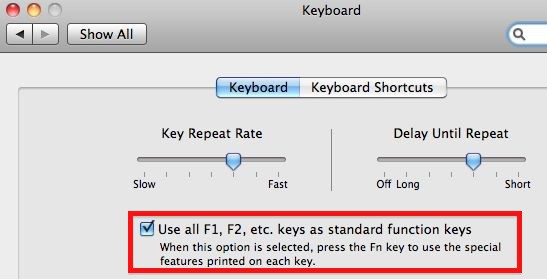
You can change the Mac system preference to use all Function keys without having to press the fn key. Just go to System Preferences > Keyboard > select the Keyboard tab, and check the box to: Use all F1, F2, etc. keys as standard function keys.
Of course, all the function keys mentioned above don't work with Excel 2011, with the exception of F5, which opens the Go To dialog box, and Att+F11 that opens the VBA Editor (even though the documentation doesn't mention it).
And speaking of documentation, if you want a reference list of Function keys for Excel 2011 for Mac you can always look in the Excel Help system documentation, or just go to this link on the web and click on Function Keys. The list you see is considerably different than Excel for Windows, where you can view here.