The other day I found myself switching frequently between three worksheets in an Excel workbook. Having to grab the mouse, select another worksheet tab, then switch my hand back to the keyboard became annoying, so I looked up the keyboard shortcuts.
Excel for Windows:
Ctrl+PgDn — takes you to the next worksheet Ctrl+PgUp — takes you to the previous worksheet
Excel for Mac:
OPTION + RIGHT ARROW — takes you to the next worksheet OPTION + LEFT ARROW — takes you to the previous worksheet
Navigation Shortcut with the Mouse
The worksheet tab controls come in handy with too many worksheets in the workbook.
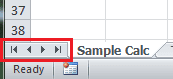
Right-click on these controls and a pop-up list appears, then click on a sheet name to activate it.
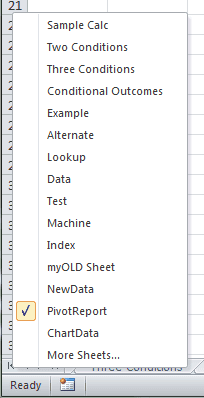
For more than 15 worksheets, at the bottom of the list you'll see an entry for More Sheets.... Click to bring up an Activate dialog box that shows all the worksheets by utilizing a scroll bar.
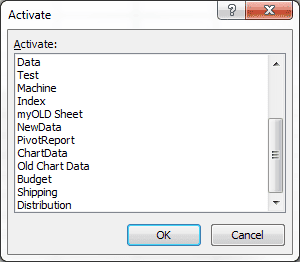
I wish Microsoft would allow the pop-up list to be more than 15 sheets.