To add months to a date in Excel, use the EDATE function with =EDATE(A2,B2), where A2 contains the starting date and B2 contains the number of months. Use a negative number in B2 to subtract months. Format the result as a date if Excel shows a number.
Suppose you're keeping a renewal register. One agreement renews three months after it starts, and another renews after one month. Adding 30 or 90 days won't reliably give you those dates because calendar months have different lengths. EDATE moves by calendar months and handles the shorter month when the original day doesn't exist.
Calculate a renewal date
You can follow along in the renewal-date example workbook. Its Example, Recurring, and Month end sheets cover the register and the two scheduling rules below.
Use columns A through C for Start date, Months, and Renewal date. Enter January 15, 2025, in A2 and 3 in B2. Enter this formula in C2.
=EDATE(A2,B2)The result is April 15, 2025. A2 supplies the original date. B2 tells Excel how many months to move forward. Copy the formula down so each row uses its own start date and interval.
For reproducible examples, enter the dates with the DATE function. For example, =DATE(2025,1,15) creates January 15, 2025, without relying on how Excel interprets a typed date such as 1/15/2025.
Here's a small register you can build. Enter the start-date formulas in column A, the month counts in column B, and copy =EDATE(A2,B2) down column C.
| Row | Start date formula in A | Months in B | Expected renewal date in C |
|---|---|---|---|
| 2 | =DATE(2025,1,15) | 3 | April 15, 2025 |
| 3 | =DATE(2025,1,31) | 1 | February 28, 2025 |
| 4 | =DATE(2024,1,31) | 1 | February 29, 2024 |
| 5 | =DATE(2025,5,15) | -3 | February 15, 2025 |
| 6 | =DATE(2025,12,15) | 2 | February 15, 2026 |
| 7 | =DATE(2025,1,15) | 0 | January 15, 2025 |
Select column C's results and apply a date format. The underlying result is an Excel date number, so you can sort it, compare it with another date, or use it in a later calculation.
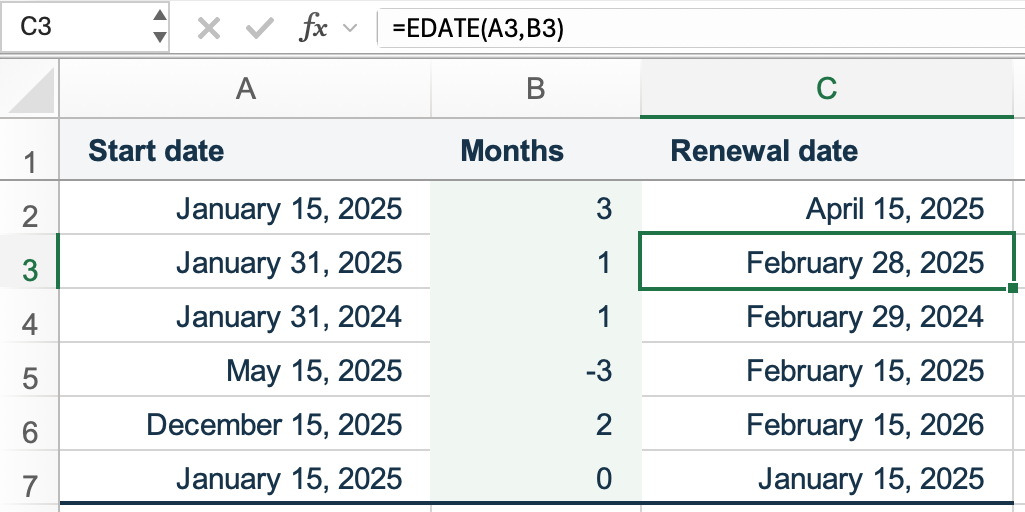
Microsoft's EDATE documentation describes positive and negative month offsets. Use whole numbers for the interval. EDATE truncates a fractional month count, so 1.5 is treated as 1.
What happens when you add a month to January 31?
EDATE keeps the original day number when the target month has that day. If it doesn't, the result is the last valid day of the target month.
That makes January 31 plus one month February 28 in 2025, but February 29 in 2024, a leap year. The rule also works going backward. March 31, 2025, minus one month gives February 28, 2025.
This adjustment matters when you calculate several renewal dates in succession. February's shortened result can become an unintended new starting point.
Keep recurring dates tied to the original start
Suppose the agreement starts on January 31, 2025, and renews monthly. Calculating each date from the previous result produces a different March date from calculating every date from January 31.
| Renewal | Add one month to the previous result | Add the total months to January 31 |
|---|---|---|
| First | February 28, 2025 | February 28, 2025 |
| Second | March 28, 2025 | March 31, 2025 |
| Third | April 28, 2025 | April 30, 2025 |
In the first column, February 28 becomes the new base, so the next calculation asks for March 28. EDATE has no record that the agreement originally started on the 31st.
To preserve that original day, keep the base date in F2. Put month offsets 1, 2, and 3 in H2:H4, then enter this in I2 and copy down.
=EDATE($F$2,H2)The dollar signs keep F2 fixed. H2 changes to H3 and H4, giving you successive dates measured from the same starting point. If that distinction is unfamiliar, the guide to absolute and relative references shows how a fixed input behaves when you copy a formula.
For a longer schedule with daily, weekly, or monthly entries, continue with creating a list of dates in Excel.
Use EOMONTH when the rule is always month-end
“Same day next month” and “last day of next month” are different instructions. Starting from February 28, 2025, EDATE with an offset of 1 returns March 28. If the renewal must always fall on the last day of a month, use EOMONTH with the same date and offset inputs.
=EOMONTH(A2,B2)With February 28, 2025, in A2 and 1 in B2, the result is March 31, 2025. An offset of 0 gives the last day of the starting month. For another way to understand the month-end calculation, see finding the last day of a month with DATE.
If the result is a number or an error
A number appears instead of a date. Apply a date number format to the result. Formatting changes the display while preserving the formula.
EDATE returns #VALUE!. Check whether the starting date is stored as text. A cell can look like a date without being a usable Excel date. Keep the original value and follow the text-to-date conversion guide if the dates came from an import.
The result is a few days away from the expected deadline. Check the rule first. Calendar months, a fixed number of days, and the last day of a month can all give different answers. In this register, B2 counts calendar months.