Back to articles
FormulasIntermediateTime and Date
2022-01-215 min read
#time#tips

How to Calculate Hours Between Two Dates and Times in Excel

Functions in this article

Jump to the reference pages for the Excel functions used below.

Browse library

If you need to calculate hours between two dates and times in Excel, the simplest formula is to subtract the start date and time from the end date and time. From there, you can either show the result as elapsed time or convert it to decimal hours.

Quick Answer

If A2 contains the start date and time and B2 contains the end date and time, use:

=B2-A2

To return decimal hours instead of a time value, use:

=(B2-A2)*24

If you want to display the result as total elapsed hours and minutes, format the result cell as:

[h]:mm

Example: Hours Between Two Date-Time Values

Suppose:

  • A2 = 1/20/2022 6:00 AM
  • B2 = 1/21/2022 2:00 PM

This formula:

=B2-A2

returns 1 day and 8 hours. If you format the result as [h]:mm, Excel shows 32:00.

If you want the answer as a number, use:

=(B2-A2)*24

and Excel returns 32.
<figure>

Image of an Excel table with dates and times

<figcaption>

Subtract the start date and time from the end date and time, then decide whether you want elapsed time or decimal hours.

</figcaption> </figure>

Calculate Hours When Date and Time Are in Separate Cells

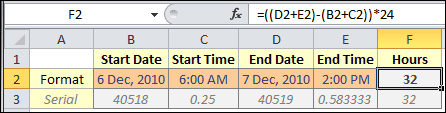
Many worksheets store dates and times in separate columns. In that case, add the date and time together before subtracting.

Assume:

  • A2 = Start date
  • B2 = Start time
  • C2 = End date
  • D2 = End time

Use:

=(C2+D2)-(A2+B2)

To return decimal hours:

=((C2+D2)-(A2+B2))*24

This is often easier to audit than typing a full timestamp into one cell.

Show Elapsed Hours Above 24

One of the most common mistakes is using a normal time format for a duration.

If the result of =B2-A2 is formatted as a standard time, Excel may show only the clock portion of the answer. That means a 32-hour duration can look like 8:00.

To show total elapsed hours, use a custom format:

[h]:mm

If you need seconds, use:

[h]:mm:ss

For a deeper explanation of elapsed time formatting, see Let Excel Convert Hours Between Two Dates and Times.

Return Decimal Hours, Minutes, or Seconds

If you need a numeric result for payroll, billing, or reporting, multiply the time difference by the right conversion factor.

Decimal hours:

=(B2-A2)*24

Minutes:

=(B2-A2)*1440

Seconds:

=(B2-A2)*86400

If you later need to turn decimal hours back into a time display, see How to Convert Decimal Hours to Time in Excel.

Calculate Time Across Midnight

If your cells contain full date-time values, a basic subtraction already handles overnight spans:

=B2-A2

For example, if A2 is 3/15/2026 10:00 PM and B2 is 3/16/2026 6:00 AM, the result is 8 hours.

If you are working with times only and the shift crosses midnight, use:

=MOD(B2-A2,1)

That prevents a negative time result when the end time belongs to the next day.

For related techniques, see How to Extract Time from DateTime Values in Excel and Extract Time with the MOD Function in Excel.

Exclude Weekends and Holidays

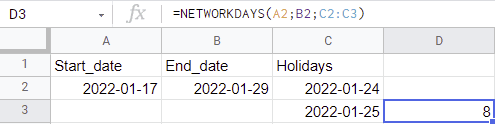
If you want working hours rather than raw elapsed hours, NETWORKDAYS or NETWORKDAYS.INTL is the better starting point.

For example, to count working days between two dates:

=NETWORKDAYS(A2,B2,HolidayList)

You can then multiply that result by the number of hours in a standard workday.

If your first and last days are partial days, the setup becomes more advanced because you need to account for:

  • workday start time
  • workday end time
  • weekend pattern
  • optional holiday list

That is a different problem from simple elapsed time, so it is best handled with a dedicated working-hours formula.
<figure>

Image of an Excel list showing NETWORKDAYS formula

<figcaption>

Use NETWORKDAYS when you need business-day logic instead of raw time subtraction.

</figcaption> </figure>

Why the Formula Works

Excel stores dates as whole numbers and times as fractions of a day. That is why ordinary subtraction works for date-time calculations.

In Excel:

  • 1 = one full day
  • 0.5 = 12 hours
  • 0.25 = 6 hours

So when you subtract one timestamp from another, Excel returns the elapsed fraction of a day. Multiplying by 24 converts that fraction into hours.

If you need a live calculation based on the current time, the NOW function can help:

=(NOW()-A2)*24

Common Problems

The result shows 8:00 instead of 32:00

Use the custom format [h]:mm so Excel shows accumulated hours instead of wrapping after 24.

I want a number, not a time

Multiply by 24:

=(B2-A2)*24

My result is negative

Make sure the end date and time are later than the start date and time. If you only have times and the period crosses midnight, use =MOD(B2-A2,1).

Excel shows hash marks instead of a result

This usually means the cell is not wide enough or Excel is trying to display a negative time value in a time format.

Should I use DATEDIF?

Usually no. DATEDIF is best for date-only differences in years, months, or days. For hours between timestamps, subtraction is simpler. If you need date-only intervals, see the DATEDIF function in Excel.

Formula Summary

Use =B2-A2 for elapsed time.

Use =(B2-A2)*24 for decimal hours.

Use =((C2+D2)-(A2+B2))*24 when dates and times are stored separately.

Use =MOD(B2-A2,1) when you only have times and the shift crosses midnight.

Once you understand that Excel measures time as a fraction of a day, calculating hours between two dates and times becomes straightforward.

For more date and time tutorials, browse the Date & Time section or read 4 Methods to Insert a Timestamp in Excel Cell.

Enjoyed this guide?

Join our newsletter to get the latest Excel tips delivered to your inbox.

You can unsubscribe anytime. See our Privacy Policy.

Archived comments

Comments migrated from the previous version of the site. Adding new comments is disabled.

DavidDecember 11, 2010 at 06:14 AM
There are pitfalls to treating time within the day as a fraction, due to the way Excel calculates those fractions. For example, the difference between today's 12:00:01AM and 12:10:01AM is NOT equal to 0:10:00. In fact, for today, only 168 of the 86400 (there being 86400 seconds in a day) possibilities will work as you might expect. One way to fix this is to round any times when doing calculations or comparisons: on a quick check, rounding the time to somewhere between 7 and 10 digits will ensure that it works as you would expect.
Gregoryexcelsemipro.comDecember 11, 2010 at 08:20 PM
Excel's numbers are precise up to 15 digits, and Excel does treat time within one day as a fraction, so I'm not following what you're saying. If I put a start time of 12:00:01 AM in a cell and and end time of 12:10:01 AM in another cell, then subtract start from end, I get precisely 10:00 minutes of duration between the two. The underlying cell values, their time serial numbers are: start time of 1.15741E-05, end time of 0.006956019 and the duration is 0.006944444 and so Excel is providing sufficient precision to calculate time values. The worksheet described in this article was designed to calculate time between two different dates, not within the same day, and so it wouldn't be able to calculate the example you gave. Sorry if I didn't make that clear.
DavidDecember 11, 2010 at 09:07 PM
It displays as exactly 10:00, but if you type 0:10:00 in another cell and compare the two, they are just barely different. From the calculation you get 0.0069444444444453, from the direct type-in you get 0.0069444444444444, and thus any comparison may fail.
Gregoryexcelsemipro.comDecember 11, 2010 at 10:02 PM
When I type in 10:00 in another cell and compare the values they both come out to 0.00694444444444444. I don't know why you're getting a different number for the calculation. Here's a link to the spreadsheet I'm using. Maybe that will help clear things up.
DavidDecember 12, 2010 at 04:58 AM
You are correct to note in your file that endTime – startTime = duration. But try endTime – duration = startTime in your file. It doesn’t work. <>
Gregoryexcelsemipro.comDecember 12, 2010 at 05:23 AM
In the file I provided, in cell D7 use the formula =C2-D4 which is End Time minus Duration (from the straight data entry) and the answer is 12:00:01 AM, which is the Start Time. And I get the same thing if I use =C2-D2 which is End Time - Duration, and get 12:00:01 AM, which is the Start Time.
DavidDecember 12, 2010 at 04:54 AM
You are correct to note in your file that endTime - startTime = duration. But try endTime - duration = startTime in your file. It doesn't work.
DavidDecember 12, 2010 at 05:40 AM
Amended file at https://davidj.richardson.name/external/Time-Difference-2.xls — look at the yellow cells.
PaulaFebruary 15, 2012 at 04:18 PM
Hi, If i need only service time, how can i do? For example if my service hour is 9:00 to 18:00 and i need to know total of service time between two dates (not count weekend and holidays), how can i count these? Thank you in advance. Paula
Gregoryexcelsemipro.comFebruary 16, 2012 at 03:36 AM
@Paula, If your service hours don't change each working day, meaning you would have 18:00 - 9:00 = 9:00 hours every day then you can just count the number of working days and multiply by 9 to get the number of total service hours. To count the number of weekdays, minus holidays for your working days, you can use the NETWORKDAYS function, which has three arguments: Start Date, End Date, and Holidays. The holidays are usually a range of Holiday dates, but this last argument is optional. If Holidays are not used the formula returns the number of weekdays between the two dates. If there is a Holiday list, then they are subtracted as well. As an example, if Start Date is in cell A2 and End Date is in cell B2, and a list of holidays is a named range, HolidayList, then you get =NETWORKDAYS(A2,B2,HolidayList). If your service hours change every working day then you would have to do something different. Hope this helps.
Kanchan JoshiJuly 27, 2012 at 05:39 PM
Hi Greg, I am not a programmer but I used your formula and it works! Thanks a lot for sharing the details. But I also need the result if the day is the same (zero) and hours and minutes are different. Would you please be able to help with the additional patch to the formula for the same day and different time? Kanchan =INT(B1-A1) & IF(INT(B1-A1)=1,” day, “,” days, “) & HOUR(MOD(B1-A1,INT(B1-A1))) & ” hours, ” & MINUTE(MOD(B1-A1,INT(B1-A1))) & ” minutes, ” & SECOND(MOD(B1-A1,INT(B1-A1))) & ” seconds”
RoyDecember 1, 2012 at 02:07 PM
Gregory, I can't get my formula to work and hope you can help. I also want to measure only the service time. (based on registered incidents) I can measure the working days, but my service times variate. The service window time is between 07:00 and 18:00 (11 hour) on working days. For example: The incident was opened on 07/09/2012 08:00 and closed on 10/09/2012 10:35 -8 & 9 September are weekend days Therefore the total service time = 10 hours (workday 7-9) + 3 hours 35 min (workday 10-9) = 13 hours, 35 min. Can you help wiht this formula? Regards Roy
Gregoryexcelsemipro.comDecember 9, 2012 at 12:39 AM
I sent Roy an email that an answer would be blog post worthy. And before I could start writing it, he sent me the following reply.
Hi Gregory, I think I found the answer on a different forum. =(NETTO.WERKDAGEN(A2,B2,G$5:G$19)-1)*("18:00"-"7:00")+ALS(NETTO.WERKDAGEN(B2,B2,G$5:G$19),MEDIAAN(REST(B2,1),"18:00","7:00"),"18:00")-MEDIAAN(NETTO.WERKDAGEN(A2,A2,G$5:G$19)*REST(A2,1),"18:00","7:00")
Gregoryexcelsemipro.comDecember 9, 2012 at 02:27 AM
Assume Incident Open is 7 Sep, 2012 8:00 and in cell A2. Assume Incident Close is Sep 10, 2012 10:35 and is in cell B2. Assume that Start_Time is 7:00 and End_Time is 18:00. A formula that will exclude weekends, and calculate the number of hours worked is: =IF(NETWORKDAYS(A2,B2)<2,MOD(B2,1)-MOD(A2,1),(End_Time-MOD(A2,1)+MOD(B2,1)-Start_Time)+((NETWORKDAYS(A2,B2)-2)*10/24)) if you format the cell with [h]:mm;@ time format. Using the square bracket around the hour will allow hours to accumulate past 24 hours. This formulas will also give you the correct time duration if the incident is opened and closed in the same day, next day or next week. I do believe that there is a limit to how many hours will accumulate in the time format. You might check Excel HELP to find out what is the maximum number of hours. I don't know right off the top of my head. Hope this helps.
TimMarch 15, 2013 at 11:53 AM
Hi Gregory, I'm trying to use this formula but I think there's something missing? IF(NETWORKDAYS(A2,B2)<2 is true then the only action you take is MOD(B2,1)-MOD(A2,1) and this doesn't take into account the start and end times? Thanks Tim
Gregoryexcelsemipro.comMarch 24, 2013 at 03:39 PM
You are correct in that if the time on the second day is less than the time on the first day the calculation returns a negative. So if MOD(B2,1)>=MOD(A2,1) then the proper action is to add a day to the end date and then subtract, like this (MOD(B2,1)+1)-MOD(A2,1) and otherwise MOD(B2,1)-MOD(A2,1) will work. Thanks for pointing this out.
kumarMarch 28, 2012 at 08:41 AM
Hi Gregory, Good Day. I need your kind assistance here to help me out on getting the answers in day/hours/min/sec. I did use the formula as =MAX(A1:B1)-MIN(A1:B1) and got the answer as 26:49:15. where as the answer i want is like "1 day, 2 hours, 49 minutes and 15 seconds". Please advice and thank you in advance. Kumar I forgot to mentioned that the value that i used was 23/2/2012 3:25:45 PM in cell A1 and 24/2/2012 6:15:00 PM in cell B1.
Gregoryexcelsemipro.comMarch 29, 2012 at 02:50 AM
In cell C1 use the formula =INT(B1-A1) to get the days. Then you have to get the remaining hours, which is the formula =MOD(B1-A1,INT(B1-A1)) and represents the remaining time. So in cell D2 enter the formula =HOUR(MOD(B1-A1,INT(B1-A1))). In cell E2 enter the formula =MINUTE(MOD(B1-A1,INT(B1-A1))). And in cell F2 enter the formula =SECOND(MOD(B1-A1,INT(B1-A1))). You can string this all together in the following formula =C1 & " days, " & D1 & " hours, " & E1 & " minutes, " & F1 & " seconds" which will give you 1 days, 2 hours, 49 minutes, 15 seconds. But a single day isn't plural, so you might want to test and see if the formula in cell C1 is equal to 1, like this: =C1 & IF(C1=1," day, "," days, ") & D1 & " hours, " & E1 & " minutes, " & F1 & " seconds" and then you will get 1 day, 2 hours, 49 minutes, 15 seconds. Of course you can combine all these formulas into one cell, instead of many cells, and get a really big formula like this: =INT(B1-A1) & IF(INT(B1-A1)=1," day, "," days, ") & HOUR(MOD(B1-A1,INT(B1-A1))) & " hours, " & MINUTE(MOD(B1-A1,INT(B1-A1))) & " minutes, " & SECOND(MOD(B1-A1,INT(B1-A1))) & " seconds" which is what I think you were asking for, but not expecting. Hope this helps.
SurenApril 9, 2012 at 12:20 PM
Hi Gregory, The below formulae is not working and it says too many arguments in the "Days" =INT(B1-A1) & IF(INT(B1-A1)=1,” day, “,” days, “) & HOUR(MOD(B1-A1,INT(B1-A1))) & ” hours, ” & MINUTE(MOD(B1-A1,INT(B1-A1))) & ” minutes, ” & SECOND(MOD(B1-A1,INT(B1-A1))) & ” seconds” Could you please let me know where the problem lies. Thank you
Gregoryexcelsemipro.comApril 10, 2012 at 10:59 PM
Sorry for the delay, but the formula you sent was quite vexing. Aside from the fact that when you copied the formula in my comment section and WordPress added an extra amp; for every & sign, your formula appears to be identical to the one I created. However, after removing the amp; it still didn't work. So I lined it up with my original formula and looked at each character in the formula string and found only one difference, which was very hard to spot. It seems that the quote marks you use are different than the one's I use. My quote marks are perfectly vertical and have a consistent line width, and your quote marks are like mini-comma's that are slanted. I replaced all your quote marks with the one's that I use and the formula worked perfectly. Here's my formula: =INT(B1-A1) & IF(INT(B1-A1)=1," day, "," days, ") & HOUR(MOD(B1-A1,INT(B1-A1))) & " hours, " & MINUTE(MOD(B1-A1,INT(B1-A1))) & " minutes, " & SECOND(MOD(B1-A1,INT(B1-A1))) & " seconds" and here is yours: =INT(B1-A1) & IF(INT(B1-A1)=1,” day, “,” days, “) & HOUR(MOD(B1-A1,INT(B1-A1))) & ” hours, ” & MINUTE(MOD(B1-A1,INT(B1-A1))) & ” minutes, ” & SECOND(MOD(B1-A1,INT(B1-A1))) & ” seconds” The quote mark I'm using is just to the left of the Return/Enter button and I use the shift key. I'm not sure what quote mark you are using or why Excel is making the distinction between what I use an what you are using, but it's real. Hope this helps.
Kanchan JoshiJuly 30, 2012 at 09:11 PM
Hi Gregory, I am not a programmer but I used your formula and it works! Thanks a lot for sharing the details. But I also need the result if the day is the same (zero) and hours and minutes are different. Would you please be able to help with the additional patch to the formula below for the same day and different time? Kanchan =INT(B1-A1) & IF(INT(B1-A1)=1,” day, “,” days, “) & HOUR(MOD(B1-A1,INT(B1-A1))) & ” hours, ” & MINUTE(MOD(B1-A1,INT(B1-A1))) & ” minutes, ” & SECOND(MOD(B1-A1,INT(B1-A1))) & ” seconds”
Gregoryexcelsemipro.comAugust 19, 2012 at 08:01 PM
Sorry for the delay in responding. The problem with extending this formula to included the same day is that the MOD function will create a #DIV/0! error. Adding more IF/THEN formulas to this equation makes it unnecessarily complicated. Here are a few alternatives. Assume you have 8/19/12 4:00 AM in cell A1 and 8/19/2012 6:30:00 AM in cell B1. This formula =TEXT((B1-A1),"d, h:mm:ss" ) will give you 0, 2:30:00 for an output. This formula =TEXT((B1-A1),"d") & " days, " & TEXT((B1-A1),"h:m:s") & " hours:minutes:seconds" will give you 0 days, 2:30:0 hours:minutes:seconds for an output. And this formula =TEXT((B1-A1),"d") & " days, " & TEXT((B1-A1),"h:m:s") & " (h:m:s)" will give you 0 days, 2:30:0 (h:m:s) for an output. (My favorite.) All shorter and easier to implement. I couldn't use the original format of xx days, xx hours, xx minutes, xx seconds because the TEXT function sees the "m" as a month and not minutes. You have to use "h:m" before the "m" is recognized as minutes, but the hours are attached, which kind of defeats the purpose. Hope this helps.
RyanSeptember 24, 2012 at 11:55 PM
I need to calculate work hours on different projects. The work days are always the same (Mon. - Sat.), and the work hours in a day are always the same (8 Am - 6 pm) but the start time and finish time of the project vary throughout these parameters. Can you please help. Thanks
Gregoryexcelsemipro.comSeptember 26, 2012 at 01:40 AM
It sounds relatively simple until you consider that the start and end days may be a partial day. Oh and don't count Sundays. I have a few questions: 1) Is a full day considered 10 hours? 2) Are you counting partial days for the start and end days? (example: start Thursday at noon, and finish the following Tuesday at 2:00 PM) Send me an email from my contact page with the answers.
IslamNovember 21, 2012 at 11:25 AM
thanks this was really useful
John RiddellDecember 11, 2012 at 10:36 AM
I have recently created a series or worksheets that are linked. The intent is to paste data from a report concerning employee shrinkage for the last 7 days. There are two pieces to this that i am not sure how to complete. First I need the excel worksheet to calculate partial days for unscheduled and scheduled absences. scheduled would be sick, vacation, Jury Duty, ect. Unscheduled can also be sick(called one-Click sick) and personal. the description of such event would look similar to the following: Time Off [Sick Time] (Sick-Time) from 4:00AM - 4:56AM;source:PTO or Time Off [Sick Time] (Sick-Time) from 3:00PM - 4:00PM;source:One-Click Sick, PTO As you can see, the times displayed do not amount to a whole shift. (9hours,11Hours, or 13 hours) So i want to be able to differentiate from counting a whole day such as the following: Time Off [Sick Time] (Sick-Time) from 3:00PM - 12:00AM;source:One-Click Sick, PTO The second issue i have is kind-of similar. I want to calculate the amount of overtime hours worked in a single day. The description would show as the following: Paid position [Overtime]: TAC Level 1 in TAC Level 1 from 9:45PM - 10:15PM or Paid position [Overtime]: TAC Level 1 in TAC Level 1 from 9:00PM - 11:30PM Both overtime events fall on a Sunday. So i need excel to add the times displayed for that day. A copy of the worksheet is available upon request.
JyothiDecember 14, 2012 at 06:48 AM
4-Dec-12 6:22:00 PM 5-Dec-12 12:35:00 PM Pls let me know the formula for the above date and time
Gregoryexcelsemipro.comDecember 15, 2012 at 01:32 AM
Assume 4-Dec-12 6:22:00 PM is in cell A1 and 5-Dec-12 12:35:00 PM is in cell B1. To get the difference in hours use the formula =(B1-A1)*24. To get hours only use the formula =INT((B1-A1)*24). And to get the minutes only use the formula =MOD((B1-A1)*24,1)*60. If you want the hours and minutes in hh:mm format, just use the formula =B1-A1 and change the cell formatting to Custom with [h]:mm;@ as the type.
SivaJanuary 21, 2013 at 02:01 PM
Need some inputs. Tried using the formulae you had posted in your earlier thread. 1/18/13 1:00 1/21/2013 5:00 1.17 1/18/2013 23:00 1/21/2013 5:00 0.25 1/19/13 1:00 1/21/2013 5:00 0.17 1/19/2013 23:00 1/21/2013 5:00 -0.75 1/20/2013 1:00 1/21/2013 5:00 0.17 1/20/2013 23:00 1/21/2013 5:00 -0.75 1/18/13 1:00 1/21/2013 5:00 1.17 1/18/2013 23:00 1/21/2013 5:00 0.25 1/19/13 1:00 1/21/2013 5:00 0.17 1/19/2013 23:00 1/21/2013 5:00 -0.75 1/20/2013 1:00 1/21/2013 5:00 0.17 1/20/2013 23:00 1/21/2013 5:00 -0.75 Formula used for 3rd Column. =IF(NETWORKDAYS(A2,B2)<2,MOD(B2,1)-MOD(A2,1),("24:00"-MOD(A2,1)+MOD(B2,1)-"00:00")+((NETWORKDAYS(A2,B2)-2)*10/24)) Still get negative values. Work hours are between 00:00 hrs to 24:00 on weekdays and weekends (sat. & Sun) are holidays (no working hrs)... Appreciate your help.
Gregoryexcelsemipro.comMarch 24, 2013 at 03:12 PM
The NETWORKDAYS formula excludes weekends, meaning Saturday and Sunday are not included. This is why those results are not correct. Take the last example. Assume 1/20/2013 23:00 in cell A2 and 1/21/2013 5:00 is in cell B2. January 20, 2013 is a Sunday, so the NETWORKDAYS formula ignores Sunday and the formula breaks. If you are using Sunday or Saturday for one of your days, the proper calculation is =(B2-A2)*24 which will give you 6 hours.
Gregoryexcelsemipro.comMarch 24, 2013 at 03:45 PM
There is another problem with the formula that I didn't realize until another reader commented. Regarding negative values here is the answer I gave that directly answers some of the issues with negative values. It refers to the first part of the formula =IF(NETWORKDAYS(A2,B2)<2,MOD(B2,1)-MOD(A2,1) You are correct in that if the time on the second day is less than the time on the first day the calculation returns a negative. So if MOD(B2,1)>=MOD(A2,1) then the proper action is to add a day to the end date and then subtract, like this (MOD(B2,1)+1)-MOD(A2,1) and otherwise MOD(B2,1)-MOD(A2,1) will work.
VijayFebruary 3, 2013 at 02:55 PM
A1 = 12.12.2012 13:30 B1 = 11.12.2012 15.30 I need to subtract A1 by B1 and have to get the result as 22 hours. Please help.
Gregoryexcelsemipro.comFebruary 9, 2013 at 04:41 PM
The formula is =(A1-B1)*24 and you need to make sure the cell formatting is General, and not Date/Time.
TofFebruary 11, 2013 at 05:25 AM
How to calculate the difference if the time period includes a daylight saving day? There is one day of 23 hours and one day of 25 hours every year... It makes my daily average calculations incorrect on those days.
Gregoryexcelsemipro.comFebruary 15, 2013 at 04:21 AM
You bring up an interesting point. However after putting some Date/Times into a spreadsheet I realized that Excel doesn't know there is 23 or 25 hours for those particular days. This year daylight savings time begins Sunday March 10 at 2:00 AM and ends on Sunday November 3 at 2:00 AM. If I take the difference between the date/times of March 9 at 9:00 AM and March 10 at 9:00 AM, Excel will calculate 24 hours difference. Same thing happens when I take a start day/time of Nov 2 at 9:00 AM and an end day/time of Nov 3 at 9:00 AM, I get 24 hours difference.
JorgeMarch 18, 2013 at 04:58 AM
I need to calculate the daparture time given delivery time and transit time. Cell A1 = 02/03/2013 (Delivery date) Cell B1 = 01:00 AM (Delivery Appointment) Cell C3 = 10.33 (Transit time- Number of hours)
Gregoryexcelsemipro.comMarch 19, 2013 at 03:23 AM
Add the Date and Time to get a Date-Time number. Use the TIME Function to convert the decimal hours to time, then subtract. Based upon your numbers, here's the formula: =(A1+B1)-TIME(INT(C1),MOD(C1,1)*60,0) the rest is: 2/2/13 14:41 which is the departure date/time you are looking for.
JorgeMarch 24, 2013 at 05:06 PM
Since i am calculating departure time, how can i modify the formula to accomodate loading hours of 8:00AM to 5:00 PM? That is to say, If the calculated departure time is 03/24/2013 6:00 PM, then the formula would return 03/24/2013 5:00 PM, and if the calculated time is 03/24/2013 06:00 AM the formular would return 03/23/2013 5:00 PM. Simply put if the loading time is between 5:00 pm and 11:59 PM then return loading time as 5 PM on the same day, if the loading time is between Midnight and 8:00 AAM then return answer should be load previous day by 5:00 PM.
Gregoryexcelsemipro.comMarch 31, 2013 at 03:45 PM
You will need a nested IF statement. Essentially if the time is less than 8:00 then give me 8:00 and if greater than 17:00 then give me a 17:00, otherwise do the calculation. Assume the formula (A1+B1)-TIME(INT(C1),MOD(C1,1)*60,0) is in cell H1. Your formula would be: =IF(MOD(H1,1)<8/24,INT(H1)+TIME(8,0,0),IF(MOD(H1,1)>17/24,INT(H1)+TIME(17,0,0),H1))
RuchitMarch 19, 2013 at 02:58 AM
Suppose I want to subtract 07th March,2013, 11:50:15 from 11th March 2013, 15:45:30. And I want to result to be displayed as total number of hh:mm:ss. Is that possible. If it is possible then kindly let me know how to do that. I am doing experiments and will need to calculate time difference between 4-5 days and even longer. If I am not doing something wrong then the method described above works only till time difference is 24hr or less. Regards, Ruchit
Gregoryexcelsemipro.comMarch 19, 2013 at 03:31 AM
Assume 3/7/13 11:50:15 is in cell A1 and 3/11/13 15:45:30 is in cell B1. In cell C1 enter the formula =B1-A1. And then, while cell C1 is active, select the Format Cells dialog box (Ctrl+1, or CMD+1 on a Mac) click on the Number tab, and under Category select Custom. Then in the the Type box use the following cell formatting for time: [h]:mm:ss The trick here is to put square brackets around the hour [h] which tells Excel to use a cumulative value instead of something within 24 hours.
DhanaApril 1, 2013 at 06:03 AM
Dear Friends, Cell A1 = 01-Apr-13 (Start date) Cell B1 = 10:00 AM (Start Time) Cell C1 = 02-Apr-13 (End date) Cell D1 = 10:40 AM (End Time) I have use this formula to find hrs between both date & time =((C1+D1)-(A1+B1))*24 and get result = 24.66 But i need like = 24:40 How to get like this...
Gregoryexcelsemipro.comApril 2, 2013 at 03:03 AM
Use this formula: =(C1+D1)-(A1+B1) Then change the cell formatting to: [h]:mm And you'll get 24:40 for you answer. Multiplying by 24 gives you a decimal hour, so it's not needed. Putting square brackets [] around the Hour in the time format allows the time to accumulate more that 24 hours.
SudhirApril 18, 2013 at 10:37 AM
Dear Gregory, i have a problem in counting date and time. for example our office timings is form 10:00 to 19:00. we have raised a ticket on 17th april 2013 14:00 hrs complaint resolved on 18th april 2013 11:00 hrs. now how we can calculated time exactly. because after 19:00 hrs to 10:00 is non working time. i have to exclude this time. suggest me how i can get exact time it took to close a complaint.
Gregoryexcelsemipro.comApril 19, 2013 at 03:48 AM
Assume cell A2 contains 4/17/13 14:00 and cell B2 contains 4/18/13 11:00 and assume there is a DayStart value of 10:00 and a DayEnd value of 19:00. The following formula will calculate the working time of the first and last day, and add the 9 hours per day if greater than 2 days. Weekends will be excluded. =(((NETWORKDAYS(A2,B2)-2)*(DayEnd-DayStart)*24)+((DayEnd-MOD(A2,1)+MOD(B2,1)-DayStart)*24)) this formula returns 6 hours.
kyleMay 17, 2013 at 02:07 PM
Gee i sure am glad my company works 24h a day and never gives us holidays, sure makes this whole subtracting dates thing a lot easier.
JeanMay 22, 2013 at 08:37 PM
We are trying to calculate the number of working hours it takes between two points in time. The formula works great except when the ‘start’ is after the ‘end’. The formula we are using and the cell components are below. We would like the result for the following data to equate to -4.08. = (((NETWORKDAYS('DATA COLLECTION'!H7,'DATA COLLECTION'!V7,DATA!$B$5)-2)*(DATA!$B$3-DATA!$B$4)*24)+((DATA!$B$3-MOD('DATA COLLECTION'!H7,1)+MOD('DATA COLLECTION'!V7,1)-DATA!$B$4)*24)) Data Collection H7: 4/24/13 11:50 AM (start time) Data Collection V7: 4/23/13 4:45 PM (end time) Data B3: 17:00 Data B4: 08:00 Data B5: 5/27/13
Gregoryexcelsemipro.comMay 27, 2013 at 08:37 PM
As far as I know, time calculations can't be negative. All the Excel time formula's I've dealt with always give you an error for "negative" time.
anshulJuly 8, 2013 at 07:15 AM
hi , i have start date in one column and end date in another column and i want to find the number of days with hh:mm:ss format excluding the weekend and any holiday between the two dates. Could you please provide me the formula for the above query? For example- 04/26/2013 01:28 - A1 05/08/2013 04:50- B1 06/02/2013 21:55 - O/P (dont whether the time is correct or not just for your reference .I want this format )
anshulJuly 8, 2013 at 09:46 AM
there is one correction the O/P should be in this format 12:03:21:47( just for a reference) Thanks, Anshul
Gregoryexcelsemipro.comJuly 14, 2013 at 04:07 AM
The format you specify does not exist in Excel and Excel will not recognize it as a date or time format.
Gregoryexcelsemipro.comJuly 14, 2013 at 04:06 AM
Given what is in cell A1 and B1, you can enter the following formula in any cell. Lets pick C1. =(B1-A1)-((INT(B1)-INT(A1))-(NETWORKDAYS(A1,B1))+1) Then you have to format the cell with the custom time format [h]:mm:ss;@ that will give you the result 195:22:00. If you need days and then hh:mm:ss you can enter the following formula in cell D1 to get the number of days. =INT(C1) and you can enter the following formula in cell E1 to get the remaining hours =MOD(C1,1) and this cell will need the hh:mm:ss format.