An imported amount can look like 1,234.56 and still be text. If its separators match your Excel settings, =VALUE(A5) can convert it to a number. If the source uses a different convention, use NUMBERVALUE and specify which character is the decimal separator.
Keep the imported values in column A and put converted results in column C. That gives you something to compare when a number looks suspicious. A successful conversion doesn't necessarily mean Excel interpreted the amount correctly.
Download the text-to-numbers practice workbook to compare separator formats, blank amounts, and identifiers against the expected results.
Check whether the amount is already a number
To build the example yourself, select A5:A8 and set their number format to Text before entering the sample values. Then enter 1,234.56 in A5. This keeps Excel from turning it into a number as you type. Leave the formula cells in columns B and C in General format.
Enter this in B5:
=ISNUMBER(A5)The result is FALSE. The ISNUMBER function checks the stored value, so a real numeric amount returns TRUE even if it looks exactly the same on screen.
Changing A5's format from Text to Number doesn't convert text that's already there. If Excel displays a number-stored-as-text warning, select the affected cells and use Convert to Number from that warning. The option depends on the warning being available; you can also use a helper formula.
For text that follows your current regional settings, enter this in C5:
=VALUE(A5)With US-style number settings, the result is the number 1234.56. VALUE relies on Excel recognizing the source format. Use the next method when you're importing amounts with different separators. Microsoft's guide to converting numbers stored as text also explains the warning and helper-column approaches.
If a lookup fails because one column holds text and the other holds numbers, see VLOOKUP not working with text. Decide whether those values are amounts or identifiers before converting either column.
Tell Excel what the source separators mean
NUMBERVALUE lets you describe the number format in the source text. Its second argument is the decimal separator; its third is the grouping separator used for thousands.
With A5:A8 already formatted as Text, enter the remaining sample values below. A8 must stay text too, rather than becoming a numeric percentage during entry.
| Cell | Imported text | Source convention | Numeric result |
|---|---|---|---|
| A5 | 1,234.56 | Decimal dot, grouping comma | 1234.56 |
| A6 | 1.234,56 | Decimal comma, grouping dot | 1234.56 |
| A7 | 1 234,56 | Decimal comma, ordinary space | 1234.56 |
| A8 | 12,5% | Decimal comma, percentage | 0.125 |
For A5, enter this in C5, replacing the earlier VALUE formula:
=NUMBERVALUE(A5,".",",")For A6, enter this in C6:
=NUMBERVALUE(A6,",",".")Both return 1234.56. The characters in quotes describe the input; they don't dictate how Excel displays the result. Your own number settings may display the decimal with a comma.
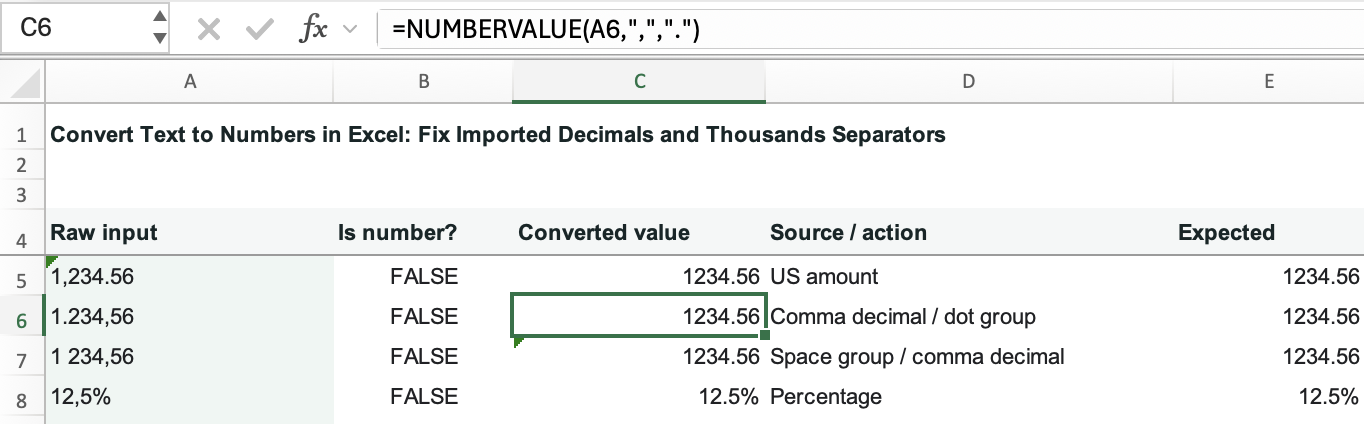
For the ordinary space in A7, use this in C7:
=NUMBERVALUE(A7,","," ")The space between the final quotation marks is intentional. Ordinary spaces are ignored by NUMBERVALUE, but imported text can contain other characters that only look like spaces. If that row still fails, use the TRIM and imported-space cleanup guide to identify the character before changing the data.
For A8, enter this in C8:
=NUMBERVALUE(A8,",",".")The stored result is 0.125. Apply Percentage formatting to display 12.5%. Don't divide it by 100 again: NUMBERVALUE has already interpreted the percent sign. Microsoft documents these separator and percentage rules in its NUMBERVALUE reference.
Don't guess what a comma means
The text 1,234 could mean one thousand two hundred thirty-four, or one point two three four. Both interpretations can produce a valid number. Check the export settings, source documentation, or a known amount from the original report.
If a column mixes conventions, keep a source-convention column and flag unresolved rows for review. Removing every comma would turn 12,5 into 125, which is a tidy-looking wrong answer. For a repeatable import with known separators, the Text to Columns workflow is another option to consider.
Keep blanks and identifiers out of the conversion
An empty amount and a zero amount can mean different things. NUMBERVALUE returns zero for empty text:
=NUMBERVALUE("")If A9 is blank and the field uses comma decimals with dot grouping, enter this in C9:
=IF(A9="","",NUMBERVALUE(A9,",","."))The IF function returns empty text when A9 is empty or contains a formula returning "". Otherwise it attempts the conversion. A cell containing a space isn't the same as an empty cell, so inspect suspicious blanks rather than assuming they're all identical.
Keep a value such as 00731 as text when it's a customer or product ID. To add this example, format A11 as Text first, then enter 00731. Converting it produces 731; the leading zeros are no longer part of the stored value. A custom number format can display zeros, but that doesn't restore a text identifier for exports or matching. Microsoft explains this distinction in its guidance on keeping leading zeros and large numbers.
For a malformed comma-decimal example, format A12 as Text and enter 12,3,4. In C12, use:
=IFERROR(NUMBERVALUE(A12,",","."),"Check input")For example, 12,3,4 has two decimal separators and needs review. IFERROR replaces the error with a visible label; it doesn't decide what the amount should have been. Keep the raw text beside the label and correct it from the source.
Verify the converted values before replacing anything
Check a converted cell with =ISNUMBER(C6). It should return TRUE. Then compare the value with a known amount in the source report, including its decimal places.
For a quick arithmetic check of the four demonstration outputs, enter:
=SUM(C5:C8)The result is 3703.805 before display rounding: three amounts of 1234.56 plus 0.125. This is a formula check for the sample; in a real report, total amounts separately from percentage rates. SUM ignores text in a referenced range, so a plausible total doesn't prove every row converted. Review every Check input row as well.
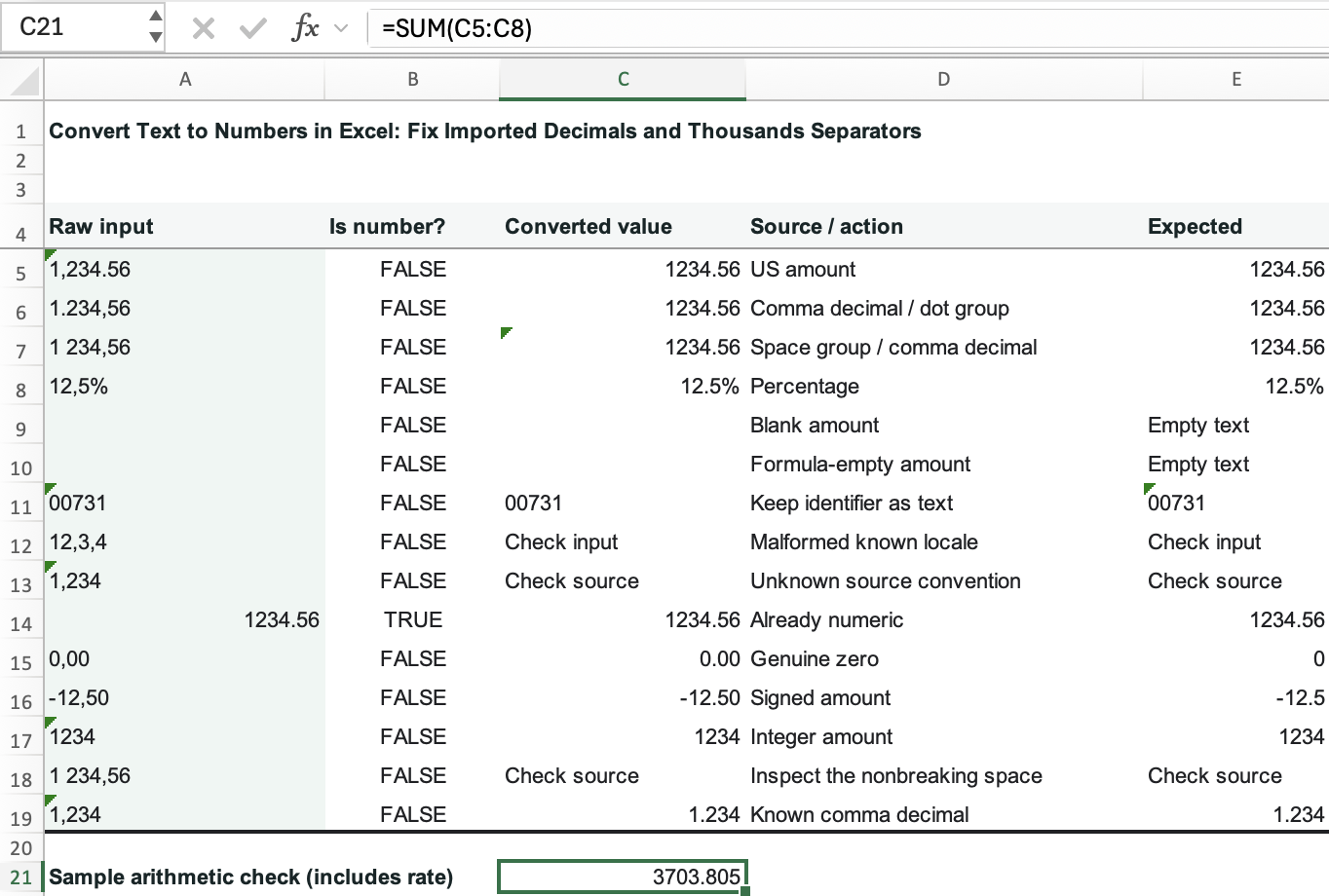
Once the values and totals agree with the source, you can copy the converted column and paste it as values for a fixed result. Keep the original import until those checks are finished.