If A2 contains the text 09:30, use the TIMEVALUE function with =TIMEVALUE(A2) in another cell and format the result as h:mm. Excel returns a numeric time you can use in calculations. Changing the original text cell's format to Time won't perform that conversion.
The first check is whether the value is text at all. An imported column can contain text times, real Excel times, and complete date-time numbers that look similar on the sheet. Keep the raw column while you work out which values need conversion.
Check whether Excel already stores a number
Use the text-to-time example workbook to compare the raw entries and converted values. The Example sheet contains the imported times, and HHMM contains the separate time-code example.
Suppose column A contains an export with these four kinds of entry.
| Cell | Example displayed in A | How this example is stored | =ISNUMBER(A2) copied down |
|---|---|---|---|
| A2 | 09:30 | Text | FALSE |
| A3 | 6:45 PM | Text | FALSE |
| A4 | 09:30 | Text with ordinary spaces at the ends | FALSE |
| A5 | 8/19/2025 09:30 | A numeric Excel date and time | TRUE |
The date display in A5 depends on your regional settings. What matters here is its numeric storage, not the order in which the month and day appear.
Enter this formula in B2.
=ISNUMBER(A2)Copy it down. ISNUMBER returns TRUE for numeric Excel times and timestamps, and FALSE for text. An ordinary number such as 930 also returns TRUE, so check what each numeric field represents before choosing a conversion.
If you're recreating the text examples manually, type a leading apostrophe, as in '09:30. Excel uses that apostrophe to keep the entry as text. It isn't part of the displayed value.
For a real time-only number, apply the time format you want. For a numeric timestamp such as A5, use the time extraction guide if you need to remove the date from the value. A time-only format hides the date but leaves it in the underlying number.
Convert text such as 09:30 or 6:45 PM
For A2's text time, enter this formula in C2.
=TIMEVALUE(A2)Apply a time number format to C2. The custom format h:mm displays 9:30, while hh:mm displays 09:30. If you prefer 9:30 AM, use a time format that includes AM/PM.
With General formatting, the result is approximately 0.3958333333. That is the expected value. There are 9.5 hours in 9 hours 30 minutes, and 9.5 divided by 24 is the fraction of a day Excel stores.
Copy the formula to C3 for the text 6:45 PM. In an Excel environment that recognizes that English AM/PM notation, the result displays 18:45 with h:mm, or 6:45 PM with an AM/PM format. Its underlying numeric value is 0.78125.
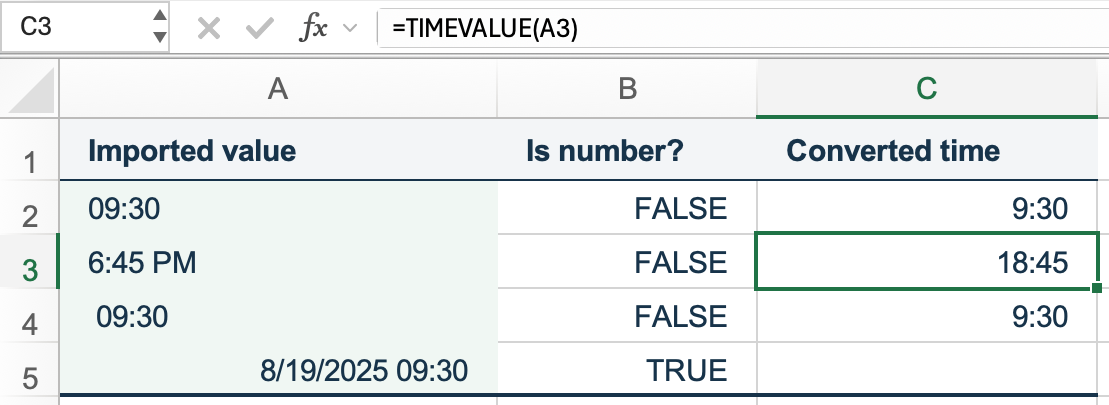
Microsoft's TIMEVALUE documentation describes the function as converting recognized time text to a fraction of a day. If recognized text also contains a date, TIMEVALUE ignores that date. Use it when that is the result you want, and preserve the raw value if you still need the full timestamp.
Remove ordinary spaces before converting
A4 looks much like A2, but it has spaces at the beginning and end. For text imports with ordinary spaces, enter this formula in C4.
=TIMEVALUE(TRIM(A4))TRIM removes leading and trailing ordinary spaces and reduces repeated spaces between words. TIMEVALUE then reads the cleaned text. With 09:30 in A4, the result displays 9:30.
You can use this same formula pattern for the text rows in the import. Keep the numeric timestamp on its separate extraction path rather than applying a text conversion to every row indiscriminately.
TRIM doesn't remove every invisible character. In particular, a nonbreaking space copied from a web page is different from an ordinary space. If the formula still returns #VALUE!, inspect or replace the character in a copy of the raw field. Don't assume that adding more TRIM calls will change it.
Work through a TIMEVALUE error
When TIMEVALUE returns #VALUE!, check the input before changing the formula.
| Check | What to do |
|---|---|
| Is the input already numeric? | Use ISNUMBER. Format a real time, or extract the time from a numeric timestamp. |
| Does the text contain ordinary spaces? | Try TIMEVALUE with TRIM and compare it with the raw entry. |
| Is the text a recognizable clock time? | 09:30 has an hour-minute separator. 930 needs a separate HHMM conversion. |
| Does the notation match your Excel environment? | Check the imported separator and AM/PM notation against a time Excel recognizes locally. |
Is the value a duration such as 27:30? | Use an elapsed-hours calculation. |
These examples use English function names, commas between arguments, and English time notation. Your Excel installation may use translated function names or semicolons, and its recognition of imported time text depends on regional conventions. Test a few known values before converting the entire column, especially when the source uses AM/PM labels from another language.
If the source problem is a date rather than a time, use the separate guide to converting text dates to Excel dates.
Convert valid HHMM entries such as 930 and 0030
This method assumes the source deliberately uses HHMM clock-time codes, where the last two digits are minutes. The inputs must be whole-number codes for hours 00–23 and minutes 00–59. Check the source first and reject entries such as 1260, 2400, negatives, decimals, blanks, or mixed formats before using it.
Use a separate area or sheet for this example. Keep the raw code in A2. In B2, use the TEXT function to make a text time with two digits on each side of a colon.
=TEXT(A2,"00\:00")The zero placeholders retain leading zeros, and the backslash makes the colon a literal character in the format. For the number 930, the result is 09:30. For the number 30, or the numeric text 0030, it is 00:30. Microsoft's custom-format guidelines explain these placeholders and escaped characters.
Applying the cell number format 0000 to A2 can make the number 30 look like 0030, but the stored number remains 30. The TEXT helper creates the string that TIMEVALUE needs, including its separator.
In C2, convert B2's text to a numeric time.
=TIMEVALUE(B2)Format C2 as hh:mm.
| Numeric code in A2 | Text helper in B2 | C2 displayed as hh:mm |
|---|---|---|
| 930 | 09:30 | 09:30 |
| 30 | 00:30 | 00:30 |
| 0 | 00:00 | 00:00 |
| 2359 | 23:59 | 23:59 |
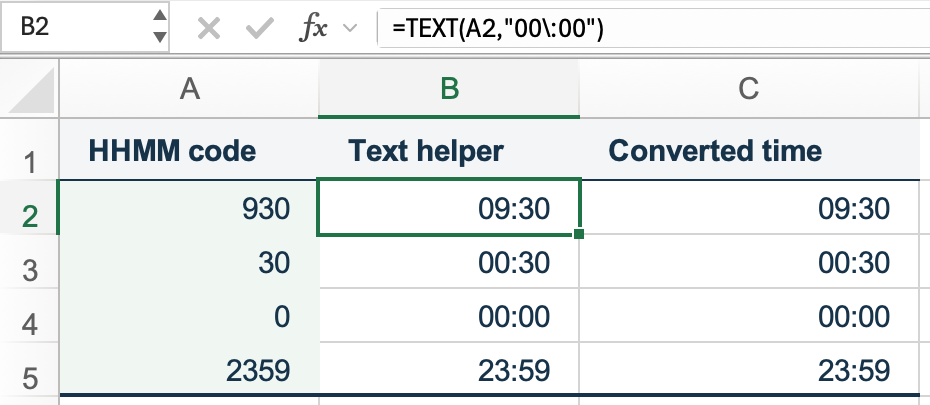
Keep C2 for calculations. B2 remains a text helper, so it isn't the final numeric result.
Keep elapsed hours separate from clock times
An entry such as 27:30 means 27 hours and 30 minutes of elapsed time. TIMEVALUE is a clock-time parser, so it isn't the right route for that duration.
If the source provides decimal hours such as 27.5, divide by 24 and use the elapsed-time format [h]:mm. The guide to converting decimal hours to time, including totals over 24 hours works through that calculation and the reverse conversion.