I want to have my Excel for Mac open to a blank worksheet that is zoomed to 125% with grid lines hidden. It has taken me some time to figure this out, so I would like to share that. By setting up a template for all new sheets, you can save time and ensure consistency every time you work with Excel. In this article, you'll learn how to create a customized worksheet template in Excel for Mac and set it as the default for all new sheets. It's very simple, once you know the trick.
Why Customize the Default Workbook in Excel for Mac?
Customizing your default workbook template allows you to:
-
Save Time: Avoid repetitive formatting tasks every time you create a new sheet.
-
Maintain Consistency: Ensure your formatting preferences are applied consistently.
-
Boost Productivity: Focus on data instead of format adjustments.
Step-by-Step Guide to Customizing Default Workbooks in Excel for Mac
Step 1: Create a Customized Workbook
-
Open Excel for Mac and create a new workbook.
-
Format the workbook according to your needs:
-
To hide gridlines: Go to the View tab, then uncheck the Gridlines option.
-
Set the zoom level to your desired value by going to the bottom-right corner and adjusting the zoom percentage.
-
Adjust the default font and font size by selecting cells and applying your preferred styles.
-
Add any headers, footers, or formatting you frequently use.
-
Step 2: Save the Workbook as a Template
-
Go to File > Save As.
-
In the Format dropdown menu, choose Excel Template (.xltx).
-
Name the template Book.xltx.
Step 3: Save the Template in the Correct Folder
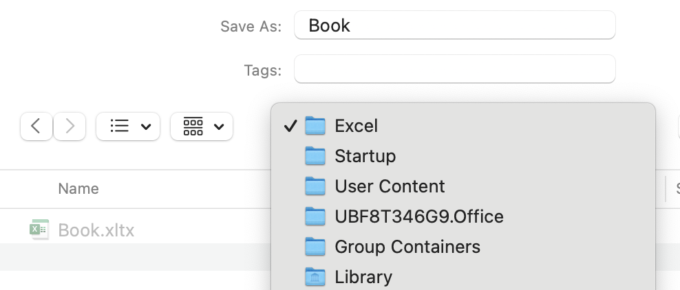
To ensure Excel uses your template for all new workbooks, save it in the Excel Startup folder:
-
Navigate to the following path:
~/Library/Group Containers/UBF8T346G9.Office/User Content/Startup/Excel/ -
If the Excel folder doesn’t exist, create it manually.
-
Place your Book.xltx file in this folder.
Tip: If you’re unfamiliar with accessing hidden folders on a Mac, check out this helpful guide on how to access the Library folder on Mac.
Now open Excel and you'll be looking at a worksheet that has your customized template in the default workbook.
Note: Keep in mind that I have set Excel preferences to have my workbooks open with just one worksheet. You may have to set the zoom for each sheet if you have several worksheets in the Workbook Template file.
Bonus Tip: Customize the Default Worksheet
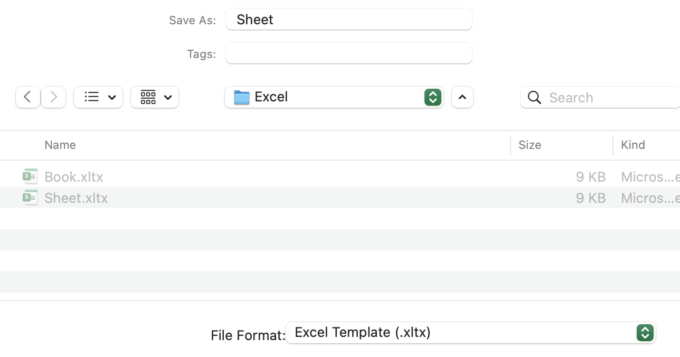
You can also customize the default worksheet by creating a template named Sheet.xltx and saving it in the same Startupfolder. This ensures that every new sheet you add to a workbook will start with your preferred settings.
For more detailed instructions on customizing Excel templates, visit the official Microsoft Excel Support page.
Final thoughts
Customizing your default workbook and worksheet templates in Excel for Mac is a simple yet effective way to streamline your work. By taking a few minutes to set up your preferences, you can enjoy a more efficient and personalized Excel experience.
Try these steps today and see how much time you save!
