My frustration level is high with the learning curve associated with keyboard shortcuts in Excel 2011 so I decided to import them into a spreadsheet and found out that's not happening. Since there's more than one way to skin a cat (sorry cat lovers, just an expression) I decided to import them from the Office:Mac website to have at my beck and call whenever the need arises.
Different Methods of Getting External Data - Windows vs Mac
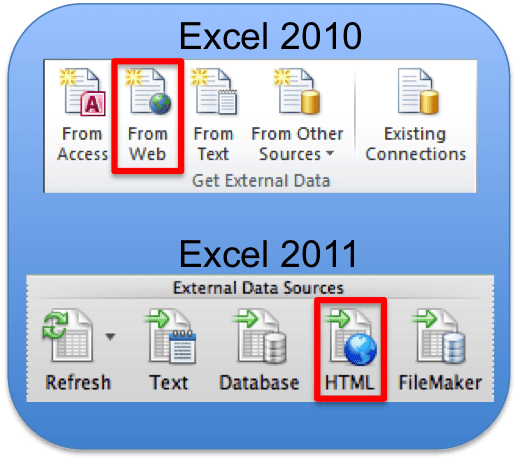
Excel 2010 has a From Web option to import data from a web page. As shown in my last blog post, this option works well in Windows versions of Excel - 2010 and 2007.
Not so in Excel 2011 where the only comparable option is to import data from an HTML file. And while this may work wonderful in many cases, trust me when I say that trying to import an HTML file from the Excel:Mac Help website doesn't work well at all.
Locate the Excel 2011 Keyboard Shortcuts Webpage
Contrary to the Excel 2010 [Windows] Help system that defaults to showing data from Office.com, the Excel 2011 program for Mac defaults to showing Help content from your computer. Here's how to locate the web page address or URL.
- Open Excel 2011
- Choose Help > Excel Help
- Click the Go Online button (top-right of screen)
- Close the Excel Help screen as it will dominate all windows
- Go to your web browser and locate the Excel Help page
- Type Excel Keyboard Shortcuts in the search box then press enter
- Click the link for Excel Keyboard Shortcuts
You now have the web page for Excel 2011 Keyboard Shortcuts.
Bookmark or Save a Local Copy?
Bookmarking this page in your web browser is prudent at this point. And maybe that's sufficient for your purposes. Yet a bookmark is only good when you have online access.
I'm going to save this web page to my computer because of one simple reason: When using Help in Excel 2011 you can't switch between Help and Excel without minimizing the Help window. By using the browser and a local copy of the web page you can view the keyboard shortcuts while offline, and switch back and forth between any program that's open.
Save Excel 2011 Keyboard Shortcuts to Your Computer
I use the Firefox browser on my MacBook Pro, but dabble with Safari and Google Chrome, and have found some interesting differences. Not in the information, but rather the files saved to your computer.
Save with Firefox
Here are the steps I used to save this page to my hard drive with the Firefox web browser.
- Choose File > Save Page As...
- In the Save As dialog box, type a name you want for the web page in the Save As box
- Click the Save As drop-down box and select Web Page, complete
- Select the directory you want and click Save
You will see one HTML file and a folder with support files.
Save with Chrome
Here are the steps I used to save this page to my hard drive with the Chrome web browser.
- Choose File > Save Page As...
- Type a name in the Save As box (I left the default name)
- In the Where box select the location for the file
- Choose Web Page, Complete in the Format box
- Click Save
Again you get the HTML file and a folder with support files.
Save with Safari
Here are the steps I used to save this page to my hard drive with the Safari web browser.
- Choose File > Save As...
- Type a name in the Export As box (I left the default name)
- In the Where box select the Folder where you want the file to reside
- Click Save
There's only one file saved, a webarchive file, and no support folder with files. Since I'm relatively new to Mac's this was a revelation to me and immediately liked the idea of having only one file. Clean, neat, and easy to move. You don't have to worry about any other files or folders.
Web File Location
If you've saved the file to your desktop your done. I saved my file to a Dropbox folder on my hard drive, which ensures that it will be saved to the cloud and synced to the hard drive of any computer I have installed Dropbox on. (Download and install Dropbox, where you get 2GB of free storage.)
Save an Alias to the Desktop
- Open Finder and locate the webarchive (Safari) or HTML (Firefox, Chrome) file you just downloaded
- Right click the file and select Make Alias
- Copy the Alias file to your Desktop and rename if desired
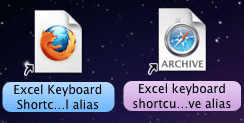
Now you can access the Excel 2011 Keyboard Shortcuts at anytime and not worry about the Help screen getting in your way.