I avoid the use of Volatile Functions, especially OFFSET, which is commonly used to update a list or range. They can slow down the operation of your workbook. For very large workbooks with lots of data, it can be significant and irksome.
Worksheet cells that use Data Validation for a drop-down list can simplify the input process, or be used to limit the available choices. But the list needs be expandable. Here are two primary ways to keep your data validation list automatically updated, without having to resort to using the OFFSET function.
Update Your List Range with VBA
Put your data validation drop-down cell on one worksheet and the reference list range on another worksheet. Example: Sheet1 contains a cell with data validation. Sheet2 contains a data range (the list) that is given a defined name of myList. Add some VBA code in the Sheet2 Deactivate routine to update the named range.
Private Sub Worksheet_Deactivate() Dim rng As Range Set rng = Sheet2.Range("myList").CurrentRegion Set rng = rng.Offset(1, 0).Resize(rng.Rows.Count - 1, rng.Columns.Count) rng.Name = "myList" End Sub
This is an event-based programming technique, which I commonly use with Excel 2003.
Use Some Table INDEX Magic
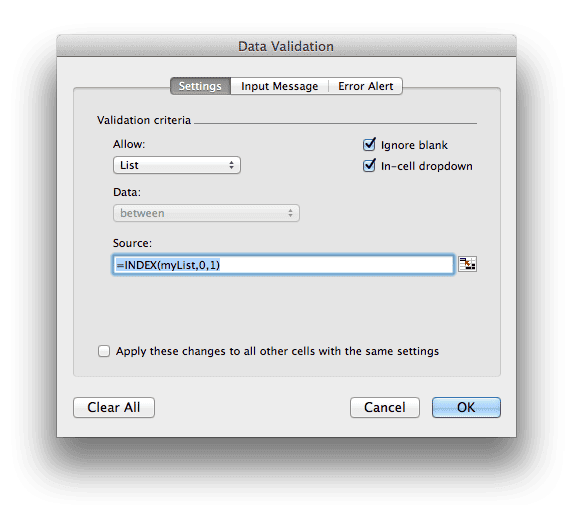
This is a variation of the same thing, but no VBA programming is warranted. Instead, use a Table for your reference list data. Then create a defined name with the INDEX Function, and use that name for the data validation list.
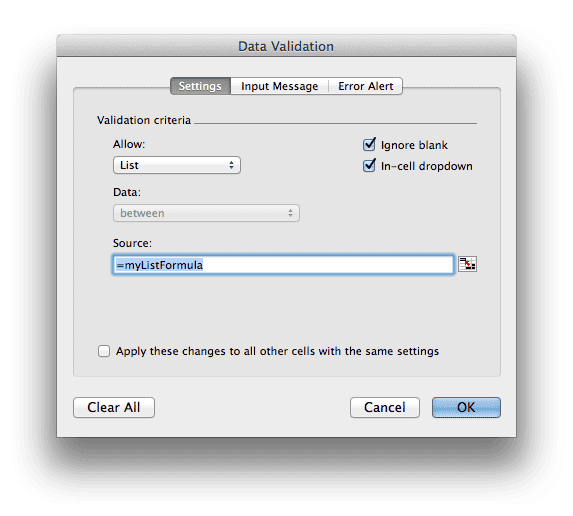
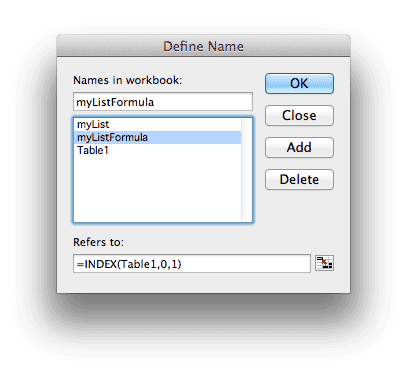
Tables automatically update their ranges when expanded and the INDEX function will too. Example: Create the defined name myListFormula and use =INDEX(Table1,0,1) as the formula. Then when setting the data validation list, use =myListFormula as the list reference.
Example Worksheet
I've put together a workbook with the two examples listed above. The first technique, with VBA, uses two worksheets: Lookup 1 and Data 1. The Data 1 worksheet has the VBA code, which updates the named range when deactivated. You can add or subtract to this list and the data validation list on the Lookup 1 sheet will automatically be updated.
Both Lookup sheets have data validation in cell A2, which is a list of names. I've added another column for the city that uses a formula to get the right value from the list.
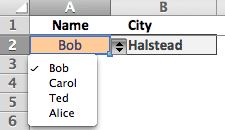

The second example uses Lookup 2 and Data 2 worksheets. The Table is on the Data 2 worksheet. When you add or subtract data from this Table and the defined name myListFormula will automatically update the data validation list on the Lookup 2 worksheet. Be sure to look at the Define Name dialog box (on the Mac) or the Name Manager (Windows) to see the INDEX formula.
Since there is no OFFSET function, updating at random intervals, in either of these examples, I can rest easy. That's one less thing to slow down your worksheet.