If your VBA macro spends too long inside PageSetup, Application.PrintCommunication = False can speed up the run by temporarily pausing printer communication while your print settings are applied. This optimization is specific to Excel for Windows and needs compatibility guards for older versions and Excel for Mac.
Quick Answer: Speed Up PageSetup Code in VBA
Wrap your page setup block like this:
If Val(Application.Version) >= 14 And Left(Application.OperatingSystem, 3) = "Win" Then
    Application.PrintCommunication = False
End If

With ActiveSheet.PageSetup
    .CenterHeader = "&""Verdana,Bold""&12&A"
    .CenterFooter = "&P of &N"
    .LeftMargin = Application.InchesToPoints(0.7)
    .RightMargin = Application.InchesToPoints(0.7)
    .TopMargin = Application.InchesToPoints(0.75)
    .BottomMargin = Application.InchesToPoints(0.75)
    .HeaderMargin = Application.InchesToPoints(0.3)
    .FooterMargin = Application.InchesToPoints(0.3)
    .CenterHorizontally = True
    .CenterVertically = False
    .Orientation = xlPortrait
    .FitToPagesWide = 1
    .FitToPagesTall = False
End With

If Val(Application.Version) >= 14 And Left(Application.OperatingSystem, 3) = "Win" Then
    Application.PrintCommunication = True
End IfAnother factor is the default printer of your computer when the code runs. I usually set my default printer to CutePDF, which isn't really a printer, but a program that writes (prints) to a PDF file. Using this default printer while running the PageSetup code chops mega-time off the execution.
One trick I used was to run this code in the Workbook_BeforePrint module. That way, running my macro to create a new report doesn't execute the PageSetup code and therefore executes much, much, much, much, much faster.
The New PrintCommunication Property
In Excel 2010 I happen to record a macro for print settings and discovered a new page setup property:
Application.PrintCommunication
The Application.PrintCommunication property is new in Excel 2010. It specifies whether communication with the printer is turned on. The values are Boolean and Read/Write.
Using the PrintCommunication Property
Set the Application.PrintCommunication equal to FALSE, then run the Page Setup code, then set it back to TRUE and your code will run exponentially faster. However, there are two problems with using the Application.PrintCommunication property and both deal with compatibility.
Compatibility with Older Versions
Older versions of Excel don't recognize this new property so you have to code around this fact to ensure backward compatibility. I checked the Excel 2010 version number by running some code in the VBA Editor's Immediate window.
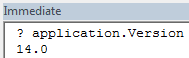
You can also check your Excel version by choosing File > Help and reading the screen.
Since the Application.version property returns a String value, the Val function is required to make use of it. My code now reads like this to achieve backward compatibility: If Val(Application.Version) >= 14 Then Application.PrintCommunication = False With ActiveSheet.PageSetup ' (all the ugly page setup code goes here) End With If Val(Application.Version) >= 14 Then Application.PrintCommunication = False I checked to see how long it takes to run the VBA code to produce my report in three versions of Excel: 2010, 2007 and 2003.
Excel 2010 - run1 = 0.918 sec, run2 = 0.867 sec Excel 2007 - run1 = 5.965 sec, run2 = 6.273 sec Excel 2003 - run1 = 6.066 sec, run2 = 6.125 sec
My default printer at the time was a HP D110 and it took over 5 seconds longer to run the PageSetup code in Excel 2007 and 2003.
Compatibility with Excel 2011 for Mac
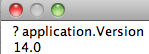
By now I'm happy with Excel for adding this new property, but reality sets in and I realize that Excel 2011 can run code too. I check to see what version number Excel 2011 for Mac happens to be, and it too is version 14.0.
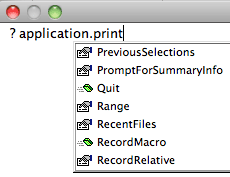
So while I'm in the immediate window I check for the Application.PrintCommunication property and find out it doesn't exist.
So I have to use the OperatingSystem property of the Application object to give me another condition.
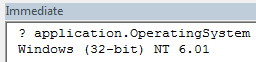
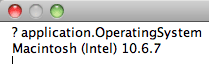
I use the Left function to grab the first three letters of the operating system name.
Left(Application.OperatingSystem, 3) = "Win"
Then change your code to account for earlier Excel versions and the Windows operating system as shown in the code block above. Using the PrintCommunication property of the Application object can help speed up execution, but you still need compatibility guards for earlier Windows versions and for Excel for Mac, which does not expose the same property.