The data you see in column A is a text string output from a database. I need to extract the Date, and have used the MID Function to get the Month and Day, yet need to include the Year value as well.
For this data the RIGHT Function is appropriate because the Year value is at the end of the text string. The formula in cell C2:
=RIGHT(A2,4)
The Right Function has two arguments, as shown in the Function Arguments dialog box: Text, Num_chars.
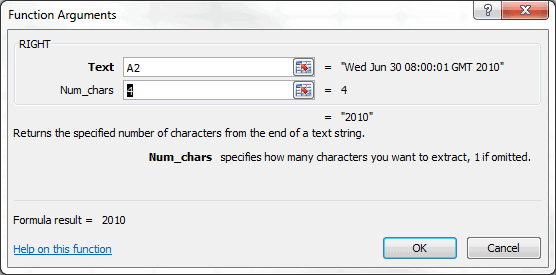
The Text argument is simply a reference to the text string. In this case, cell A2.
The Num_chars argument is how many characters you want to extract from the end of the text. I need the four digit year so 4 is the number.
The result of this formula is 2010, which is shown in the Function Arguments dialog box and in column C. The RIGHT function returns a text string so, as you can see in cell C2, 2010 is left-justified, instead of right-justified like a number would be.
In the next post I will combine the Month and Day, shown in column B, with the Year in column C by using two different methods: the CONCATENATE Function and the Ampersand Operator.