To add checkboxes in Excel, select the cells and choose Insert > Checkbox. Each checked box gives its cell the value TRUE; each unchecked box gives it FALSE. Those values let you turn a task list into a checklist that counts completed work as you go.
Microsoft's in-cell checkbox guide currently lists Excel for Microsoft 365 and Excel for Microsoft 365 for Mac under Applies To. Check that the command is available in your Excel before starting. Older instructions that use the Developer tab describe a separate type of checkbox.
We'll use five tasks, show Done or Open beside each one, and calculate 3 completed tasks out of 5: 60%.
Build a Five-Task Checklist
Start with a blank worksheet and name it Checklist, or download the completed checkbox example workbook to follow along with the tasks and formulas already in place.
- Enter Task in A1, Done in B1, and Status in C1.
- Enter the five task names below in A2:A6. Leave B2:C6 empty for now.
- Select B2:B6, then choose Insert > Checkbox.
- Check B2, B4, and B6. Leave B3 and B5 unchecked.
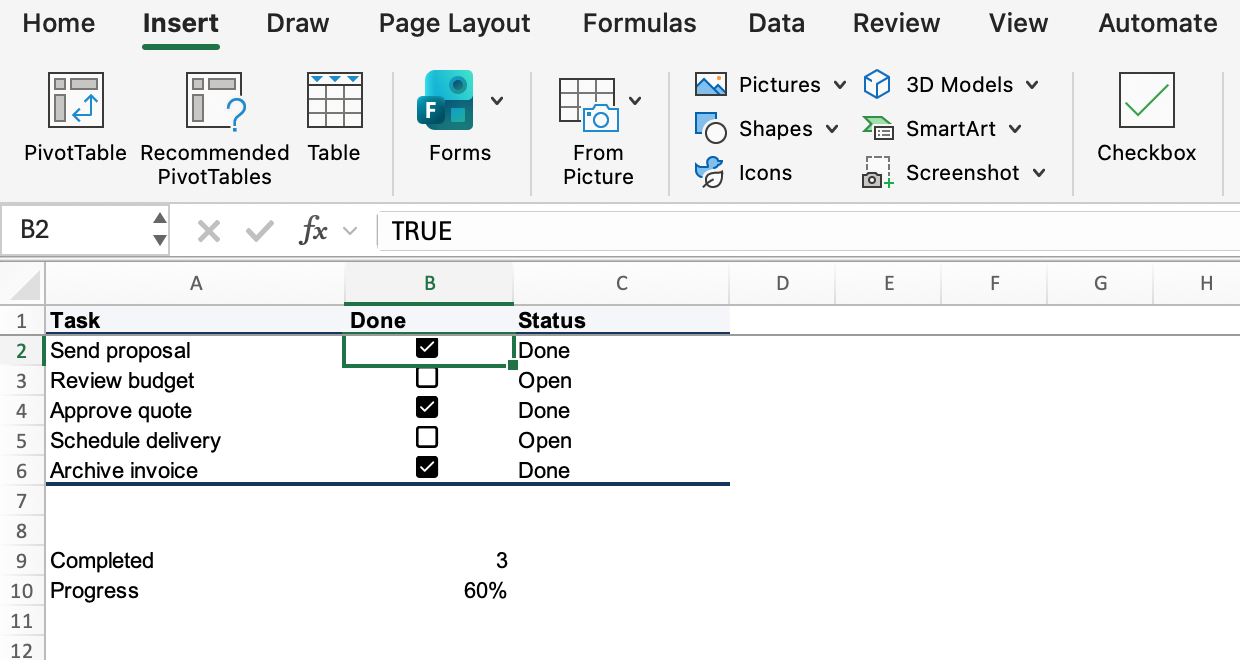
Here is the finished layout we're working toward. The Done column below shows the underlying cell values; in your worksheet, that column displays checkboxes. We'll add the Status formula next.
| Row | A: Task | B: Done value | C: Status |
|---|---|---|---|
| 2 | Send proposal | TRUE | Done |
| 3 | Review budget | FALSE | Open |
| 4 | Approve quote | TRUE | Done |
| 5 | Schedule delivery | FALSE | Open |
| 6 | Archive invoice | TRUE | Done |
Keep the task name in column A and the checkbox in column B. This gives each row a readable label while leaving the completion value available for formulas.
Show Done or Open Beside Each Task
In C2, enter:
=IF(B2,"Done","Open")Copy C2 down through C6. The results should read Done, Open, Done, Open, Done.
The IF function uses B2 as its test. B2 already contains a logical value, so there's no need to compare it with a word or a check mark. When B2 is TRUE, IF returns the text Done. When B2 is FALSE, it returns Open.
As you copy the formula down, the reference changes with the row: C3 reads B3, C4 reads B4, and so on. Check the box beside Review budget in B3 and C3 should change to Done. Uncheck it again to restore our three-completed-task example.
These formulas use English function names and commas between arguments. If your Excel uses semicolons as argument separators, replace the commas with semicolons.
Count Completed Tasks and Calculate Progress
Enter Completed in A9. To count the checked boxes, enter this formula in B9:
=COUNTIF(B2:B6,TRUE)The result is 3, because B2, B4, and B6 are TRUE. COUNTIF checks the five cells in B2:B6 against one condition: the logical value TRUE. It doesn't count the labels in column C or look for a tick-shaped character.
Enter Progress in A10, then enter this formula in B10:
=COUNTIF(B2:B6,TRUE)/5Apply Percentage number formatting to B10. The value 0.6 displays as 60%: three completed tasks divided by five total tasks. You don't need to multiply the formula by 100.
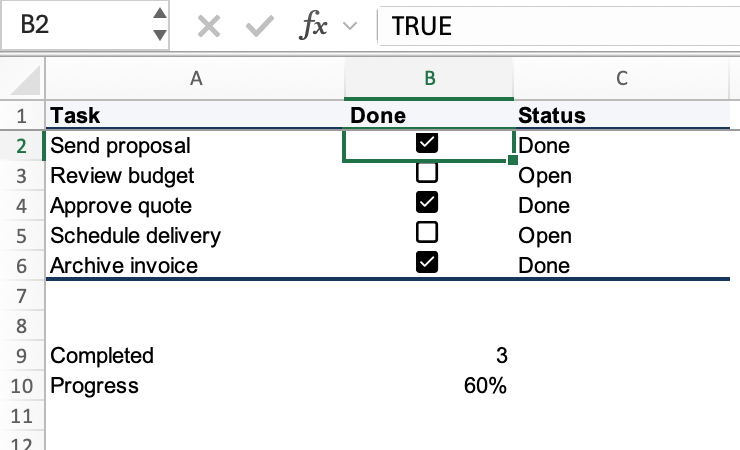
Try checking B3 again. The count should become 4 and the percentage 80%. Clear that checkbox to return to 3 and 60%.
The number 5 is deliberate: this example has exactly five tasks. When you add tasks, extend the range in both summary formulas and change the divisor to the new total. Also add checkboxes and copy the status formula into the new rows. Otherwise, the summary will keep measuring the original five tasks.
In-Cell Checkboxes vs. Form Controls
Excel has two checkbox methods that are easy to confuse. The method above stores the completion value in the checkbox's own cell. A Form Control checkbox is a separate object placed on the worksheet; positioning it over B2 doesn't make B2 its value automatically.
For the older Windows desktop method:
- Show the Developer tab if it isn't visible.
- Choose Developer > Insert > Form Controls > Check Box.
- Click on the worksheet to place the control and edit its caption.
- Use Format Control to configure its properties, including a cell link when you need the state available to formulas.
See Microsoft's Form Controls instructions for that separate workflow. Unlike selecting B2:B6 for in-cell checkboxes, this method inserts one object at a time. A checklist made with these objects needs its linked cells configured before the status and count formulas can use them.
Microsoft also documents limitations for Form Control objects in Excel for the web. Don't treat the Windows Developer-tab method as a browser fallback for a missing Insert > Checkbox command.
If You Can't Find Insert > Checkbox
First, check your Excel product and build. On Windows, look under File > Account > About Excel; on Mac, use Excel > About Microsoft Excel. If you're using Microsoft 365, check for available Office updates, or ask your administrator about updates on a managed computer.
Then compare your environment with Microsoft's checkbox guide linked above. Its Applies To list doesn't include Excel for the web or perpetual releases such as Excel 2016 and Excel 2024. That omission alone doesn't establish whether a particular environment has the feature; check the actual command before relying on these steps.
Enabling the Developer tab exposes the separate controls workflow. It doesn't turn a Form Control object into an in-cell checkbox. If the new command is unavailable, choose a method your environment supports and adjust the worksheet around it.
Would a Check Mark or a Drop-Down Work Better?
Use a checkbox when the task has two states: finished or unfinished. If you only need a visible mark for a printed list, insert a check mark symbol. A pasted ✓ is text, so clicking it won't toggle a completion value.
If work moves through Not started, In progress, and Done, create a drop-down list with data validation. Those three labels tell you more than a single checked or unchecked box. They also require formulas that test the status text, rather than the logical TRUE used in this checklist.
Frequently Asked Questions
Why Do Checkbox Formulas Use TRUE and FALSE?
Those are the logical values behind an in-cell checkbox. The status and summary formulas read that value, so they can respond when you change a task's completion state.
Can I Insert Several Checkboxes at Once?
Yes. Select the target range, such as B2:B6, before using Insert > Checkbox. This applies to the in-cell method; Form Control objects use a different insertion workflow.
Is a Boxed Check Mark the Same as a Checkbox?
No. A symbol such as ☑ is a character. It doesn't provide the clickable completion state used by this example.
Do These Steps Work in Every Excel Version?
Use them where Insert > Checkbox is available. The documented Microsoft 365 scope and the separate Form Controls method are covered above; matching the feature matters more than finding an icon that looks similar.