To combine a few cell values in Excel, join them with & and put any separator in quotes. For example, =A9&", "&B9 joins the two values with a comma and a space. For a whole range, TEXTJOIN lets you supply the separator once and choose whether to skip empty cells.
The important catch is the result: joining produces text. A date may look right in the finished label without being a date you can calculate with. Let's make the separators and the stored values explicit.
Download the joining practice workbook to compare the formulas, stored types, and blank-cell examples.
Use & for a few values
The original example combined a month and day with a year. Put the literal text Jun 30 in A9 and the number 2010 in B9. Format A9 as Text before typing so Excel doesn't automatically turn it into a date.
In C9, enter:
=A9&", "&B9The result is:
Jun 30, 2010The comma and space come from ", ". Excel doesn't add either for you. Without that separator, =A9&B9 would return Jun 302010.
The CONCATENATE function produces the same result. Enter this in D9:
=CONCATENATE(A9,", ",B9)For a short formula like this, the ampersand saves typing. Both methods combine the same three pieces, and both return text.
Use TEXT to keep dates and numbers readable
Now suppose you're building an order label. On the same worksheet, use these inputs:
| Cell | Value | Stored as |
|---|---|---|
| A2 | Order | Text |
| B2 | June 30, 2010 | A real Excel date |
| C2 | 1250.5 | Number |
Unlike A9, B2 must contain a date value. Changing a cell's display format isn't a substitute for checking its stored type.
In D2, enter:
=A2&" | "&TEXT(B2,"mmm d, yyyy")&" | "&TEXT(C2,"0.00")In the English/US example, the expected label is:
Order | Jun 30, 2010 | 1250.50The TEXT function formats each numeric value before & joins it to the label. "mmm d, yyyy" requests the date layout, and "0.00" keeps two decimal places. Date names, format codes, and decimal display can depend on Excel's language and regional settings; use the appropriate codes for the output you need.
A plain =A2&" | "&B2&" | "&C2 doesn't preserve B2's date display or C2's number format. Excel stores dates as numbers in its date system, which is why a date can become a serial number inside an unformatted join. The TEXT tutorial explains how to control that display deliberately.
Check the result's type
Enter this in E2:
=TYPE(D2)TYPE returns 2, meaning text. In contrast, =TYPE(B2) returns 1 for the original numeric date. =TYPE(C9) also returns 2, even though the short joined result looks like a date.
Keep B2 and C2 for calculations; use D2 as a readable label. Applying a date number format to D2 won't turn that entire label into a date. The TYPE tutorial shows more ways to distinguish a value from its appearance.
Use TEXTJOIN for a range with separators
TEXTJOIN is useful when the pieces already occupy a row or column. Its first argument is the separator, and the second tells it whether to ignore empty cells.
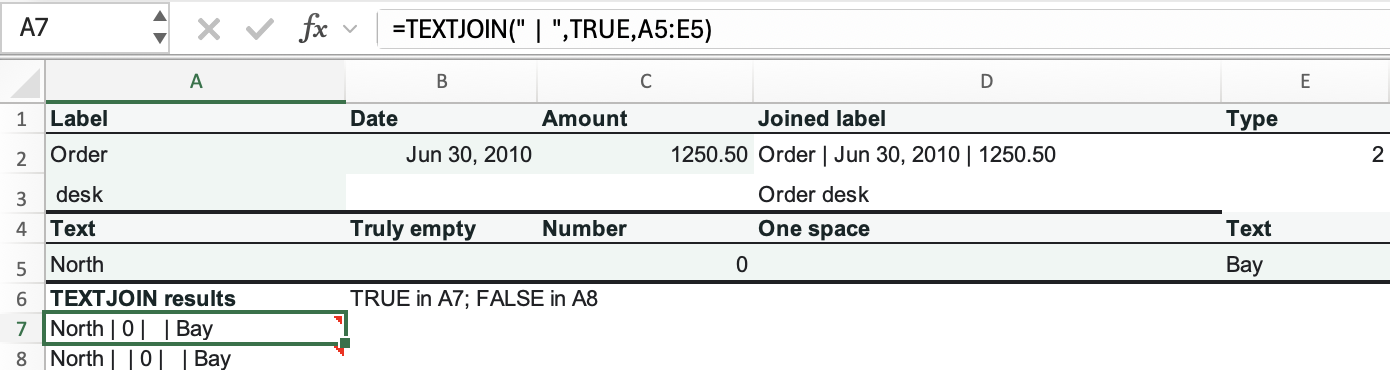
Set up A5:E5 as follows. Leave B5 genuinely empty, and enter one ordinary space in D5.
| A5 | B5 | C5 | D5 | E5 |
|---|---|---|---|---|
| North | Empty cell | Numeric 0 | One space | Bay |
Don't type the words “Empty cell” or “One space”; those labels describe the inputs.
In A7, enter:
=TEXTJOIN(" | ",TRUE,A5:E5)The expected result is:
North | 0 | | BayB5 is skipped. The zero stays, and D5's space stays too: a cell containing a space isn't empty. There are three spaces between the last two vertical bars—one from each surrounding separator and one from D5.
To keep the empty position as well, enter this in A8:
=TEXTJOIN(" | ",FALSE,A5:E5)The expected result is:
North | | 0 | | BayThere is now an extra field between North and zero. Choose FALSE when those empty positions carry meaning, and TRUE when you want to omit genuinely empty cells. Neither setting removes whitespace or zero values.
Microsoft's TEXTJOIN documentation lists Microsoft 365, Excel 2024 and Excel 2021 for Windows and Mac, plus Excel 2019 and Microsoft365.com. If your Excel doesn't recognize TEXTJOIN, use & to join individual cells and supply the separators explicitly.
Where CONCAT and Merge Cells fit
CONCAT can join a range, but doesn't insert a separator. With Order in A2 and the text desk in A3—including its leading space—enter this in D3:
=CONCAT(A2:A3)The result is Order desk. The space belongs to A3; CONCAT didn't create it. Use TEXTJOIN when the same delimiter should go between every field, or & when you want to spell out a short combination.
CONCATENATE remains useful when maintaining older formulas. Microsoft's CONCATENATE guidance recommends CONCAT for its replacement, but you don't need to rewrite a working short & formula just to use a function name.
Joining values is different from Merge Cells. A join puts combined text in a result cell while keeping its inputs available. Merging changes the worksheet layout and can discard values from other selected cells. For a label built from several inputs, keep the inputs separate and use a formula. You can browse the Excel text functions for more ways to shape the result.