To convert text to a date in Excel, enter =DATEVALUE(A2) in an empty cell, then apply a Date format to the result. The DATEVALUE function works when A2 contains date text Excel recognizes under your regional settings. If your source always uses the exact yyyy-mm-dd layout, you can instead build the date from its year, month, and day.
First, check whether conversion is needed at all. Excel stores dates as numbers, so a cell showing 40193 may already contain the date you want. It just needs a different display format.
You can follow along in the text-to-date example workbook. It shows the DATEVALUE and fixed-layout DATE examples with serial numbers and readable dates side by side.
First check whether the cell already contains a number
Select a source cell and choose General from the Home → Number Format list. A numeric date displays its serial number; a text entry keeps its text. This changes the display, not the underlying value.
For a more explicit check, enter this in an empty cell such as D2:
=ISNUMBER(A2)The ISNUMBER function returns TRUE for a number and FALSE for text. If A2 contains the text Jan 15, 2010, the result is FALSE. If it contains the numeric date for January 15, 2010, the result is TRUE.
ISNUMBER checks the stored type; it does not validate a date. A price, an order number, or the number 42 also returns TRUE. Use the source column's meaning and the displayed date to confirm that the number represents the date you intended.
| What you have | What to do next |
|---|---|
| A number that already represents the intended date | Apply a Date format; no text conversion is needed. |
| Text in a date format Excel recognizes | Convert it with DATEVALUE. |
Text in the exact yyyy-mm-dd layout | Extract the three components and use DATE. |
| Text containing a date plus other information | Identify the layout before extracting the date. |
Convert a text date with DATEVALUE
Suppose A2 contains the text Jan 15, 2010. In B2, enter:
=DATEVALUE(A2)With B2 formatted as General, the result is 40193 in a workbook using the 1900 date system. Apply a Date format to show January 15, 2010 instead.
To see both displays side by side, enter =B2 in C2. Leave B2 as General and give C2 a Date format. B2 shows 40193; C2 shows January 15, 2010. They contain the same numeric value.
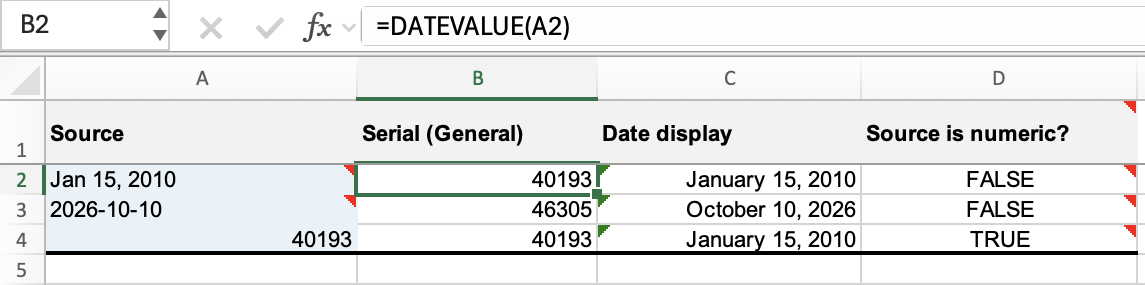
This example assumes Excel recognizes English month abbreviations. To try it as text, type a leading apostrophe, such as 'Jan 15, 2010; Excel uses the apostrophe to mark a text entry and does not display it in the cell.
Changing the format of the original text cell alone does not convert its contents. Convert the text first, then format the numeric result. This is the workflow in Microsoft's guide to converting dates stored as text.
Convert a fixed yyyy-mm-dd field with DATE
Suppose the next row of your import contains the text 2026-10-10 in A3. You know from the source that the first four digits are the year, the next two are the month, and the last two are the day. You can give those components to the DATE function without asking Excel to interpret the order of a text date.
In B3, enter:
=DATE(LEFT(A3,4),MID(A3,6,2),RIGHT(A3,2))The formula builds October 10, 2026. With B3 formatted as General, its serial is 46305 in the 1900 date system. Enter =B3 in C3 and apply a Date format to compare the serial with its readable display.
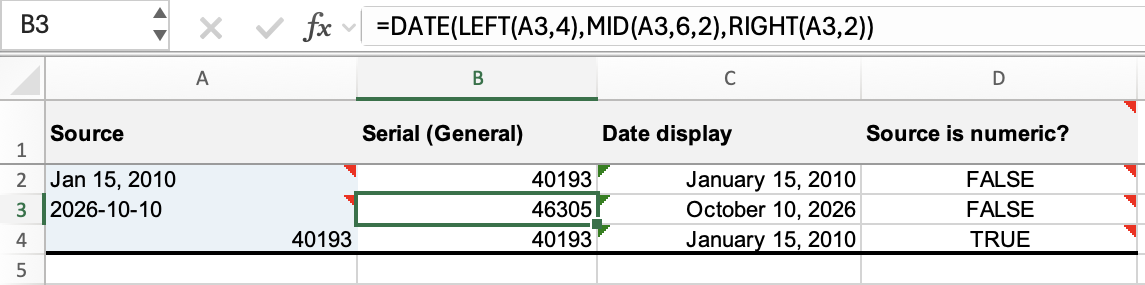
Here's what each part supplies:
| Part | Text extracted | Used as |
|---|---|---|
LEFT(A3,4) | 2026 | Year |
MID(A3,6,2) | 10 | Month |
RIGHT(A3,2) | 10 | Day |
The LEFT function takes characters from the start, MID takes characters from a specified position, and RIGHT takes characters from the end. DATE uses those numeric components to construct the date serial.
Use this only when the source guarantees the exact ten-character layout yyyy-mm-dd and valid calendar dates. It assumes four year digits, two month digits, and two day digits in those positions. It doesn't check the separators or validate the calendar date. DATE normalizes out-of-range components: for example, a day beyond the end of February can roll into March. Microsoft's DATE reference explains that behavior.
A value such as 2026-1-5, extra spaces, or a timestamp appended to the date needs a different extraction formula or cleanup first. For text whose date is embedded in a longer description, use the separate guide to extracting a date from text in Excel.
Extract a date from a longer text string
For a database export with a consistent layout, the original formula from this article remains useful. It takes the written month and day from the middle of the string and the year from the end.
For this separate example, put the following exact text in A2 of a fresh worksheet:
Wed Jun 30 08:00:01 GMT 2010Enter this formula in B2:
=--(MID(A2,5,6)&", "&RIGHT(A2,4))The result is 40359 in the 1900 date system. Here is how the formula builds it:
| Part | Result | What it does |
|---|---|---|
MID(A2,5,6) | Jun 30 | Extracts six characters starting at character 5. |
RIGHT(A2,4) | 2010 | Extracts the final four characters. |
MID(A2,5,6)&", "&RIGHT(A2,4) | Jun 30, 2010 | Joins the pieces with a comma and space. |
--(...) | 40359 | Converts the recognized date text into a number through double negation. |
MID counts characters from 1, and RIGHT starts at the end of the text. The ampersand (&) joins the extracted pieces. The first minus sign coerces the date text into a negative number; the second makes it positive again.

Use this formula only when the month and day occupy characters 5–10 and the four-digit year is at the end. Extra leading spaces, a different date order, or trailing text can break those assumptions. Excel must also recognize the assembled month name under your regional settings.
This formula extracts the written calendar date and discards the time and GMT label. It does not perform a time-zone conversion.
Fill down and format the results as dates
Once a formula works for your source layout:
- Drag the formula cell's fill handle down through rows with the same source layout. Each copied formula will refer to the corresponding row in column A. Don't fill the DATEVALUE formula into rows that need the fixed-layout formula, or vice versa.
- Select the result cells. On the Home tab, open the Number Format list and choose Short Date or Long Date.
- In desktop Excel, for more choices, right-click the selected cells and choose Format Cells. Open Number → Date, choose a format, and click OK. The shortcut is Ctrl+1 on Windows or Command+1 on Mac.
See Microsoft's date-formatting instructions for platform-specific options. In Excel for the web, use the ribbon's Number Format choices.
Formatting changes the display; the underlying numbers remain available for calculations. If you want to remove the formulas later, copy the results and use Paste Special → Values before deleting their source text.
Why does the conversion fail or return the wrong date?
Check the stored type. If ISNUMBER returns TRUE and the value represents the intended date, apply a Date format. If it returns FALSE for your text date, changing the format alone won't convert it.
Check the source's date order. Text such as 03/04/2026 can mean March 4 or April 3. A successful conversion does not guarantee the intended date. Compare a few results with the source and check your regional date settings.
Check unrecognized text and fixed positions. A #VALUE! error can mean Excel cannot interpret the date text. Check the month language, separators, spaces, and source layout. The DATE formula above assumes exactly yyyy-mm-dd; the older timestamp formula assumes its own fixed character positions. Neither is a general-purpose parser for every date string.
Include the year and check whether you need the time. DATEVALUE uses the computer's current year when the year is omitted, and it ignores time information in recognized date text. Include a four-digit year for repeatable results. See Microsoft's DATEVALUE reference for these behaviors.
Check the workbook's date system if the serial differs. Excel supports the 1900 and 1904 date systems. The same date has serials 1,462 apart: January 15, 2010 is 40193 in the 1900 system and 38731 in the 1904 system. All serial examples above use the 1900 system. Microsoft's date-systems guide explains the difference and where to find the setting.