To convert currency in Excel, retrieve an exchange rate, multiply the original amount by that rate, and keep the result numeric. You can then apply the Currency or Accounting number format without changing the underlying value. Excel for Microsoft 365 provides a Currencies data type, while Google Sheets can retrieve rates with GOOGLEFINANCE.
This guide uses USD to Thai baht as the main example, but the same workflow works with other supported currency pairs. You can also download the currency conversion example workbook to follow the formulas and compare numeric formatting with text-returning functions.
Currency Conversion Has Three Separate Steps
A reliable currency worksheet separates three jobs:
- Retrieve the rate. For example, find how many Thai baht equal one U.S. dollar.
- Calculate the converted amount. Multiply the source amount by the rate.
- Format the result. Display the numeric result with the appropriate currency symbol and decimal places.
Keeping these steps separate makes the workbook easier to update and troubleshoot. It also prevents a common mistake: turning a useful numeric result into text before all calculations are complete.
Convert Currency in Excel with the Currencies Data Type
Microsoft documents this workflow for Excel for Microsoft 365 on Windows and Mac, with currency pairs limited to Microsoft 365 accounts on Worldwide Multi-Tenant clients. If Currencies isn't available in your edition or account, enter a rate manually. The official Microsoft guide to getting currency exchange rates also warns that quotes may be delayed and aren't for trading purposes or advice.
1. Enter and convert the currency pair
Enter the pair using ISO currency codes. For example:
USD/THBThe order is from currency / to currency: USD/THB gives Thai baht per U.S. dollar. For example, an illustrative rate of 35.5 means 1 USD = 35.5 THB. It doesn't mean that one baht buys 35.5 dollars. The same rule applies to USD/EUR: its rate is euros per dollar.
Select the cell, open the Data tab, and choose Currencies. When Excel recognizes the pair, it adds the linked data type icon.
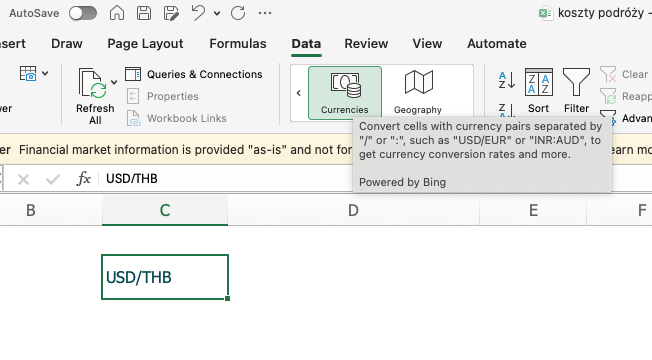
2. Insert the exchange rate
With the linked currency cell selected, choose Insert Data, then select Price for the exchange rate. Also insert Last Trade Time: this is when the rate was quoted, which can differ from when you retrieved it. Display its date and time alongside the rate; record your retrieval time separately if you need a record of the refresh.
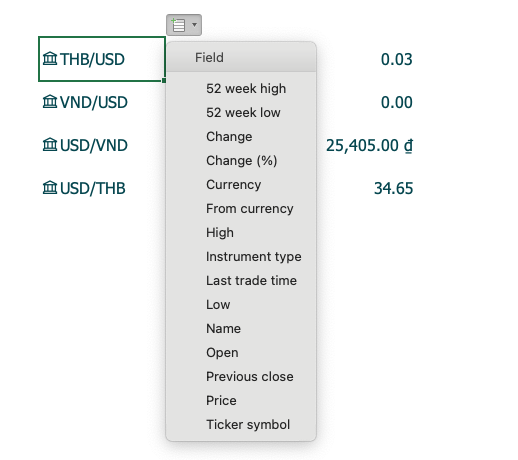
3. Multiply the source amount by the rate
Suppose the exchange rate is in B2 and the USD expense is in B5. Use an absolute reference to keep the rate fixed when copying the formula down:
=B5*$B$2With 500 in B5 and the sample rate 35.5 in B2, the result in C5 is 17,750 THB. Copy the formula down: B5 changes to B6, but $B$2 stays fixed. The guide to absolute and relative cell references explains how those dollar signs control copying.
The result remains numeric, so it can still be summed, averaged, charted, or used in another formula. The downloadable workbook uses this sample rate, not a live connection.
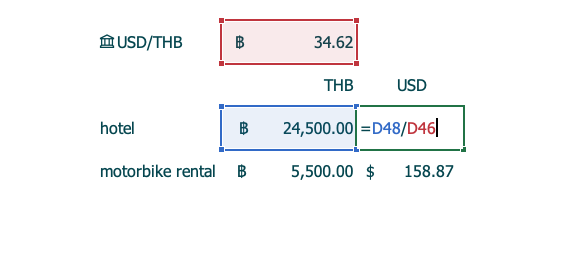
Use Data > Refresh All to request a newer quote, then check Last Trade Time again. A refresh can still return delayed data. Formulas linked to Price recalculate when it changes; a rate you've copied and pasted as a value stays fixed until you replace it.
Convert back in the opposite direction
To convert baht back to dollars using the same USD/THB rate, divide by it. In the workbook's reverse example, B15 contains 17,750 THB:
=B15/$B$2The result is 500 USD. Alternatively, =1/$B$2 gives the reciprocal rate, about 0.028169 USD per THB, which you can multiply by the baht amount. Keep the full calculated rate in the cell; rounding it early changes the result. This reverses the sample calculation before any fees or exchange spread.
Use a Recorded Rate for a Past Transaction
A refreshable quote answers “what rate is available now?” It doesn't preserve the rate for an earlier transaction. For a date-specific conversion, record the relevant date, currency pair, rate, and source together, then use that stored rate in the calculation.
In the workbook's separate example, A21 holds 2026-09-15, B21 holds 500 USD, and D21 holds a manually entered 35 THB per USD. Enter this in E21:
=B21*D21The result is 17,500 THB. The date and rate are illustrative inputs, not a claim about the actual market rate on that day. Changing today's rate in B2 won't change this result because the formula uses D21.
For your own record, replace the sample rate with the date-specific rate from your chosen source and retain its source details, quote date/time where supplied, and retrieval date/time. A bank's actual transaction rate may include a spread or fees, so label what the recorded rate represents.
Convert Values First, Format Them Second
Changing $500 to ฿500 with a number format leaves the value at 500; it hasn't converted the money. Calculate 17,750 first, then apply the baht format:
- Select the converted values.
- Press
Ctrl+1on Windows orCommand+1on Mac. - Choose Currency or Accounting and select the required symbol.
Currency places the symbol beside the number. Accounting aligns currency symbols and decimal points across a column. Both formats change only how the value appears, so the cells remain usable in calculations.
Excel also has functions that create currency-style text. They are useful for labels, exports, or written-out amounts, but they do not retrieve an exchange rate and their results should not replace the numeric conversion column.
| Function | Example | What it returns |
|---|---|---|
DOLLAR | =DOLLAR(B5,2) | Currency-formatted text using the symbol and separators from the computer's regional settings |
BAHTTEXT | =BAHTTEXT(C5) | Thai text representing the amount, with the Baht currency suffix |
TEXT | =TEXT(C5,"฿#,##0.00") | Text using an explicitly supplied format code |
FIXED | =FIXED(C5,2,FALSE) | Rounded numeric text with two decimals and thousands separators, but no currency symbol |
All four functions return text. Keep the original value or numeric conversion in a separate cell and reference that numeric cell in totals and other calculations.
Convert Currency in Google Sheets with GOOGLEFINANCE
Google Sheets can retrieve the current USD to THB rate with:
=GOOGLEFINANCE("CURRENCY:USDTHB")If the USD amount is in A2 and the rate is in B2, calculate the converted amount in C2:
=A2*B2The same pattern works for other pairs, such as CURRENCY:USDVND or CURRENCY:USDIDR. The official GOOGLEFINANCE documentation warns that quotes may be delayed and that some attributes may not return data for every symbol.
Calculate a 52-week average from historical rates
These historical formulas are for Google Sheets, not Excel, and depend on the data available for the chosen pair.
Do not estimate an average by averaging the 52-week high and low. Those are only two observations and do not represent the average exchange rate.
Instead, retrieve a daily historical series and average its second column:
=AVERAGE(INDEX(GOOGLEFINANCE("CURRENCY:USDTHB","price",TODAY()-365,TODAY(),"DAILY"),0,2))Use the same historical series with MAX or MIN when you need the highest or lowest returned rate:
=MAX(INDEX(GOOGLEFINANCE("CURRENCY:USDTHB","price",TODAY()-365,TODAY(),"DAILY"),0,2))
=MIN(INDEX(GOOGLEFINANCE("CURRENCY:USDTHB","price",TODAY()-365,TODAY(),"DAILY"),0,2))Historical GOOGLEFINANCE data spills into an array when entered directly. The INDEX(...,0,2) portion selects the rate column, and the aggregate function ignores its text header.
Practical Uses for a Currency Conversion Worksheet
Travel budgets
Store one rate per currency pair and reference it from every expense row. When the rate changes, update or refresh one cell rather than editing every formula.
International sales
Keep original transaction values, exchange rates, converted values, and reporting currency in separate columns. This makes the calculations auditable and avoids confusing a displayed symbol with the currency actually used in the transaction.
Foreign investments
Separate the investment's local-currency performance from the exchange-rate effect. Live spreadsheet quotes are useful for monitoring, but delayed or indicative data should not be treated as an execution price.
Troubleshooting Currency Conversion
Excel does not recognize the currency pair
Check the ISO codes and the FROM/TO order. If the Currencies data type is unavailable for your Excel version or account, enter a rate from a reliable source in a dedicated input cell and keep the conversion formula unchanged.
The symbol is wrong
DOLLAR uses regional settings and does not guarantee a U.S. dollar symbol. Apply a Currency or Accounting cell format when you need numeric output, or use TEXT with an explicit format code when text output is intentional.
Totals ignore converted values
Check whether the cells contain formulas such as DOLLAR, BAHTTEXT, TEXT, or FIXED. These return text. Point SUM, AVERAGE, and other calculations to the numeric conversion column instead.
Excel and Google Sheets show slightly different rates
Providers may update at different times or use different quote sources. Record the source and retrieval time when reproducibility matters, and remember that consumer exchange rates can also include fees or a spread that spreadsheet quotes do not show.
Final Checklist
- Check the currency pair's direction and keep the rate in its own cell.
- Multiply the source amount by the rate with a numeric formula.
- Use an absolute reference when copying a shared rate down a table.
- Prefer Currency or Accounting formatting for calculated values.
- Use text-returning functions only when text output is required.
- Refresh linked data and check the quote's date and time.
- Keep recorded transaction rates separate from refreshable quotes.
If you regularly move between spreadsheet platforms, the comparison of Excel and Google Sheets explains other workflow differences to consider.