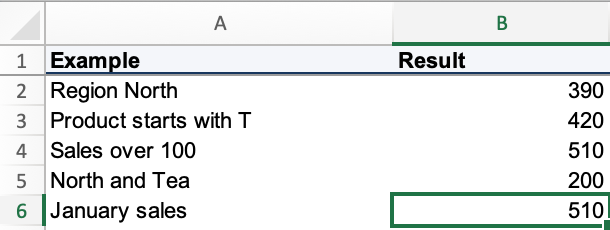
Use SUMIF to add values that meet one condition. Use SUMIFS when each row must meet several conditions together. For example, our sales list below totals 390 for the North region, but only 200 for North sales of Tea.
The detail to watch is the argument order: SUMIF puts the range to add last; SUMIFS puts it first. Adding an S to the function name isn't enough to convert one formula into the other.
Set up the example data
We'll use the same seven sales records throughout. On a worksheet named Data, enter these headers in A1:E1 and the records in A2:E8.
| Order ID | Date | Region | Product | Sales |
|---|---|---|---|---|
| SO-1001 | 2026-01-05 | North | Tea | 120 |
| SO-1002 | 2026-01-08 | South | Tea | 90 |
| SO-1003 | 2026-01-12 | North | Coffee | 150 |
| SO-1003 | 2026-01-12 | North | Accessories | 40 |
| SO-1004 | 2026-01-20 | South | Coffee | 110 |
| SO-1005 | 2026-02-03 | North | Tea | 80 |
| SO-1006 | 2026-02-10 | South | Tea | 130 |
You can also download the example workbook. Its Data sheet contains these records, and Examples shows all eight cases with calculated results in B2:B9. Those formulas use a Data! prefix to read the source sheet; column C displays the formulas as text for reference. The two ID cases use fixed IDs so you can compare their results side by side. The walkthrough below uses G2 to let you change the ID yourself.
Enter the sales as numbers and the dates as real Excel dates, using a date entry format your Excel recognizes. The table displays dates as year-month-day; their appearance alone doesn't establish that Excel has stored them as dates. Our guide to date and time calculations in Excel explains the underlying numbers.
Use the formulas below in empty cells on Data, outside columns A:E. The dollar signs keep the source ranges fixed when you copy a formula. These examples use commas between arguments; if your Excel expects semicolons, replace the argument separators with semicolons.
SUMIF syntax: total values with one condition
The SUMIF function takes a range to check, a condition, and an optional range to add:
SUMIF(range, criteria, [sum_range])| Argument | What it does in our North example |
|---|---|
range | Checks the region labels in C2:C8. |
criteria | Looks for "North". Text written directly in a formula needs quotation marks. |
sum_range | Adds the corresponding sales in E2:E8. If you omit it, Excel adds values from range itself. |
The square brackets mark an optional argument; don't type them into the formula. Microsoft's SUMIF documentation describes this syntax and the supported criteria. If you just need to add values without a condition, start with our guide to the Excel SUM formula.
Add sales for the North region
Enter this formula in an empty cell on Data:
=SUMIF($C$2:$C$8,"North",$E$2:$E$8)The result is 390. North appears in rows 2, 4, 5, and 7, so Excel adds 120 + 150 + 40 + 80 from column E. It checks the region and adds the sales from the same row.

You can also type North in G2 and replace "North" in the formula with G2. Leave the cell reference outside quotation marks so Excel reads its value.
Match text with a wildcard
To add sales for products whose names begin with T, use "T*":
=SUMIF($D$2:$D$8,"T*",$E$2:$E$8)The result is 420: 120 + 90 + 80 + 130. In this list, Tea is the only product beginning with T. The asterisk matches any sequence of characters, so the same formula could include other T products if you added them later. Use "Tea" instead when you want that exact product name.
Add sales greater than 100
Here the sales column supplies both the values to check and the values to add:
=SUMIF($E$2:$E$8,">100")The result is 510, from 120 + 150 + 110 + 130. There is no third argument because the formula adds values from E2:E8 itself.
Keep the comparison ">100" inside quotation marks. If the threshold is stored in a cell, join the operator to that reference: for example, ">"&G2 when G2 contains 100. The ampersand joins the two parts into one criterion.
SUMIFS syntax: require several conditions
The SUMIFS function starts with the range to add, followed by pairs of criteria ranges and conditions:
SUMIFS(sum_range, criteria_range1, criteria1, [criteria_range2, criteria2], ...)To add Tea sales from the North region, enter:
=SUMIFS($E$2:$E$8,$C$2:$C$8,"North",$D$2:$D$8,"Tea")The result is 200. Rows 2 and 7 meet both conditions, contributing 120 and 80. The Coffee and Accessories rows from North don't qualify; neither do the Tea rows from South.
Read the formula in three parts: add E2:E8, where C2:C8 is North, and D2:D8 is Tea. This is AND logic: every condition must hold for the same row.
Keep each criteria range aligned with the sales range. Here, all ranges start at row 2 and end at row 8. Microsoft's SUMIFS documentation requires each criteria range to have the same number of rows and columns as the sum range.
Use date criteria to total a month
For January sales, the dates must be on or after January 1 and before February 1. Both conditions check column B:
=SUMIFS($E$2:$E$8,$B$2:$B$8,">="&DATE(2026,1,1),$B$2:$B$8,"<"&DATE(2026,2,1))The result is 510, the sum of the five January records in rows 2 through 6. The two February records are excluded.
DATE builds each boundary from its year, month, and day. The & joins the comparison operator to that date value. This avoids relying on ambiguous date text such as "1/2/2026" inside the criterion.
Using less than February 1 also includes January 31 records that contain a time. Keep the dates in B2:B8 as Excel date values; changing how text looks with date formatting won't turn it into a date value.
AND versus OR: add either of two products
SUMIFS with North and Tea means a row must satisfy both conditions. To total sales of Tea or Coffee, add two SUMIF results:
=SUMIF($D$2:$D$8,"Tea",$E$2:$E$8)+SUMIF($D$2:$D$8,"Coffee",$E$2:$E$8)The result is 680: Tea contributes 420 and Coffee contributes 260. Accessories contributes nothing.
This works because each product cell in our list contains one category, so no row qualifies for both totals. When you add conditional totals with overlapping criteria, a row that matches both gets counted twice. Check that overlap before using this approach in your own report.
Check an ID before summing
Sometimes you want an amount only when an order ID appears exactly once. This is an optional data check, useful when you expect one record per ID.
Enter SO-1001 in G2, then enter this formula in another empty cell on Data:
=IF(COUNTIF($A$2:$A$8,G2)=1,SUMIF($A$2:$A$8,G2,$E$2:$E$8),"Check ID")COUNTIF counts the occurrences of the ID in G2. IF returns the SUMIF result only when that count equals 1; otherwise, it returns Check ID.
| Value entered in G2 | Matching records | Result |
|---|---|---|
| SO-1001 | 1 | 120 |
| SO-1003 | 2 | Check ID |
Change G2 from SO-1001 to SO-1003 to see the second case. The two SO-1003 records are intentional in this example: they show how the check handles a repeated ID. A missing ID also produces Check ID, because its count is zero.
If an order legitimately has several line items, this uniqueness check may not suit your report. Decide whether you expect one row per order before treating a repeated ID as a problem.
Common mistakes to check
| Symptom | What to check |
|---|---|
| A formula stops working after you change SUMIF to SUMIFS | Move the sales range to the first argument, then supply each criteria range and its condition as a pair. |
| The formula returns an error or the wrong total | Use corresponding ranges with matching dimensions and row boundaries. C2:C8 must line up with E2:E8, not a range shifted by one row. |
| A text condition doesn't match | Use quotes around literal text, such as "North". Leave references such as G2 unquoted, and check labels for extra spaces. |
| A comparison using a cell doesn't work | Join the operator to the cell reference, as in ">"&G2; ">G2" doesn't read the number stored in G2. |
| January sales are missing from the date total | Check that column B contains real dates, not text, and use both month boundaries shown above. |
The ID formula returns Check ID | Check whether the ID is missing or appears more than once. The formula requires exactly one matching record. |